Access your Back Office at your fingertips.
Download the app now on Google Play Store.
Scan the QR code
You can also scan QR code with your phone to download the app.
How to set up App Engagement Cards on the Admin Console
Updated
On this page
Keeping customers engaged goes beyond simply providing loans. Regular communication helps build trust, improve customer experience, encourage repeat activity, and keep borrowers informed about important updates. One effective way to maintain engagement is by communicating directly within the application where customers already manage their financial activities.
With App Engagement Cards, lenders can display personalized banners directly on customers’ dashboards within the mobile application. These cards function like in-app announcement banners, helping lenders communicate important information without relying solely on external channels such as SMS or email.
Because the communication appears within the customer application, messages are more visible and contextually relevant. This allows lenders to engage borrowers at important moments in their customer journey while encouraging specific actions.
What are App Engagement Cards?
App Engagement Cards are customizable dashboard banners that appear inside the customer application. They provide lenders with a flexible way to communicate directly with borrowers and share timely, relevant information.
Lenders can use App Engagement Cards for a variety of purposes depending on business goals and customer needs.
Promotions
App Engagement Cards can be used to highlight special loan offers, seasonal campaigns, referral programs, or limited-time promotions. For example, a lender may notify eligible borrowers about discounted interest rates for repeat customers or promote festive loan campaigns during holiday periods.
Customer education
Lenders can also use these cards to share financial literacy content, product updates, or guidance on how customers can maximize available services. Educational messages may include savings tips, responsible borrowing practices, or explanations of new platform features.
Reminders
Important reminders can be displayed to help customers stay informed about repayment dates, savings milestones, application updates, or account-related activities. This helps reduce missed actions and improves customer awareness.
Cross-selling
App Engagement Cards also help lenders promote additional financial products or services customers may find useful. For example, lenders may introduce savings products, insurance services, or complementary financial offerings based on customer needs.
By combining communication, education, and promotion in one place, App Engagement Cards help lenders create stronger customer relationships while improving engagement within the application.
Step-by-step guide
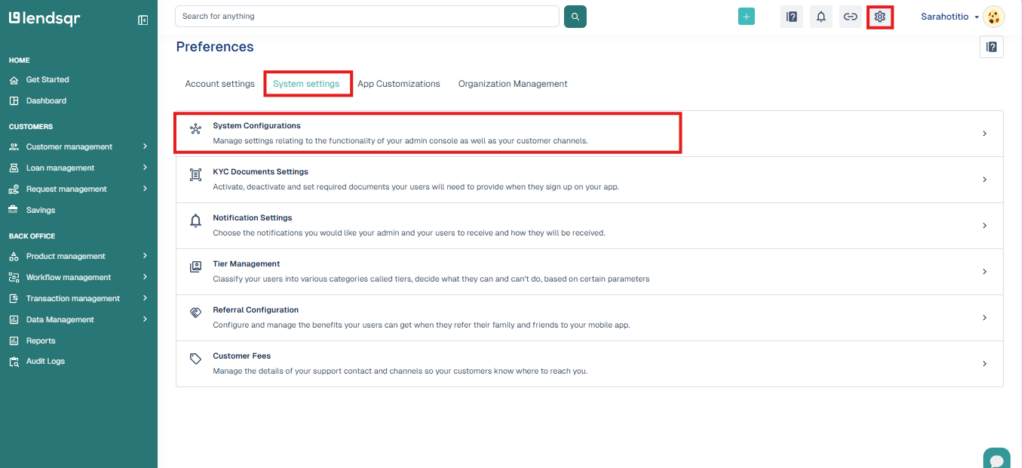
1. Click on the “Settings” icon at the top right corner of your screen.
2. Select “System Configurations” under “System Settings” in the resulting page.
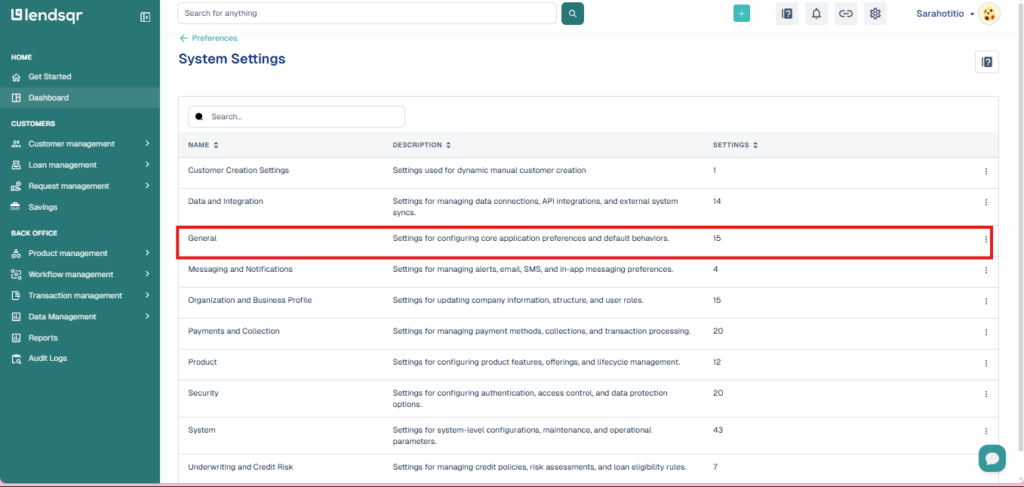
3. Click on “General”
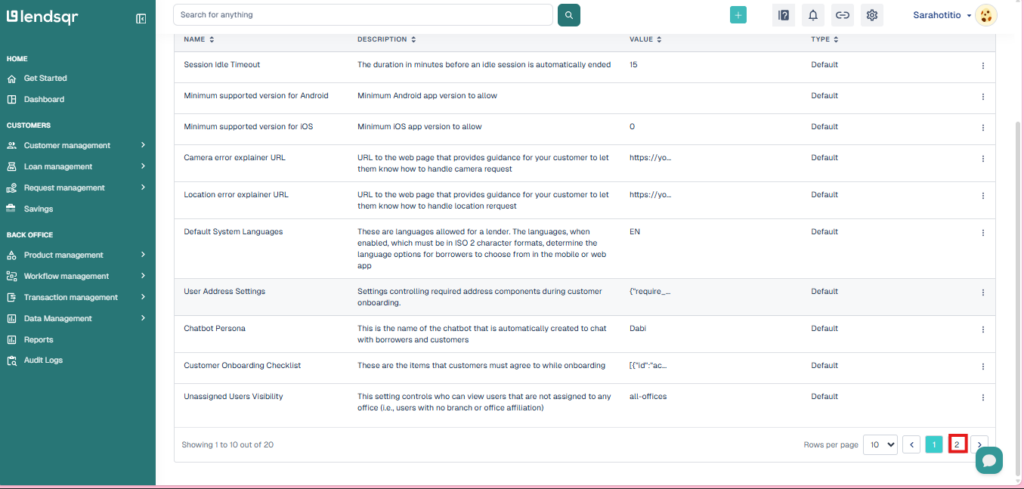
4. Scroll down until you see the pagination on your bottom right and click on “2” to open that page.
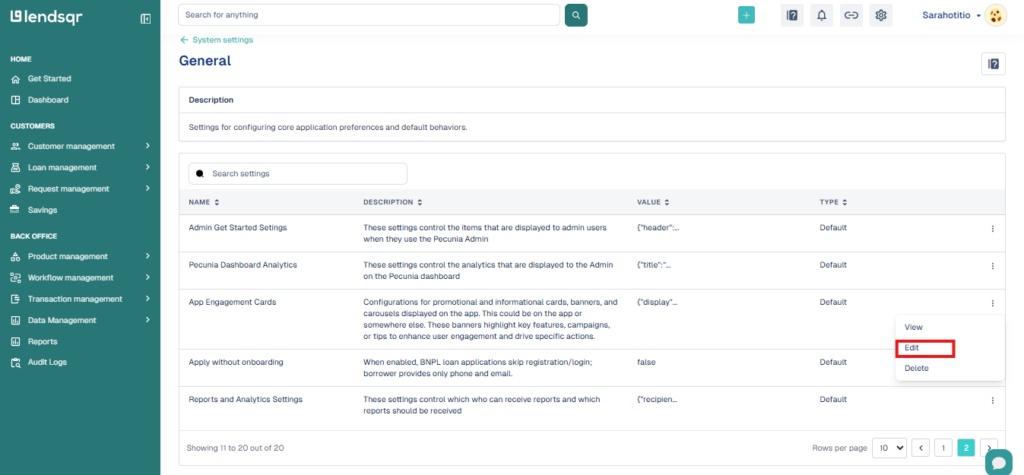
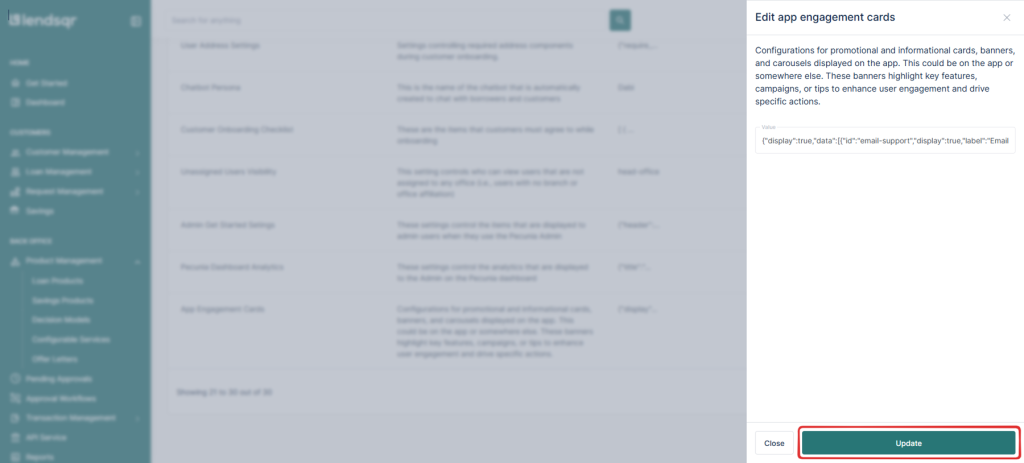
5. Click on the more options button on the “App Engagement Cards” and select “Edit“
By default, Engagement Cards are turned off:
{"display": false,"data": []}
This means even if you have test data, the cards won’t show until you explicitly turn them on.
👉 To enable cards, simply update the display flag from false to true.
{"display": true,"data": []}
Once switched on, the system will begin rendering cards defined in your data array.
The Data format explained
Each card you create follows a JSON structure that allows full customization. A sample test data looks like this:
{"display": true,"data": [{"id":"email-support","display":true,"label":"Email us for support","sub-label":"Get quick help from our team.","button-label":"Send email","media-url":"","url":"[email protected]","url-type":"mail","card-color":"black","text-color":"white"},{"display":true,"label":"Call our support line","sub-label":"Speak directly with a specialist.","button-label":"Call now","media-url":"","url":"+2347000000000","url-type":"phone","card-color":"","text-color":""} ]}
Here’s a breakdown of the key fields:
Key Fields
Field
Description
Example
id
Unique identifier for the card.
"email-support"
display
Toggle to show (true) or hide (false) the card.
true
label
Main title displayed on the card.
"Call our support line"
sub-label
Supporting text or description.
"Speak directly with a specialist."
button-label
Call-to-action text shown on the button.
"Call now"
media-url
URL for an optional image/logo on the card.
"https://cdn.lendsqr.com/logo.png"
url
The action link (email, phone number, webpage, in-app route, etc.).