Access your Back Office at your fingertips.
Download the app now on Google Play Store.
Scan the QR code
You can also scan QR code with your phone to download the app.
How to add a customer to a group
Updated
On this page
Effective customer grouping plays an essential role in loan portfolio management, targeted marketing campaigns, and overall operational efficiency within financial platforms. Groups enable organizations to organize customers according to specific criteria such as loan product types, risk profiles, geographic locations, or business segments, making it easier to monitor performance and execute targeted strategies.
This comprehensive guide walks you through the detailed process of adding individual customers to already existing groups using the Lendsqr admin console. While the core process remains straightforward, administrators must pay close attention to user permissions, group capacity limitations, customer eligibility requirements, and compliance considerations to ensure proper execution.
Prerequisites before starting
Before you begin the process of adding customers to groups, take a moment to verify that you meet several key requirements.
First, confirm that you possess administrative access to the Customer Management module within your Lendsqr instance.
Next, ensure the target group already exists and maintains an active status rather than being archived or suspended.
You should also have the customer ID, registered email address, or other reliable identifiers readily available for the specific customer you intend to add.
Additionally, verify that the customer account remains in good standing, meaning it has not been suspended, blacklisted, or archived due to compliance issues.
Finally, familiarize yourself with the group’s defined purpose and membership criteria to avoid adding inappropriate customers that could compromise data integrity or business logic.
Why use groups effectively
Customer groups deliver significant value across multiple business functions within lending operations. For portfolio monitoring, groups help track repayment performance, delinquency rates, and portfolio health by loan type or customer segment. In campaign targeting scenarios, groups enable precise communication delivery to specific customer subsets for product offers, repayment reminders, or policy updates. Risk management benefits from the ability to isolate high-risk accounts or customers requiring special attention into dedicated groups for focused monitoring. Reporting becomes more powerful when you can generate analytics and dashboards specific to customer segments rather than viewing aggregate data. Finally, workflow automation leverages group membership to apply conditional rules, triggers, and processes tailored to different customer types.
Proper group management practices ensure organizations realize these benefits without introducing data inconsistencies, compliance violations, or operational confusion.
Step-by-step process
Follow these detailed steps to successfully add a customer to an existing group within the Lendsqr platform.
Log into your Lendsqr admin console. From the main navigation menu on the left sidebar, locate and click Customer Management. This module contains all customer-related functions, including profiles, activities, and group memberships.
Within Customer Management, select Groups from the submenu or tabbed interface. This displays your complete list of customer groups with key information including: Group name, Number of members, Creation date, Last modified date, Status (active/inactive).
From the groups listing, identify the group where you want to add the customer. Use the search bar or filters if you manage many groups. Click directly on the group’s row to open its Group details page. The group must already be Active — you cannot add members to an inactive group. If it’s still inactive, activate it first (see how to activate a group) before continuing.
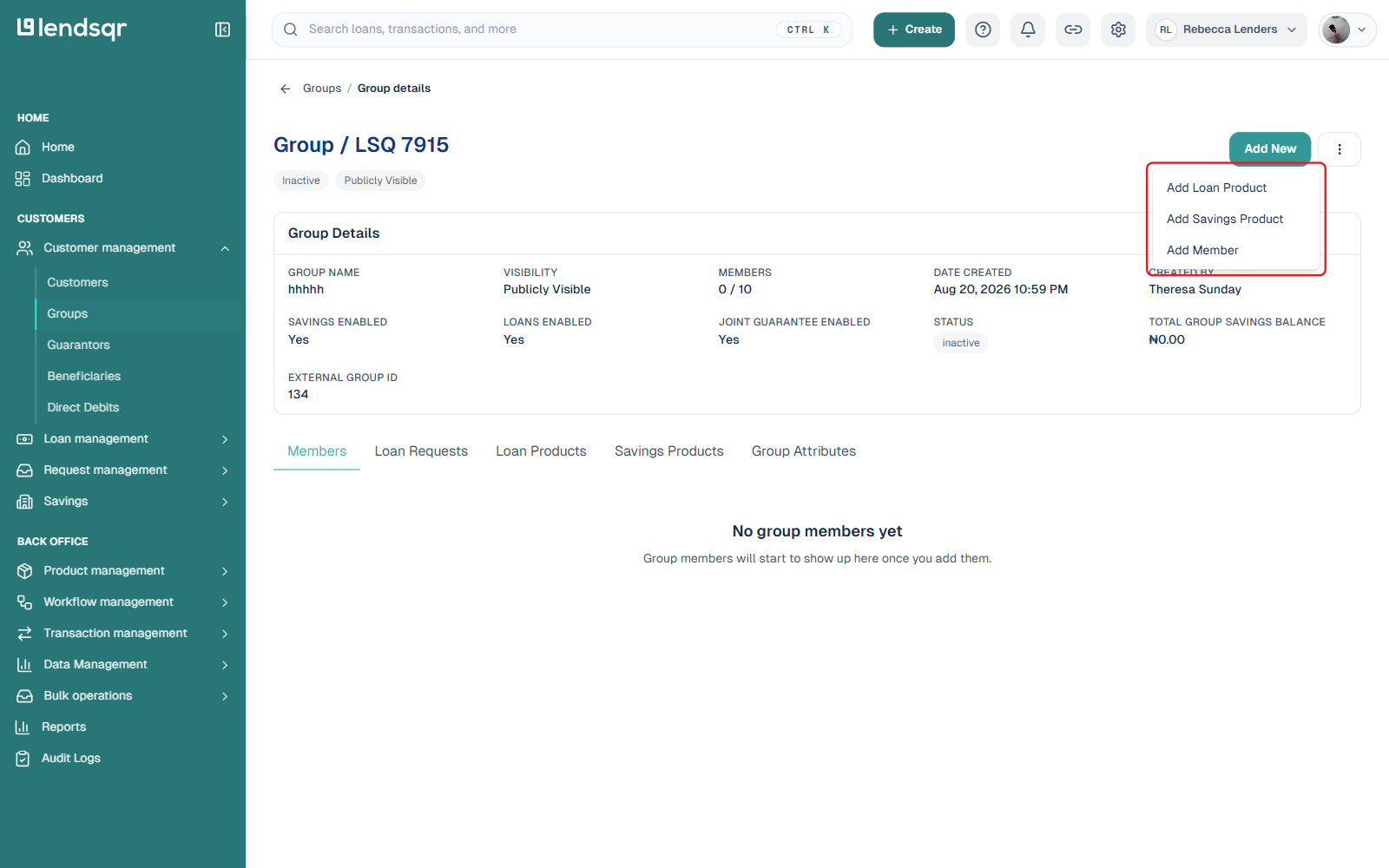
On the group’s details page, click “Add New”, then select “Add Member” to proceed.
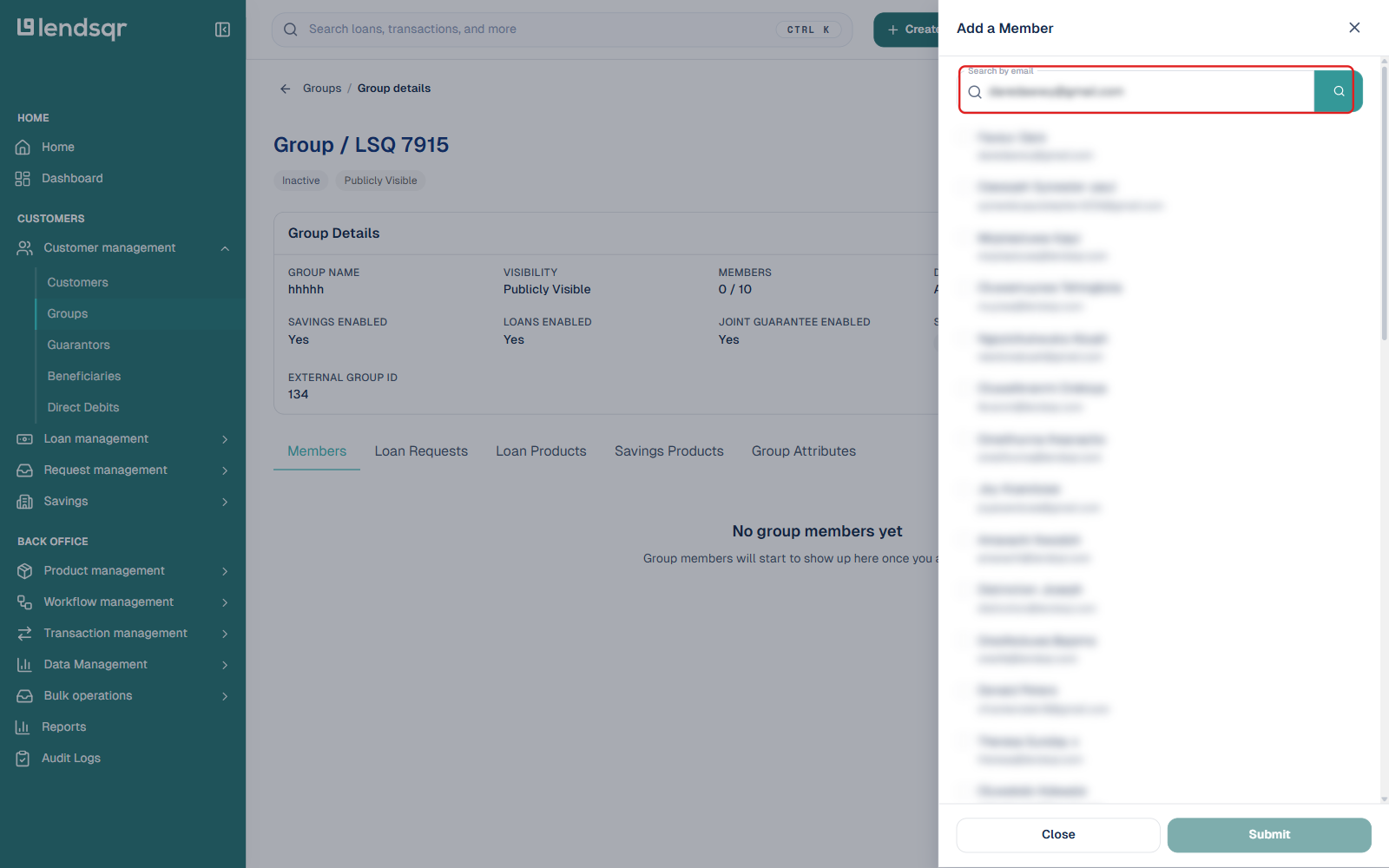
In the “Add a Member” panel that opens, search for the customer you want to add by email.
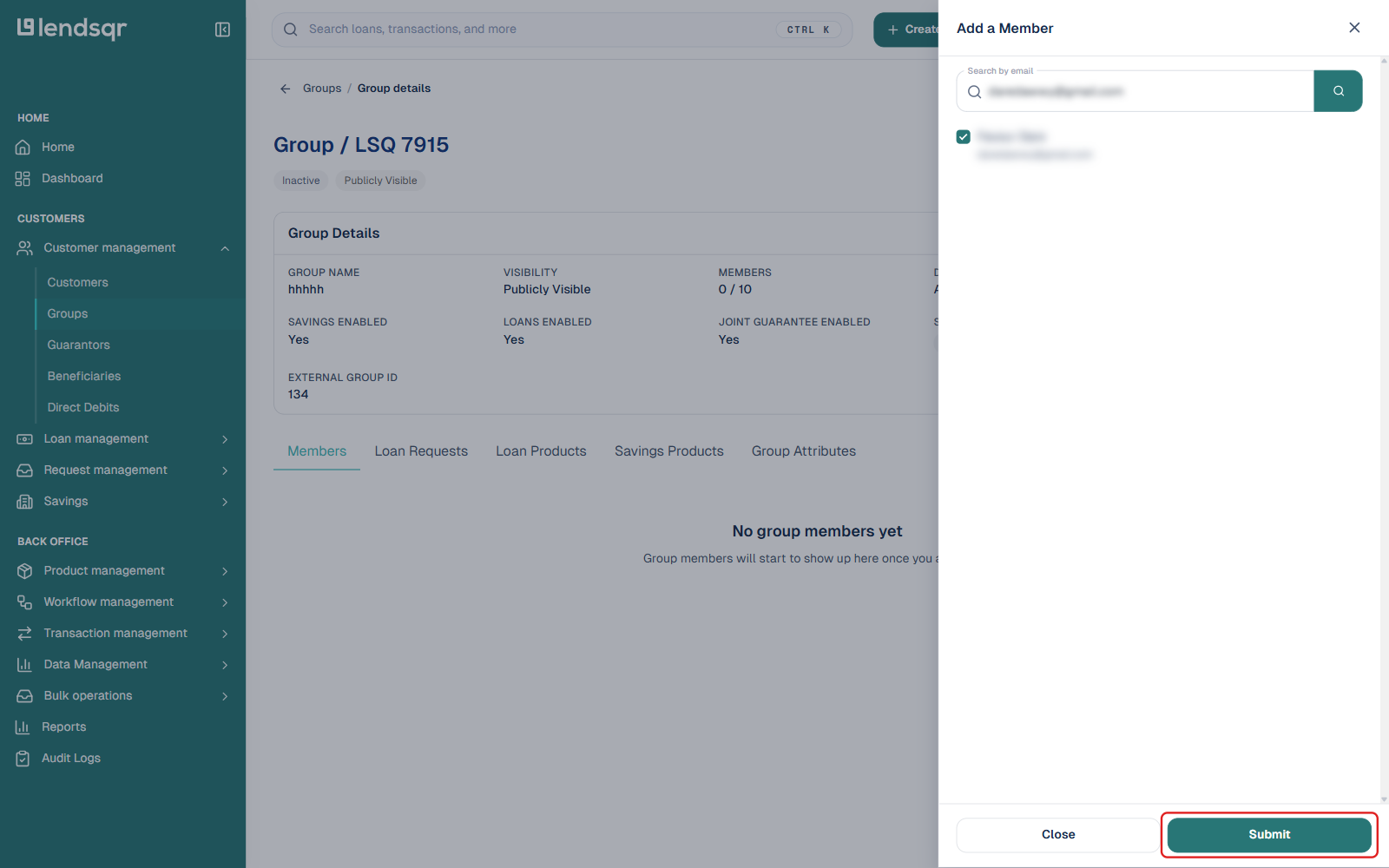
Check the box next to the customer you want to add, then click “Submit.”
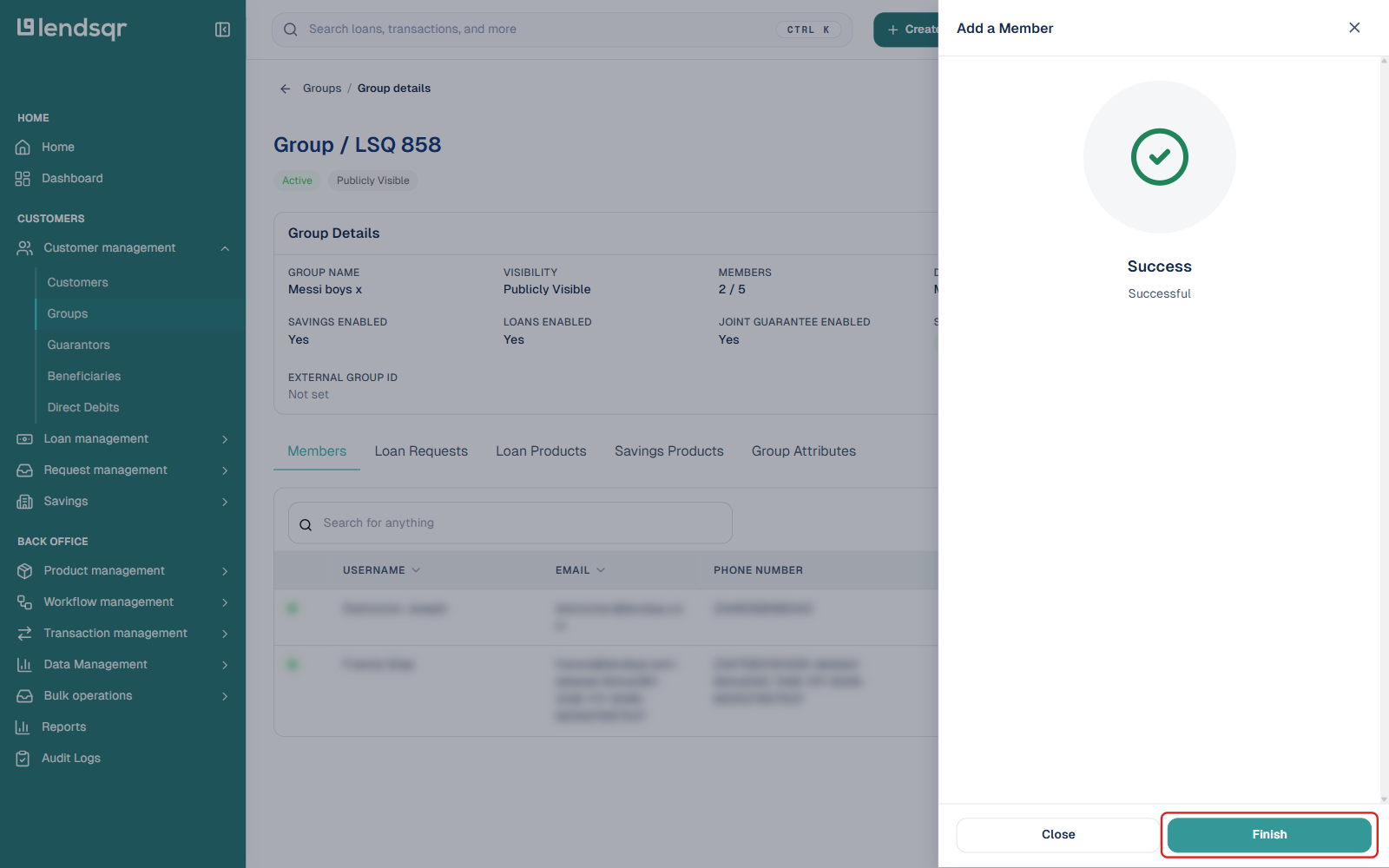
After submission, a “Success” confirmation appears. Click Finish to close the panel and return to the group’s Members list, which now includes the new member.
After completing the customer addition, take proactive steps to verify everything functioned correctly as expected. First, refresh the group members listing to confirm the new member appears in the correct position.
Next, navigate to the individual customer’s profile page and check their Groups tab to verify membership confirmation from their perspective. Then review the group’s statistical summary to ensure the member count accurately reflects the addition. Finally, test any group-based functions such as member exports, reporting filters, or workflow triggers to confirm full integration.
Handling common scenarios
When attempting to add a customer already present in the group, the system prevents duplication and displays a clear message stating that the customer already belongs to this group, protecting data integrity. For customers with suspended or problematic account status, the interface displays a specific error indicating that customers with suspended accounts cannot be added, thereby maintaining compliance standards. If the target group has reached configured capacity limits, you receive a notification that the group membership limit has been reached, with current versus maximum member counts displayed.
Best practices for group management
Establish and document clear membership criteria for each group covering exactly who qualifies based on business rules, the specific business purpose each group serves for reporting or operations, and defined conditions under which members should be removed such as loan graduation or status changes. Implement regular maintenance schedules with monthly reviews to identify and remove customers who have graduated from eligibility requirements, update group purposes as business priorities evolve, and archive groups that no longer serve active purposes.
Adopt consistent naming conventions using descriptive formats like “2026 SME Loans” rather than vague labels such as “Group1” or “Test” to maintain clarity across teams. Carefully restrict group modification permissions limiting access to designated group administrators, compliance officers, and portfolio managers who require this capability for their roles.
Troubleshooting common issues
If the More Options menu fails to appear as expected, first verify that your administrative permissions remain active, check whether the target group exists in an archived state, and try refreshing your browser window to resolve display issues.
When customers fail to appear in search results, confirm the customer account exists and maintains active status, attempt alternative search methods using different identifiers, and double-check for typographical errors in your search terms.
Should the Submit button remain disabled after customer selection, ensure completion of all required fields, resolve any displayed validation warnings, and examine your browser console for underlying technical errors.
Integration with other features
Group membership directly influences several interconnected platform features including Campaign Manager for delivering targeted communications to specific segments, Loan Products configuration determining product eligibility rules by group, Reporting modules enabling segment-specific analytics and dashboards, Collections workflows establishing priority handling for group-designated accounts, and Risk Engine adjustments applying group-based scoring modifications.
Security considerations
Group management carries significant compliance implications requiring administrators to add only customers meeting documented business criteria, maintain strict separation between different risk category groups, regularly review memberships in high-privilege or sensitive groups, and handle any member list exports with appropriate access controls and encryption.