Access your Back Office at your fingertips.
Download the app now on Google Play Store.
Scan the QR code
You can also scan QR code with your phone to download the app.
Approving and declining a service request
Updated
On this page
Introduction
Service requests are customer-initiated actions on configurable services available through your web or mobile application. These requests are typically triggered when a customer completes a specific application flow, such as requesting a product, updating account information, or initiating a service-based action depending on how your lender configuration is set up.
Once submitted, these requests are automatically routed to the Lendsqr admin console where authorized administrators can review them. From here, the admin is responsible for evaluating the request against defined business rules and either approving or declining it.
The service request module is designed to ensure that all customer-initiated actions are properly validated, tracked, and controlled before execution. This helps maintain operational integrity, reduce fraud risk, and ensure consistency in decision-making.
This guide provides a detailed breakdown of how to review, approve, or decline a service request, along with system behavior, governance considerations, common errors, and best practices.
Understanding service request statuses
Every service request in the system is assigned a status that reflects its current state in the approval workflow.
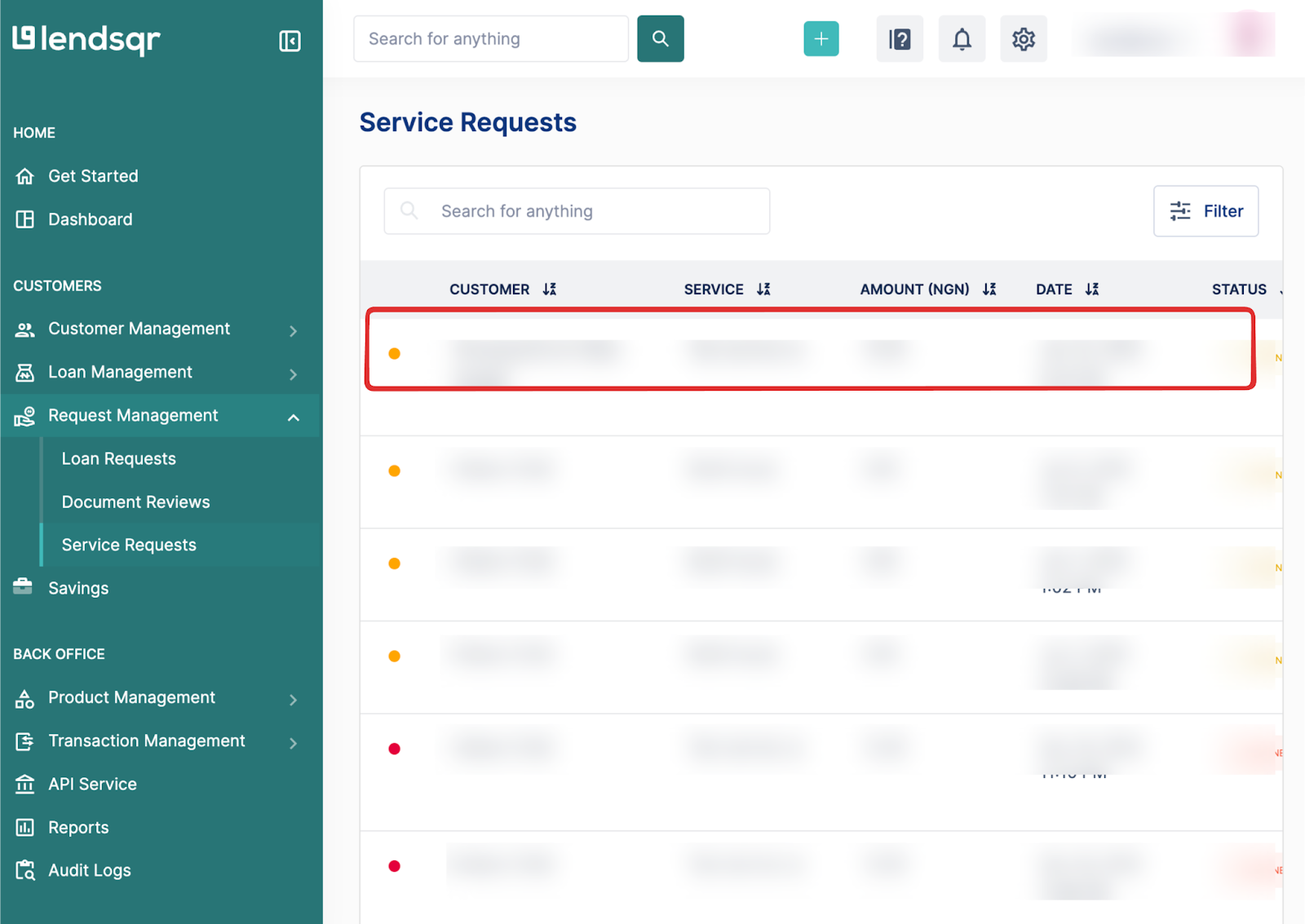
These statuses are visually represented using colored indicators to help admins quickly interpret request states:
Yellow indicates pending requests that are awaiting review or action
Green indicates approved requests that have been successfully processed
Red indicates declined or canceled requests that will not proceed further
These visual cues are especially useful when managing high volumes of requests, as they help prioritize which items require immediate attention.
Access and permission requirements
Access to service requests is role-based and not available to all users by default.
Before reviewing or taking action on any request, confirm that your role has the necessary permissions. Typically, only authorized admin roles can:
View service request queues
Approve service requests
Decline service requests
Access request decision history
It is also important to clarify with a super admin which roles are permitted to approve or decline. This is a critical governance step because service requests often represent financial or operational actions that may have a downstream impact on customers.
All actions performed on service requests are logged within the system audit trail. This includes who performed the action, when it was performed, and what decision was made.
Step-by-step guide to approve or decline a service request
Follow the steps below to properly review and process a service request.
Step 1: Navigate to service requests
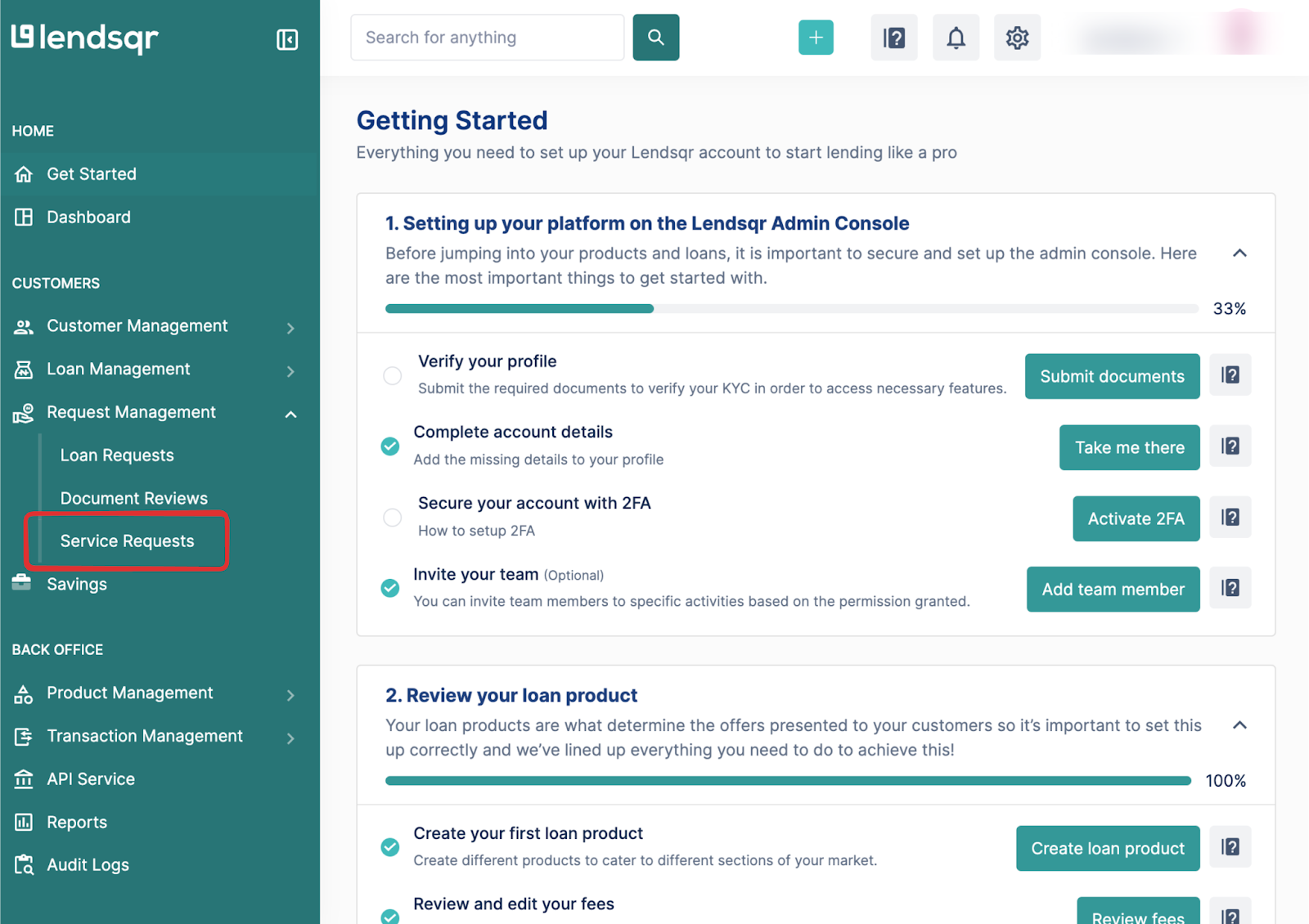
Log in to your Lendsqr admin console and navigate to the Service Requests tab under the Request Management section.
This page contains all incoming customer requests that require administrative review. Requests are usually displayed in a structured queue for easy navigation and filtering.
Step 2: Identify the request status
Locate the request you intend to review and observe its status indicator.
Use the color-coded system to guide your prioritization:
Yellow indicates pending review
Green indicates completed approval
Red indicates previously declined requests
Select a pending request to proceed with review.
Step 3: Open and review request details
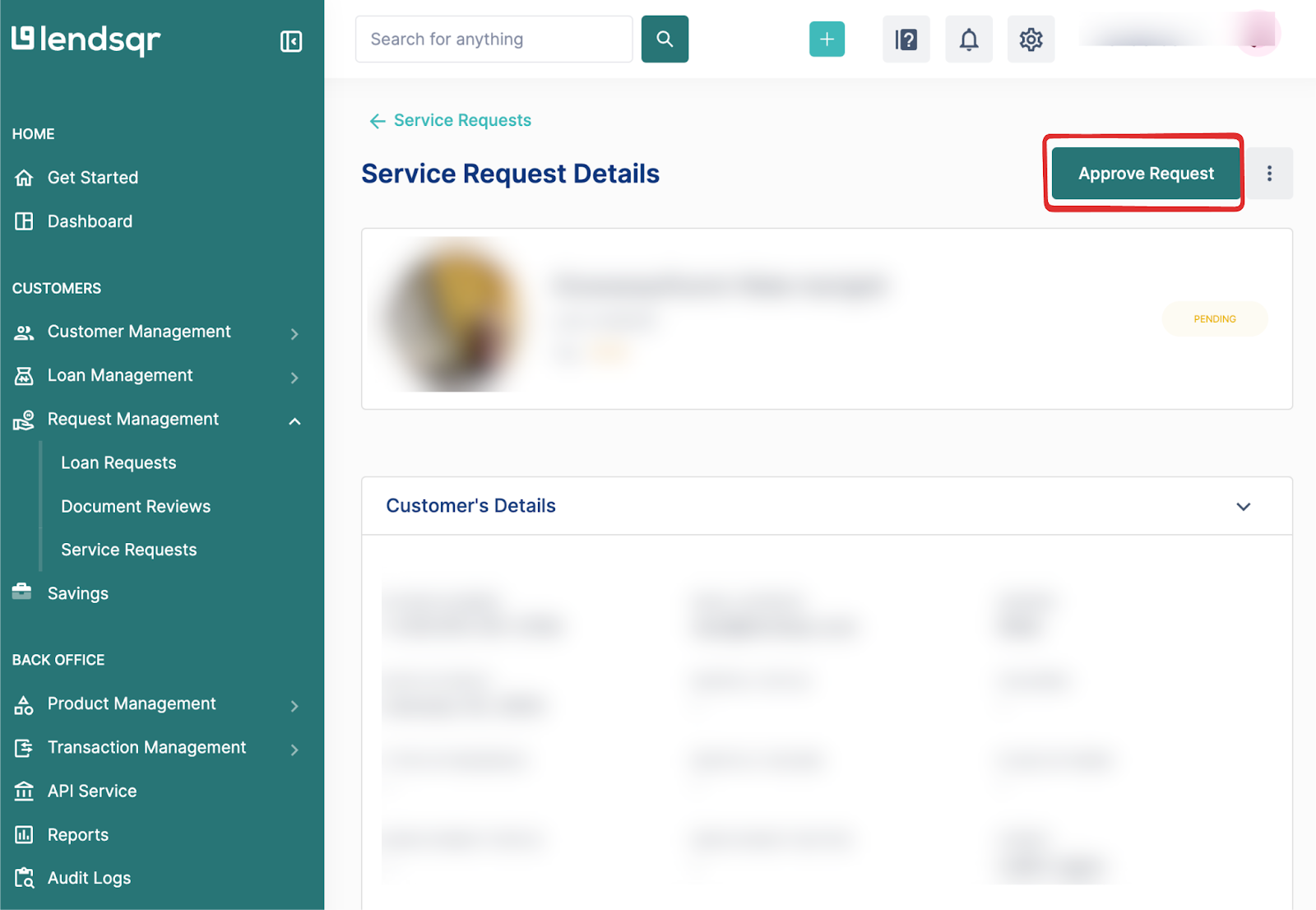
Click on the selected request to open its full details page.
At this stage, you should carefully review all available information, including customer identity details, submitted data, and any supporting fields required for validation.
The goal here is to ensure that the request meets all predefined eligibility or operational requirements before any action is taken.
Step 4: Approve the service request
If the request meets all required conditions, navigate to the top right corner of the request page and click Approve Request.
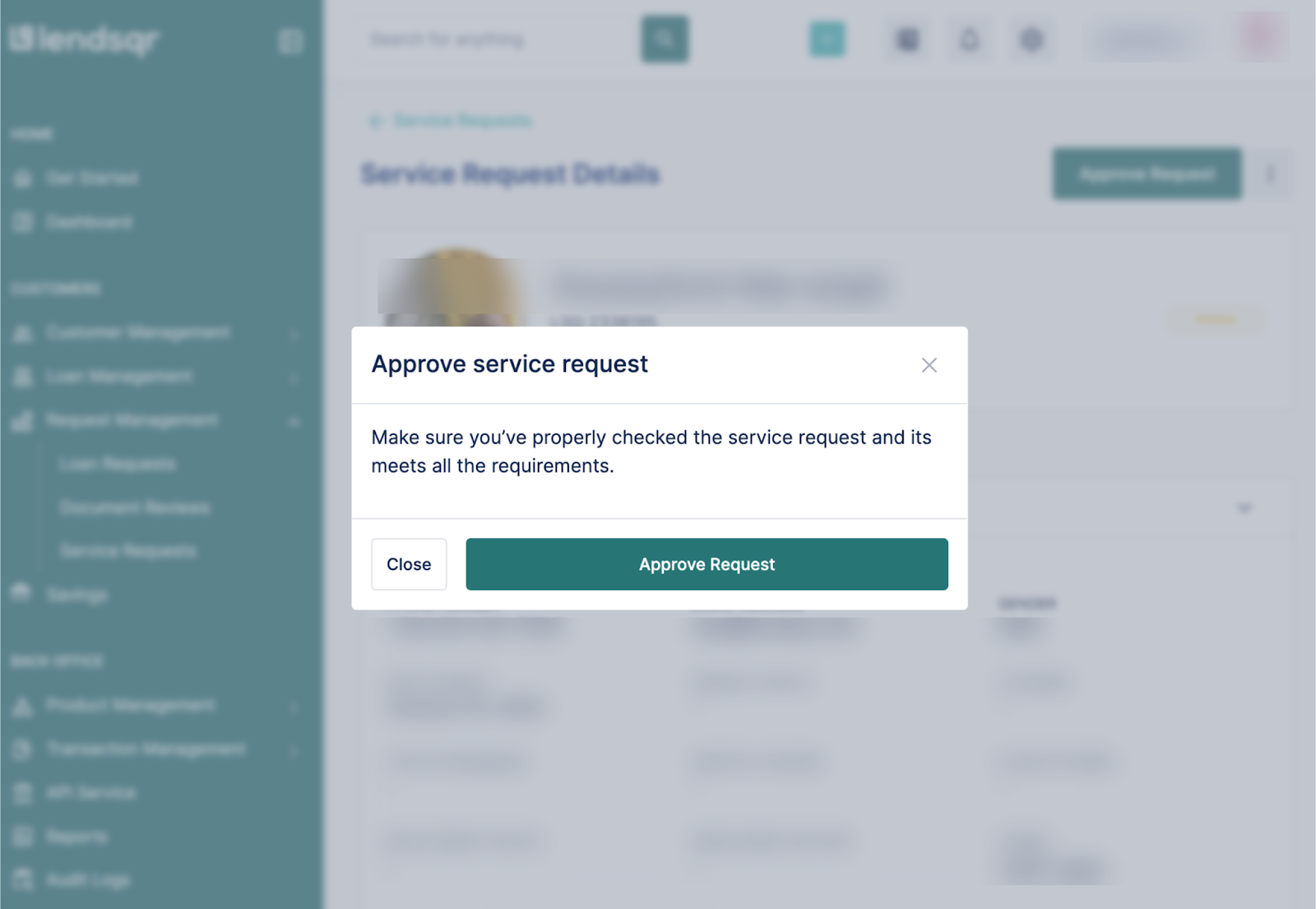
Once clicked, the system will display a confirmation prompt. This is an intentional safeguard designed to prevent accidental approvals.
Confirm the action by clicking Approve Request again within the prompt.
Once approved, the request status will update to green and the system will proceed with executing the configured service action automatically.
Step 5: Decline the service request
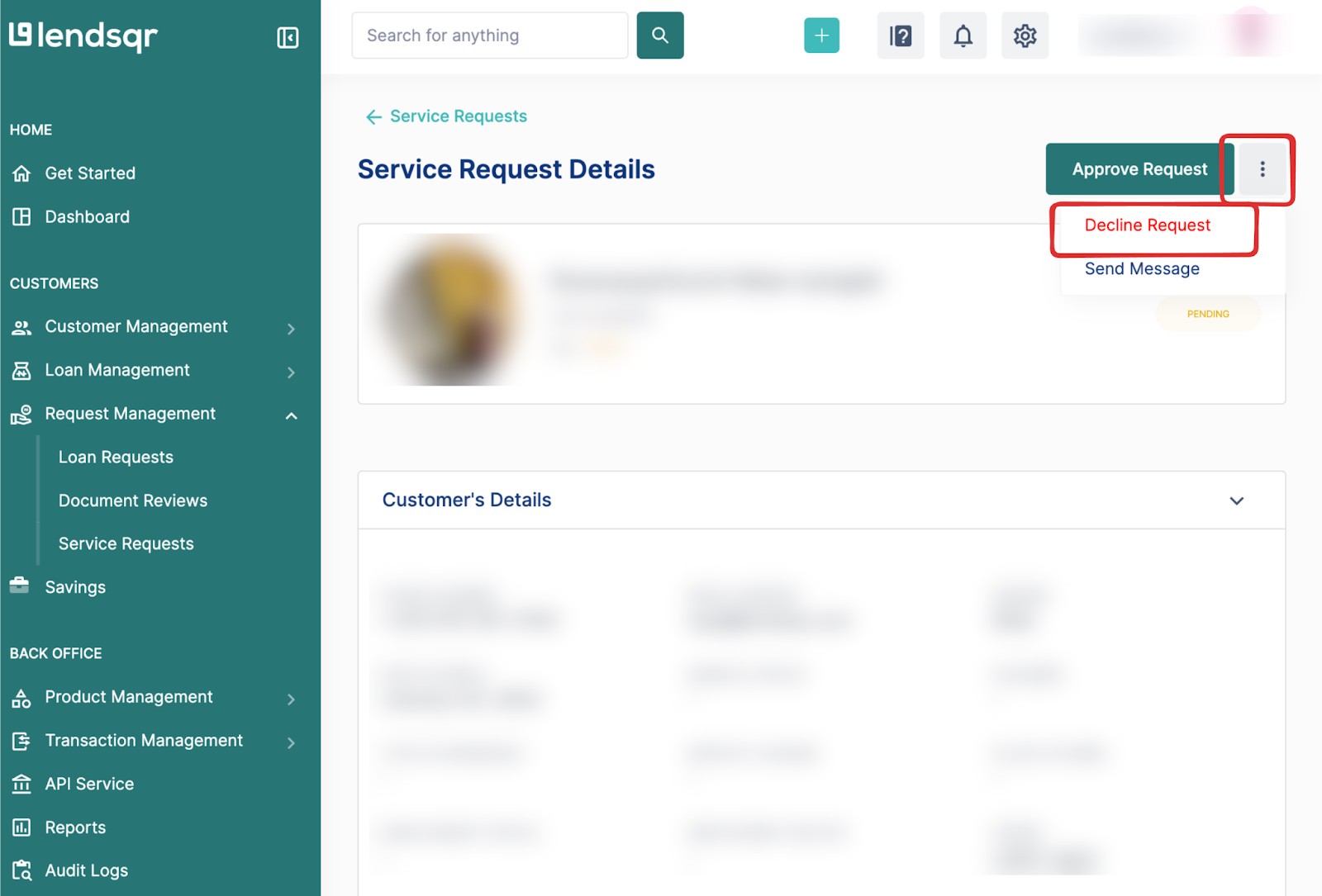
If the request does not meet the required criteria, locate the three-dot menu next to the Approve Request button.
Click Decline Request from the dropdown menu.
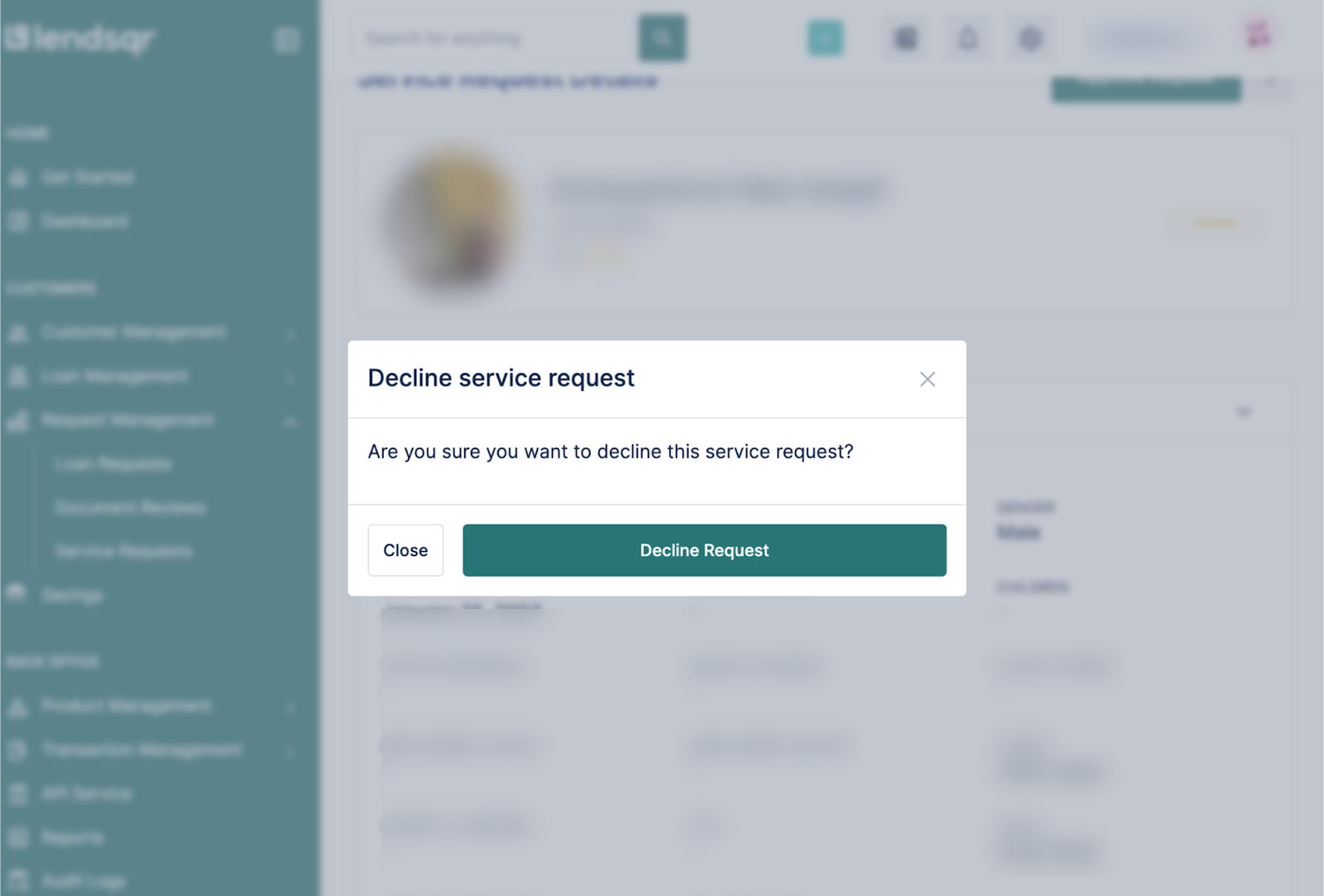
A confirmation prompt will appear to ensure the decision is intentional. Confirm by selecting Decline Request again.
Once declined, the request status will update to red, and the request will be closed based on the system configuration.
What happens after approval or decline
After approval, the system automatically triggers the configured backend processes associated with the service request. This may include updating customer records, activating services, or initiating downstream workflows.
After a decline, the request is closed and marked as non-actionable. Depending on your system configuration, the customer may also receive a notification explaining the outcome.
All decisions are permanently logged for audit and compliance purposes.
Real-life scenarios
A customer submits a request to update their profile information after changing their phone number. The admin reviews the request, verifies identity, and approves it. The system updates the customer profile immediately.
In another scenario, a customer submits incomplete documentation for a service upgrade. After review, the admin declines the request due to insufficient information. The customer is notified and asked to resubmit with the correct details.
One common issue is approving requests without thoroughly reviewing the details. This can lead to incorrect processing or compliance risks. Always ensure full verification before approval.
Another issue is a lack of permission. If you cannot access approval actions, confirm your role with a super admin.
Admins may also accidentally act on the wrong request due to high queue volume. Always double-check customer identifiers before proceeding.
Sometimes requests appear missing due to incorrect filters. Reset filters or adjust status views to ensure all requests are visible.
Best practices for managing service requests
Always verify customer identity and request details before taking action.
Use status indicators to prioritize workload effectively, especially in high-volume environments.
Ensure that only authorized personnel can approve or decline requests to maintain proper governance.
Maintain consistency in decision-making by following internal guidelines or SOPs.
Regularly review audit logs to ensure accountability and detect irregularities.
Conclusion
Service request management is a critical part of maintaining control, accuracy, and consistency within the Lendsqr ecosystem.
By following the correct approval workflow, ensuring proper permissions, and applying structured review practices, administrators can safely manage customer-initiated actions without introducing operational risk.
A disciplined approach to service request handling ensures that every customer action is properly validated, executed, and recorded within the system.