Access your Back Office at your fingertips.
Download the app now on Google Play Store.
Scan the QR code
You can also scan QR code with your phone to download the app.
How to view Lendsqr Direct Debit mandates on the admin console
Updated
On this page
Q: Why can’t I see all my direct debit mandates on the admin console?
A: The Direct Debits page separates mandates into two tabs, and you may be looking at the wrong one. Here is what you need to know.
Types of direct debit mandates:
Mandates: mandates processed through your configured payment providers, for example card-based or bank-linked authorizations created when a customer sets up repayment on the web or mobile app.
Lendsqr DD: mandates created directly from the admin console, or bank-mandate-based (NIBSS-style) authorizations. These use a different reference format and are filtered into their own tab.
If you are only checking the default tab, you can miss mandates that live on the other one.
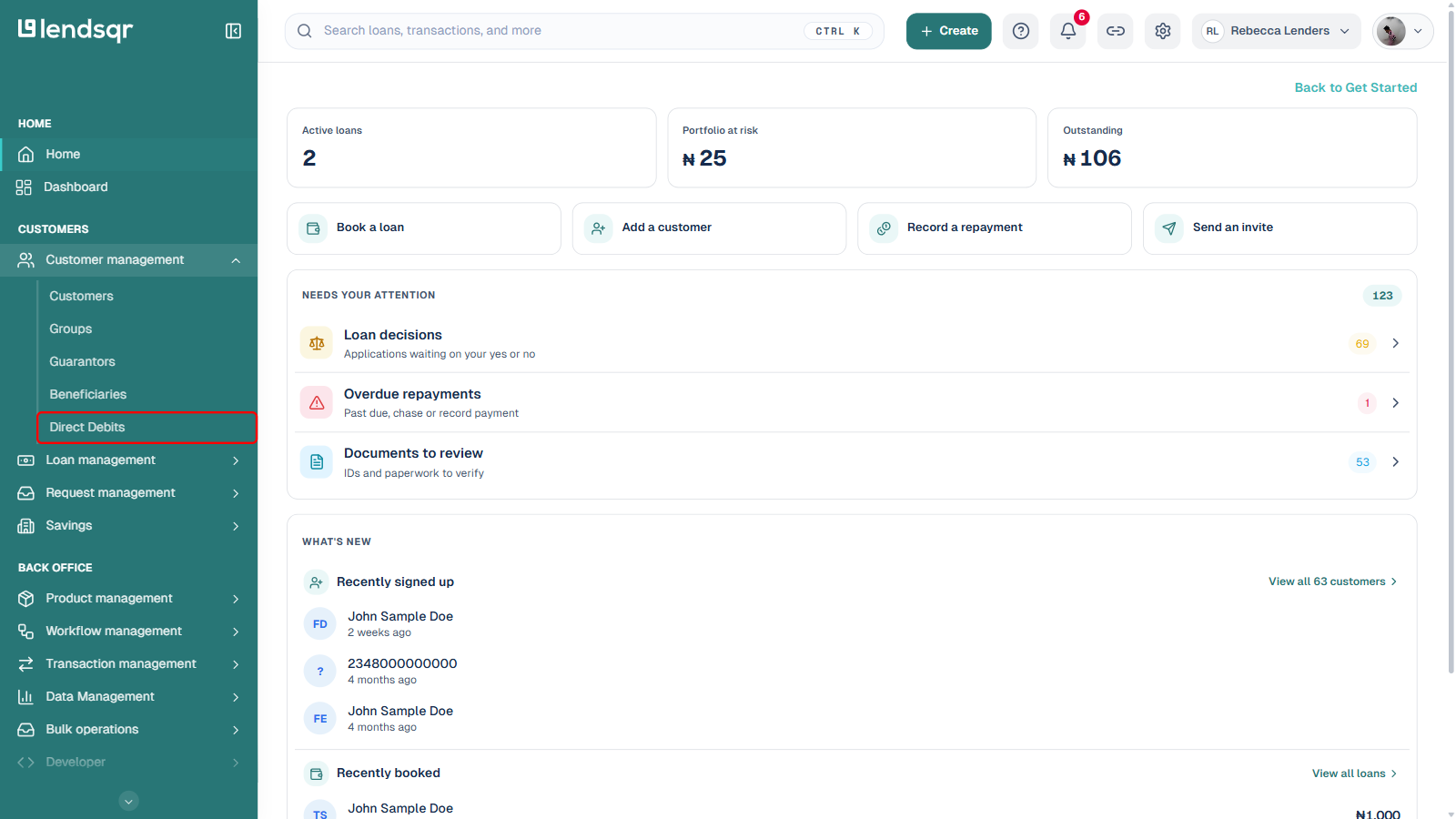
In the left navigation, under Customers, expand Customer management and select Direct Debits.
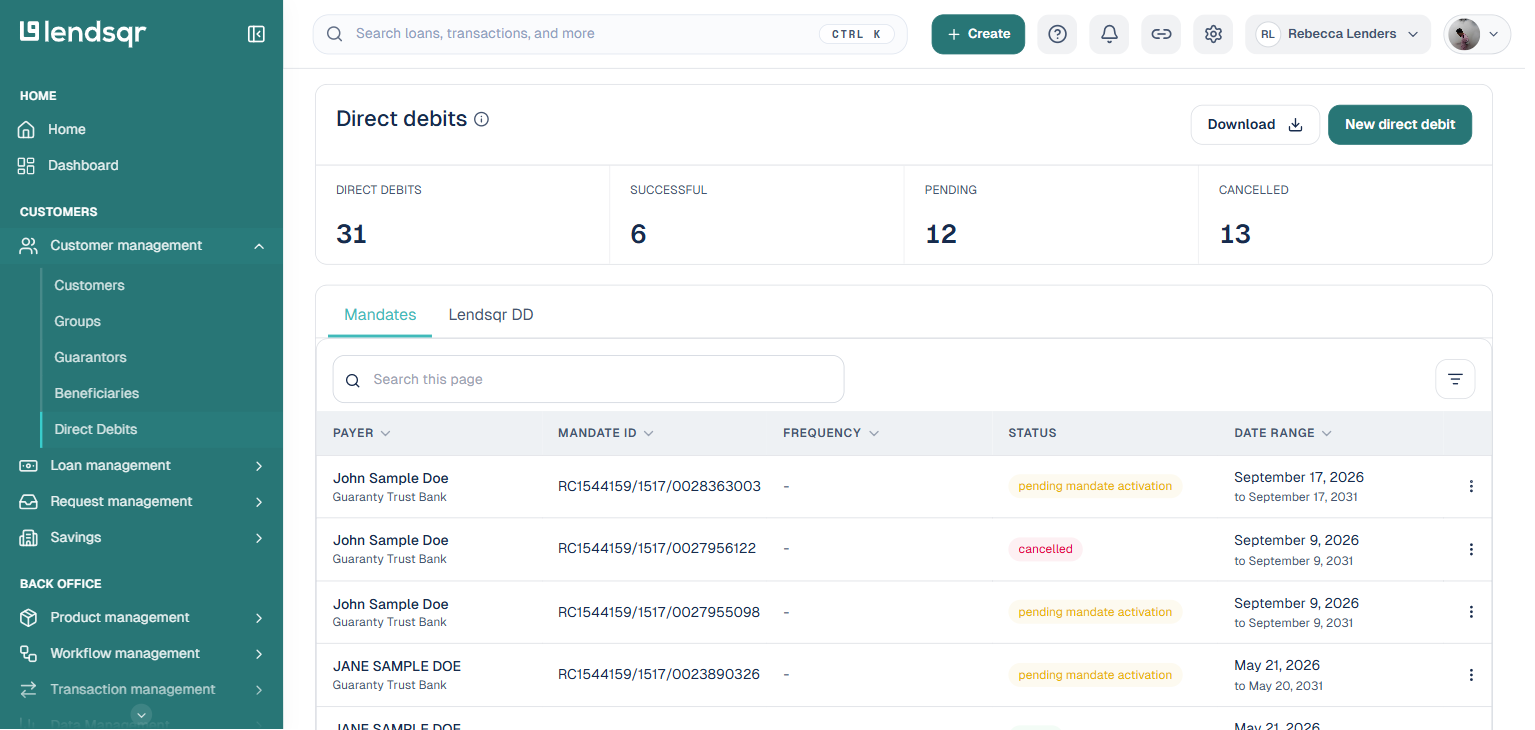
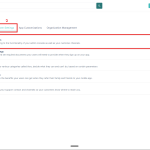
The Direct debits page opens on the Mandates tab. It shows summary counts (Direct Debits, Successful, Pending, Cancelled) and a table of mandates with the payer, mandate ID, frequency, status, and date range.
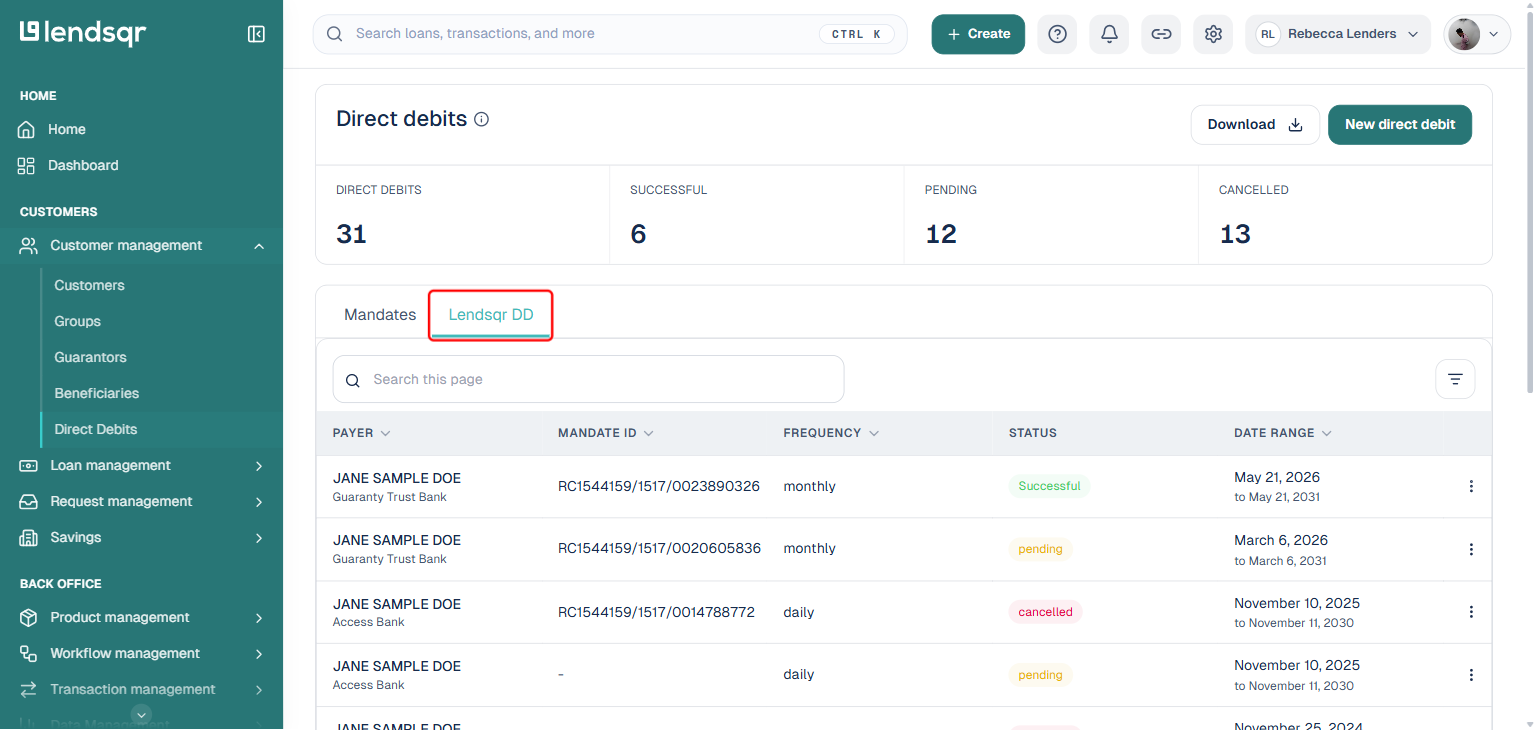
To see mandates created directly from the admin console (or bank-mandate-based ones not shown on the default tab), click Lendsqr DD. This switches the table to that set of mandates, and any search or filter you have applied carries over.
Use the search box above the table to narrow either tab down to a specific customer, bank, or mandate ID, and the Filter icon to the right of the search box to filter by status or date range.