Access your Back Office at your fingertips.
Download the app now on Google Play Store.
Scan the QR code
You can also scan QR code with your phone to download the app.
How to stop users from onboarding on your organization
Updated
On this page
Proper control over user onboarding is an important part of managing any digital platform, especially in financial services where compliance, system integrity, and security are critical. There are situations where an organization may need to temporarily or permanently stop new users from signing up. This could happen during scheduled maintenance, when rolling out new policies, while addressing security incidents, or when conducting internal audits.
If you are using Lendsqr, the admin console provides a straightforward way to control whether new users can onboard into your system. This guide explains how to disable or enable user onboarding, along with additional context and considerations to help you manage this feature responsibly.
Why you might restrict user onboarding
There are several valid operational and security reasons to restrict onboarding:
System maintenance: During upgrades, deployments, or infrastructure changes, allowing new users into the system may introduce inconsistencies or errors.
Security concerns: If there is suspected fraud activity or a vulnerability affecting onboarding flows, temporarily disabling access helps contain risk.
Policy updates: When updating KYC requirements or onboarding criteria, it may be necessary to pause registrations until changes are fully implemented.
Data integrity checks: During audits or database migrations, limiting new entries ensures consistency and reduces reconciliation issues.
Controlled rollout: Some organizations intentionally limit onboarding when testing new features or entering new markets.
Understanding these contexts helps ensure that the decision to disable onboarding is deliberate and aligned with operational goals.
Step by step guide to disabling or enabling onboarding
Follow the steps below to manage the onboarding setting from your Lendsqr admin console.
1. Login to the admin console Go to the Lendsqr admin platform by visiting http://app.lendsqr.com/. Enter your authorized credentials to access the dashboard. Ensure that you have the appropriate administrative permissions, as system configuration changes are typically restricted to specific roles.
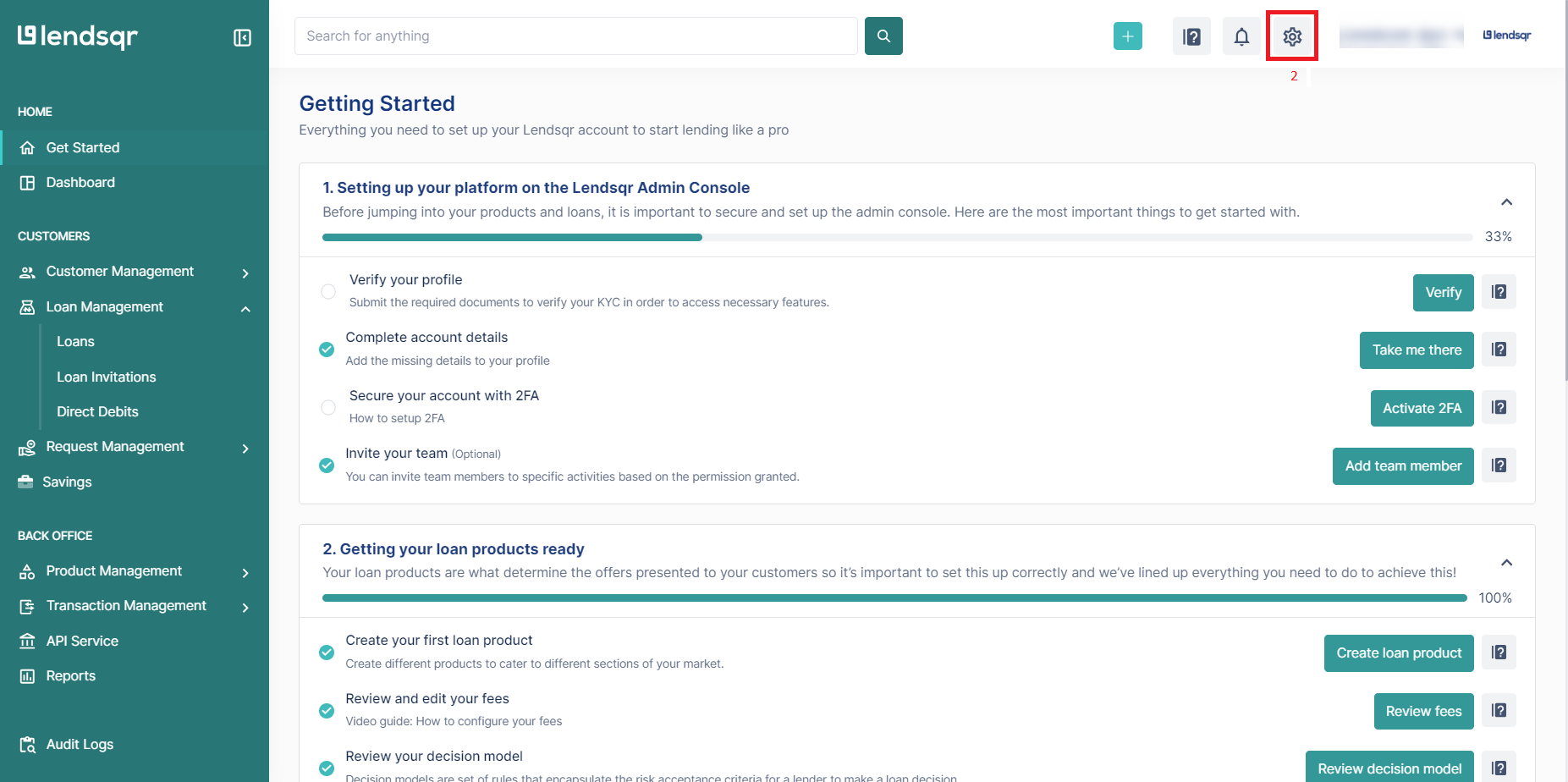
2. Access admin preferences Once logged in, locate the gear icon at the top right corner of the navigation bar. This icon represents the settings. Click on it to open the configuration panel.
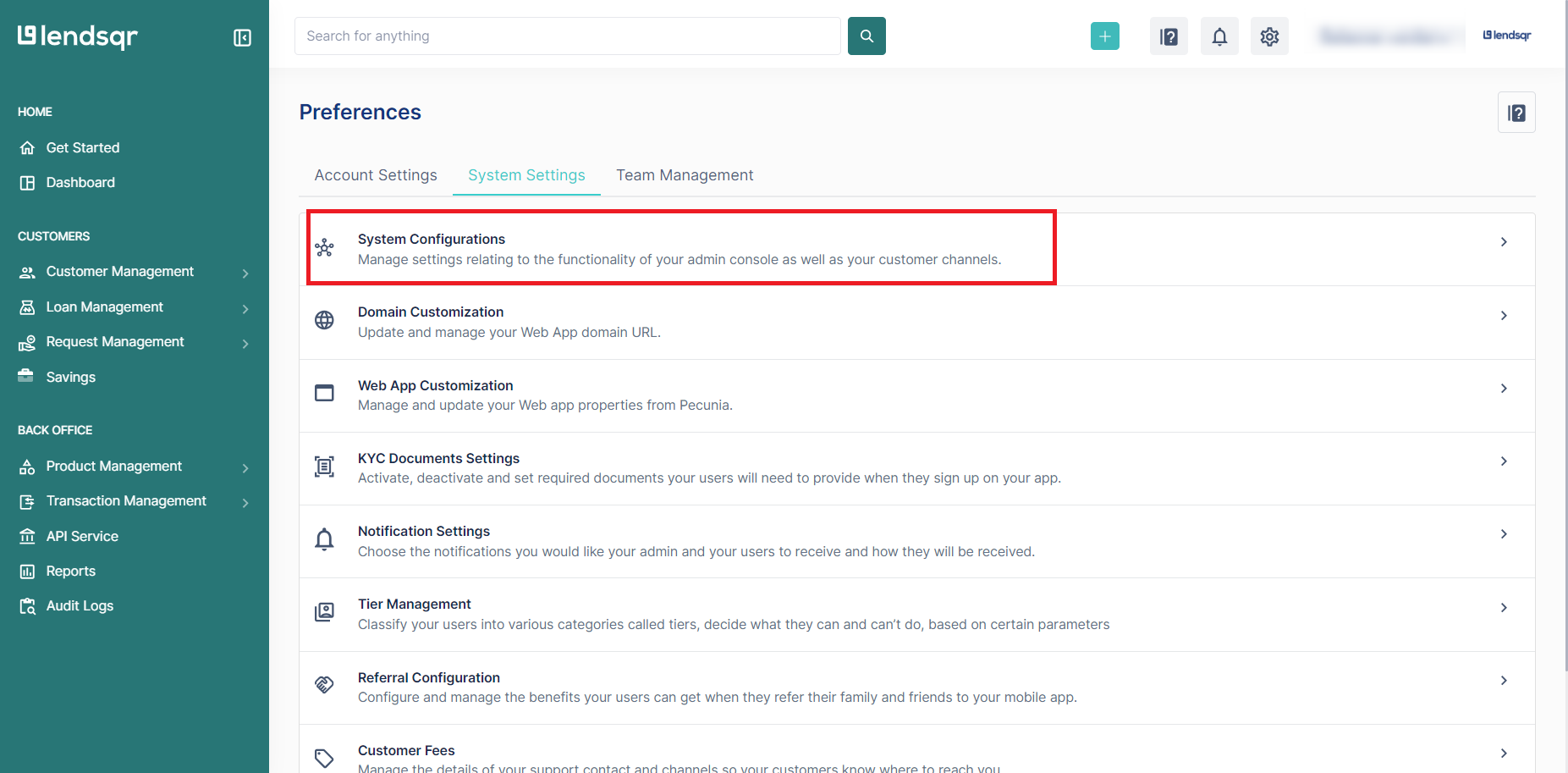
3. Navigate to system configurations Within the admin preferences page, look for the section labeled “System Settings.” Under this category, select “System Configurations.” This area contains core platform settings that control how your environment behaves.
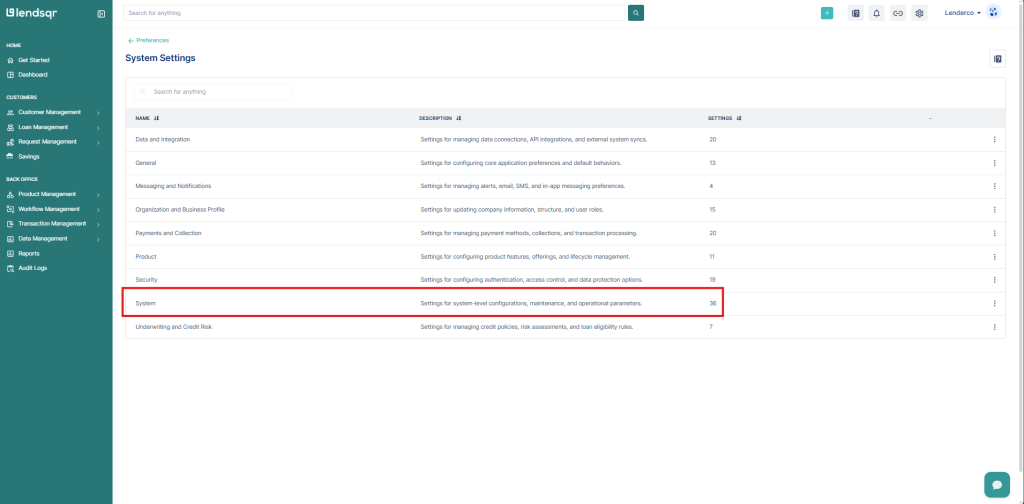
4. Open the system tab After entering system configurations, click on the “System” tab. This section includes global toggles and controls that affect platform-wide behavior, including onboarding permissions.
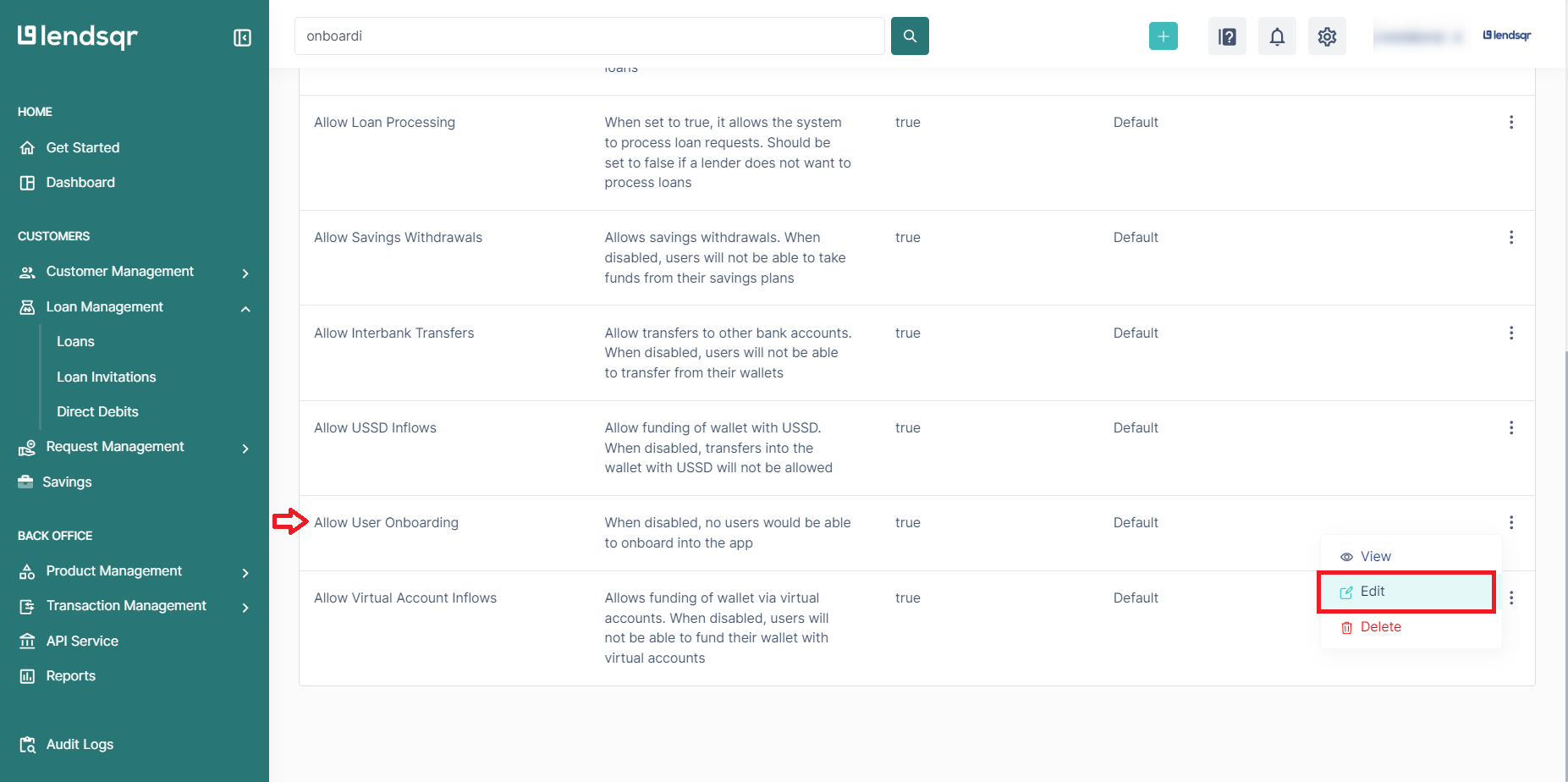
5. Locate the onboarding setting Find the option labeled “Allow User Onboarding.” Next to it, you will see a more options button. Click this button and select “Edit” to modify the current configuration.
6. Modify the onboarding setting
This step is where you actually control whether new users can register on your platform. The onboarding toggle is presented as a simple boolean choice with clear options.
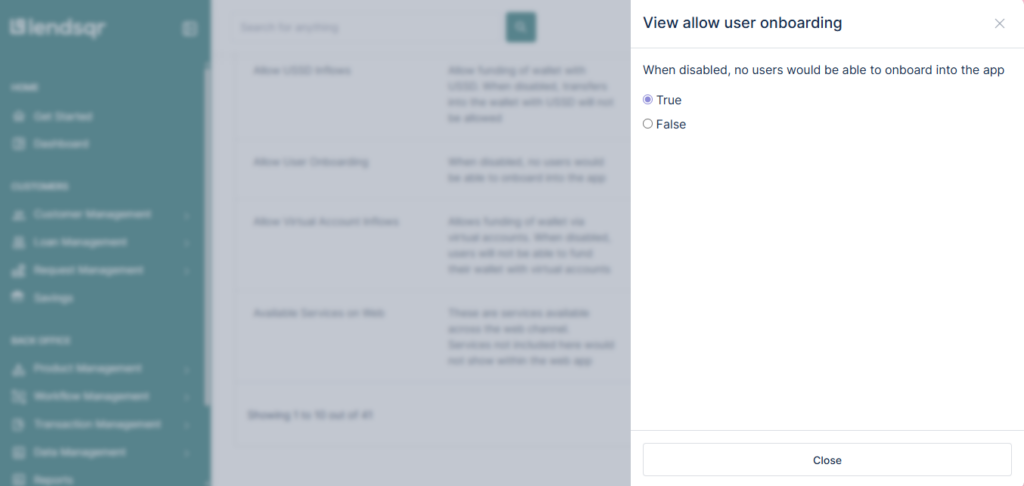
When you click “Edit” in the previous step, you will see the “Allow user onboarding” setting displayed prominently. Next to it is a dropdown or toggle selector with two options:
True (enabled): This action permits new users to access registration forms, complete KYC verification processes, and create accounts and begin using platform features
False (disabled): This immediately blocks new user registrations by preventing access to signup pages, displaying appropriate messaging to users attempting to register, and stopping all new account creation workflows
To enable onboarding, set it to select ‘True’. This is the default. To disable onboarding, set it to ‘False’.
Verifying the change
After updating the onboarding setting, you should confirm that it behaves as expected. This helps avoid confusion for both internal teams and potential users.
You can verify the change by:
Attempting a test registration using a new user account.
Monitoring onboarding logs or system activity if available.
Checking with your customer support team to ensure no unexpected registrations are occurring.
If onboarding is disabled, new users should not be able to complete the registration process.
Operational considerations
Disabling onboarding is not just a technical action. It has operational and user experience implications that should be considered in advance.
Communication If onboarding is being disabled for a planned reason such as maintenance or policy updates, inform relevant stakeholders. This may include:
Customer support teams
Marketing teams running acquisition campaigns
External partners or affiliates
Clear communication helps prevent confusion and ensures consistent messaging.
User messaging Although the configuration controls access, it is also important to consider what users see. Ideally, users attempting to sign up should receive a clear and polite message indicating that onboarding is temporarily unavailable.
Timing Choose an appropriate time to disable onboarding, especially if your platform has peak usage periods. Doing so during off peak hours minimizes disruption.
Monitoring While onboarding is disabled, monitor system activity and logs. This helps detect any unexpected behavior or attempts to bypass restrictions.
Security context
Onboarding is one of the most sensitive entry points into a financial platform. It is closely tied to identity verification, fraud detection, and regulatory compliance.
Lendsqr incorporates several security checks during onboarding, including identity validation and risk assessment processes.
Disabling onboarding can be part of a broader security response strategy. For example:
If unusual onboarding patterns are detected, temporarily stopping new registrations allows time for investigation.
If third party verification services are unavailable, disabling onboarding prevents incomplete or non compliant registrations.
If regulatory requirements change, onboarding can be paused until new checks are implemented.
This reinforces the importance of treating onboarding controls as part of your overall risk management framework.
Governance and access control
Because this setting affects the entire platform, it should be governed carefully.
Restrict access to system configurations to authorized personnel only.
Maintain an audit trail of who changed the setting and when.
Establish internal approval processes before disabling or enabling onboarding in production environments.
These practices help maintain accountability and reduce the risk of accidental or unauthorized changes.
Common mistakes to avoid
When managing onboarding settings, a few common issues can arise:
Forgetting to re enable onboarding after maintenance is complete.
Not informing customer facing teams, leading to inconsistent communication.
Assuming the change is active without verification.
Allowing too many users access to system configuration settings.
Avoiding these pitfalls ensures smoother operations and better user experience.
Managing user onboarding is a critical administrative function that directly impacts security, compliance, and growth. The Lendsqr admin console provides a simple and effective way to control this feature through system configurations.
By following the steps outlined above and applying good operational practices, you can confidently enable or disable onboarding as needed while maintaining system integrity and a positive user experience.