Access your Back Office at your fingertips.
Download the app now on Google Play Store.
Scan the QR code
You can also scan QR code with your phone to download the app.
How to require two-factor authentication from your team
Updated
On this page
Introduction
A loan officer leaves your organization. They still remember their password. Before you remove their access, they log in and approve a fraudulent loan application. The damage is done before you even notice.
This is not a hypothetical. Compromised credentials are one of the most common entry points for unauthorized access in financial platforms. A password alone is not enough protection when your admin console holds borrower data, financial records, and the configurations that control your entire lending operation.
Two-factor authentication (2FA) closes that gap. Instead of relying on a password alone, 2FA requires every team member to verify their identity with a second piece of information that only they physically hold. Even if a password falls into the wrong hands, an attacker cannot get in without also having access to the team member’s authentication device.
On the Lendsqr admin console, you can make 2FA mandatory for your entire team in a few steps. This guide shows you exactly how.
What is two-factor authentication?
Two-factor authentication is a security method that requires two separate forms of verification before granting access to an account. The first factor is something the user knows, their password. The second factor is something they have, typically a time-sensitive code generated by an authenticator app on their phone.
Because the second factor changes every 30 seconds and only exists on the team member’s physical device, it is nearly impossible for an attacker to replicate it remotely. Even if they have the correct password, they cannot complete the login without the code.
For a lending operation, this matters more than it might in other industries. Your admin console holds borrower personal data, loan histories, disbursement records, and credit decision configurations. Unauthorized access to any of these can expose your organization to financial loss, regulatory penalties, and reputational damage.
Why 2FA matters specifically for lending platforms
Consider two scenarios that lenders face regularly.
A credit manager at a digital lender uses the same password across multiple platforms. One of those platforms suffers a data breach. An attacker gets the password and tries it on the lender’s admin console. Without 2FA, they are in. With 2FA active, the login fails even with the correct password because they cannot generate the second factor.
A loan officer at a microfinance institution falls for a phishing email and hands over their login credentials without realizing it. The attacker now has a valid username and password. Without 2FA, they can log in immediately. With 2FA enforced across the team, the login attempt fails at the second step.
In both cases, 2FA is the difference between a near miss and a breach. For lenders operating under regulatory frameworks in Nigeria, Kenya, South Africa, or elsewhere, enforcing 2FA also demonstrates a documented commitment to access control and data security, which regulators increasingly expect to see.
Before you begin
You need a Super Admin role to access and modify system configurations on the Lendsqr admin console. If the settings described below are not visible to you, check your role and permissions with your Super Admin before proceeding.
Also confirm that your team members have access to an authenticator app on their devices. Lendsqr’s 2FA works with standard authenticator apps including Google Authenticator, Microsoft Authenticator, and Okta. Team members who do not have an authenticator app will need to download one before they can complete their 2FA setup.
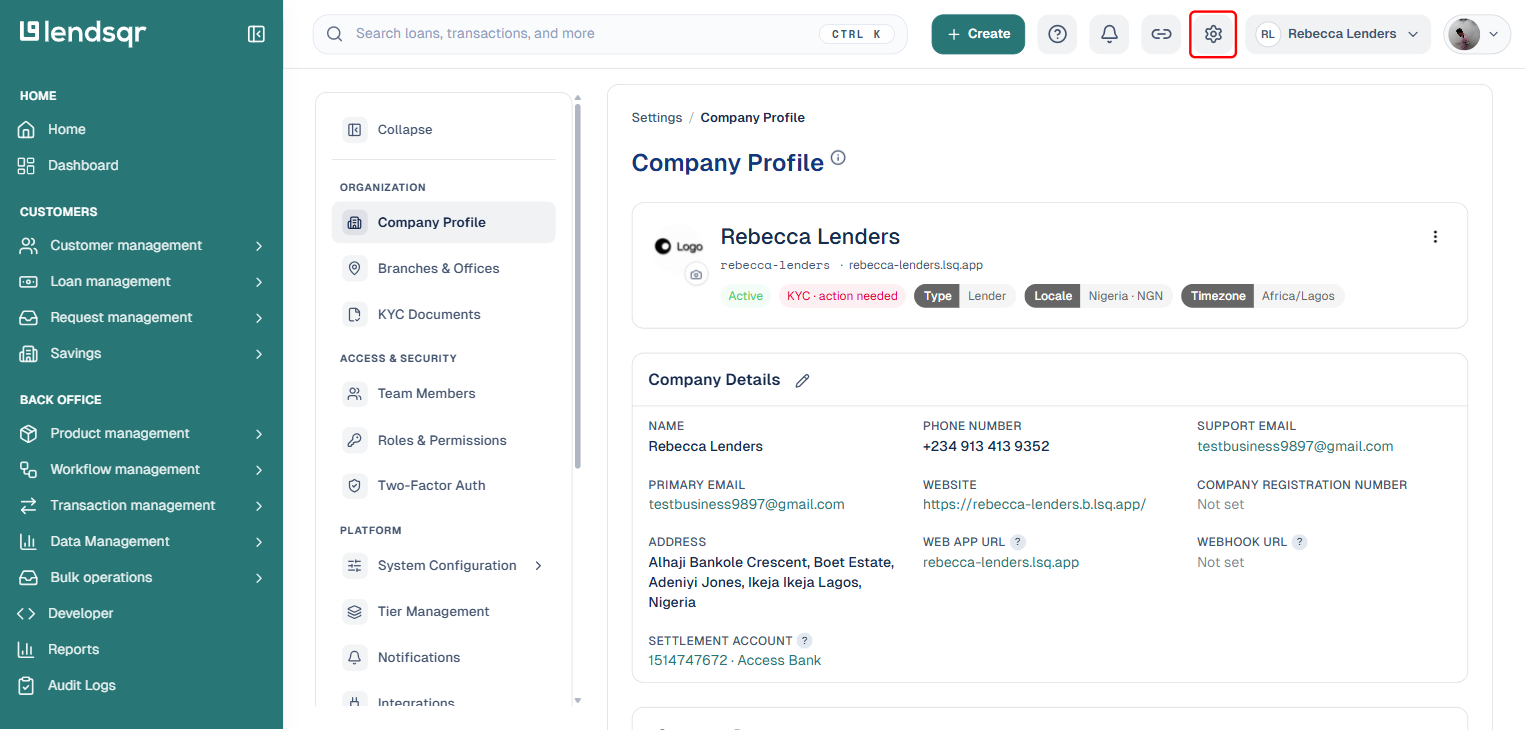
Click the Settings icon (gear) at the top right corner of your screen.
In the Settings sidebar, click “System Configuration” under the “Platform” section to expand its categories, then click “System.”
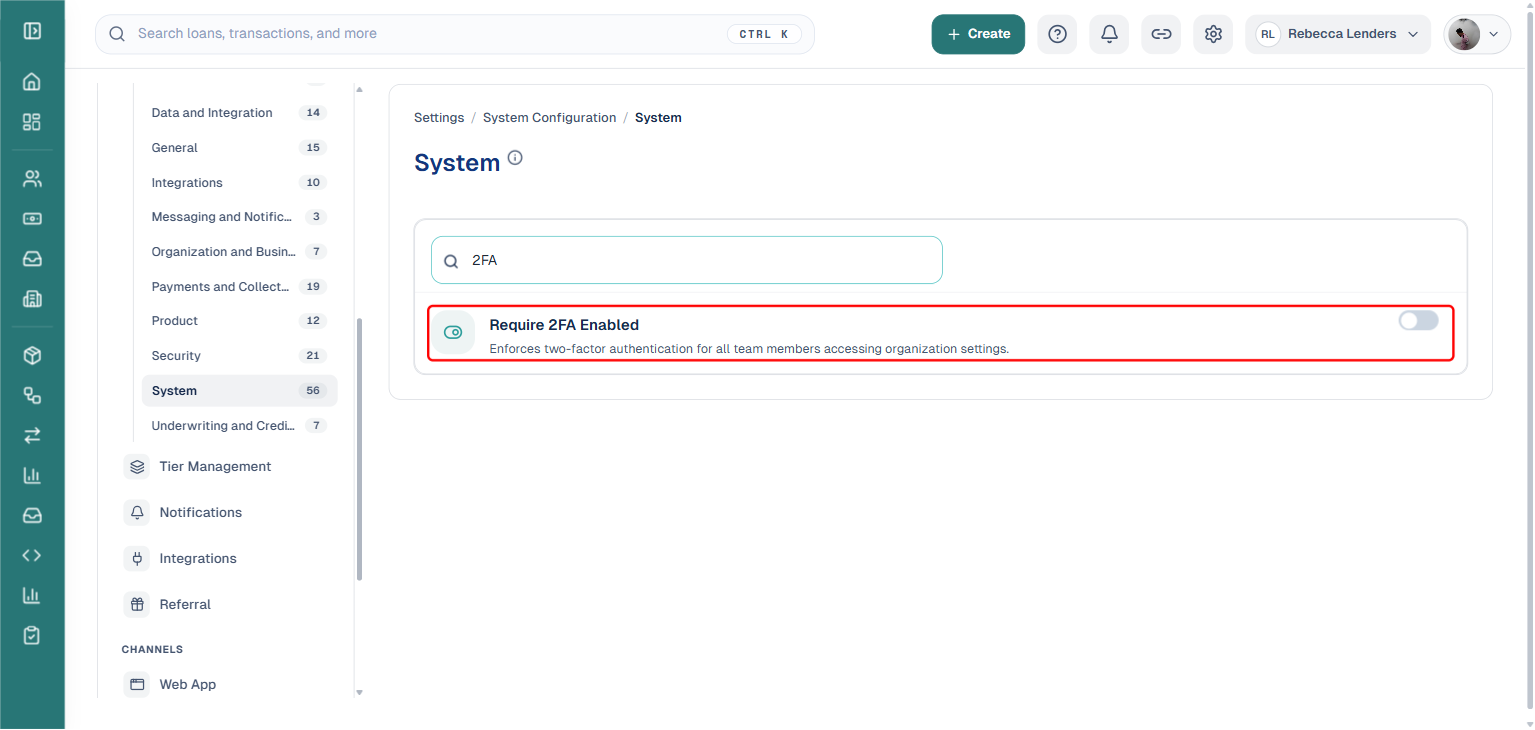
Type “2FA” into the “Search” box at the top of the System settings page. This filters the list down to the “Require 2FA Enabled” setting directly (replacing the older approach of scrolling through paginated pages to find it).
Click the toggle switch next to “Require 2FA Enabled” to turn it on. The change saves immediately; there is no separate “Edit,” “Create,” or “Save” step to click through.
What happens after you enable this setting
The change takes effect immediately for all team members who have not yet set up 2FA.
The next time an affected team member logs in, Lendsqr redirects them to a 2FA setup page before granting access to the console. They cannot bypass this step. They must download an authenticator app, scan the QR code, and verify the setup with their first generated code. Only after completing this process does Lendsqr grant them access.
Team members who already have 2FA set up are not affected. They continue logging in as normal, entering their password followed by their authenticator code.
This means the transition is seamless for prepared team members and only creates a brief setup step for those who have not yet configured 2FA on their accounts.
How Lendsqr enforces 2FA across your team
The 2FA requirement on Lendsqr operates at the organization level, not the individual account level. When you enable it through System Configurations, the setting applies to every team member in your organization automatically. You do not need to configure it separately for each person.
This is particularly useful for growing lending operations where new team members join regularly. Every new team member who accepts an invite and creates their account will encounter the 2FA requirement on their first login, regardless of when they join. The security standard stays consistent as your team scales.
What to do if a team member loses access to their 2FA device
A team member loses their phone or upgrades to a new device. They can no longer generate their 2FA codes. Without a recovery code, they are locked out of the admin console.
Lendsqr provides recovery codes specifically for this situation. Recovery codes are one-time-use backup codes that allow a team member to log in and reconfigure their 2FA when their primary device is unavailable. Every team member should download and store their recovery codes securely when they first set up 2FA.
If a team member did not save their recovery codes and loses their device, escalate the issue to Lendsqr support for account recovery assistance.
Troubleshooting
I can’t find the “Require 2FA Enabled” setting. Confirm that you clicked “System” under System Configuration, then search for “2FA.” If the setting is still not visible, confirm that your Super Admin role is active and contact Lendsqr support if the issue persists.
A team member is stuck on the 2FA setup screen and cannot proceed. Confirm that they have a compatible authenticator app installed. If the QR code is not scanning correctly, they can try entering the setup key manually instead. Most authenticator apps offer a manual entry option alongside the QR code scan.
A team member lost their 2FA device and does not have recovery codes. Contact Lendsqr support immediately with the team member’s details. Do not attempt to disable the 2FA requirement organization-wide to resolve an individual access issue.
I need to disable the 2FA requirement temporarily. Follow the same steps above and toggle “Require 2FA Enabled” off. The change takes effect immediately, no separate save step is needed. Only disable the requirement if absolutely necessary and re-enable it as soon as the underlying issue is resolved.
Frequently asked questions
What type of 2FA does Lendsqr support? Lendsqr supports authenticator app-based 2FA. Team members generate their verification codes using an authenticator app on their device. SMS-based 2FA is not the primary method on the platform.
Can individual team members opt out of 2FA once it is required? No. Once you enable the “Require 2FA Enabled” setting, every team member must use 2FA. Individual opt-outs are not possible while the setting is active.
Does the 2FA requirement apply to new team members who join after I enable it? Yes. The requirement applies to every team member in your organization, including anyone who joins after you enable the setting. New team members will encounter the 2FA setup prompt on their first login.
Can I require 2FA for some team members but not others? No. The setting applies organization-wide. If you need role-specific access controls, review your team’s role and permission configurations instead.
What authenticator apps work with Lendsqr? Lendsqr works with any standard TOTP authenticator app, including Google Authenticator, Microsoft Authenticator, and Okta Verify.