Access your Back Office at your fingertips.
Download the app now on Google Play Store.
Scan the QR code
You can also scan QR code with your phone to download the app.
How to fund a user’s savings plan from the admin console
Updated
On this page
Not every savings contribution arrives through an automated channel. Borrowers may pay in cash at a branch, transfer funds directly to your corporate account, or deposit through an agent collecting on your behalf. When that happens, their savings balance on Lendsqr does not update automatically. You have to record it yourself.
The admin console gives you a straightforward way to do this. You can add funds to any customer’s savings plan, enter a reference linking it to the original transaction, and set the date the payment occurred. The update applies immediately, and the customer’s savings history reflects the correct balance.
This guide covers when lenders use manual savings funding, how it fits different savings operations, and the steps to complete it.
When lenders manually fund savings plans
Lenders working with a broad customer base often encounter situations where automated collection does not capture every contribution. Manual funding fills those gaps. Here are some scenarios where you, as a lender, might need to make use of this feature:
Cash collections and branch deposits: Some customers, particularly in rural or underserved communities, prefer to make savings contributions in cash. An agent or branch officer collects the payment. A lender admin then logs it into the console so the customer’s balance reflects the deposit.
Offline transfers to a corporate account: A customer may send money directly to your business bank account as a savings contribution. Because this transaction happens outside the platform, Lendsqr has no way to detect it automatically. Manual funding lets you sync the deposit into the customer’s plan once you confirm the transfer.
Agent-based collections: Lenders using field agents often receive consolidated payments from cooperative or group savings customers at the end of a collection cycle. Each member’s contribution needs to be logged individually in the platform.
Missed automated debits: If a scheduled debit fails but the customer later pays another way, the balance will not update until a lender admin records it manually.
Correcting a skipped contribution: If a customer missed a period due to a system issue, manually crediting the right amount keeps their savings history accurate.
The list is endless.
A practical example
A cooperative savings group has twelve members. Each month, an agent visits them to collect contributions in cash. At the end of the collection round, the agent submits ₦10,000 per member to the lender’s operations team.
The operations team logs in and manually funds each member’s savings plan with their contribution for that month. They enter the agent’s collection date as the transaction date and use the collection receipt number as the reference.
Each member’s savings balance updates immediately. Their savings history shows the correct dates and amounts, even though no digital transaction took place.
How to fund a savings plan from the admin console
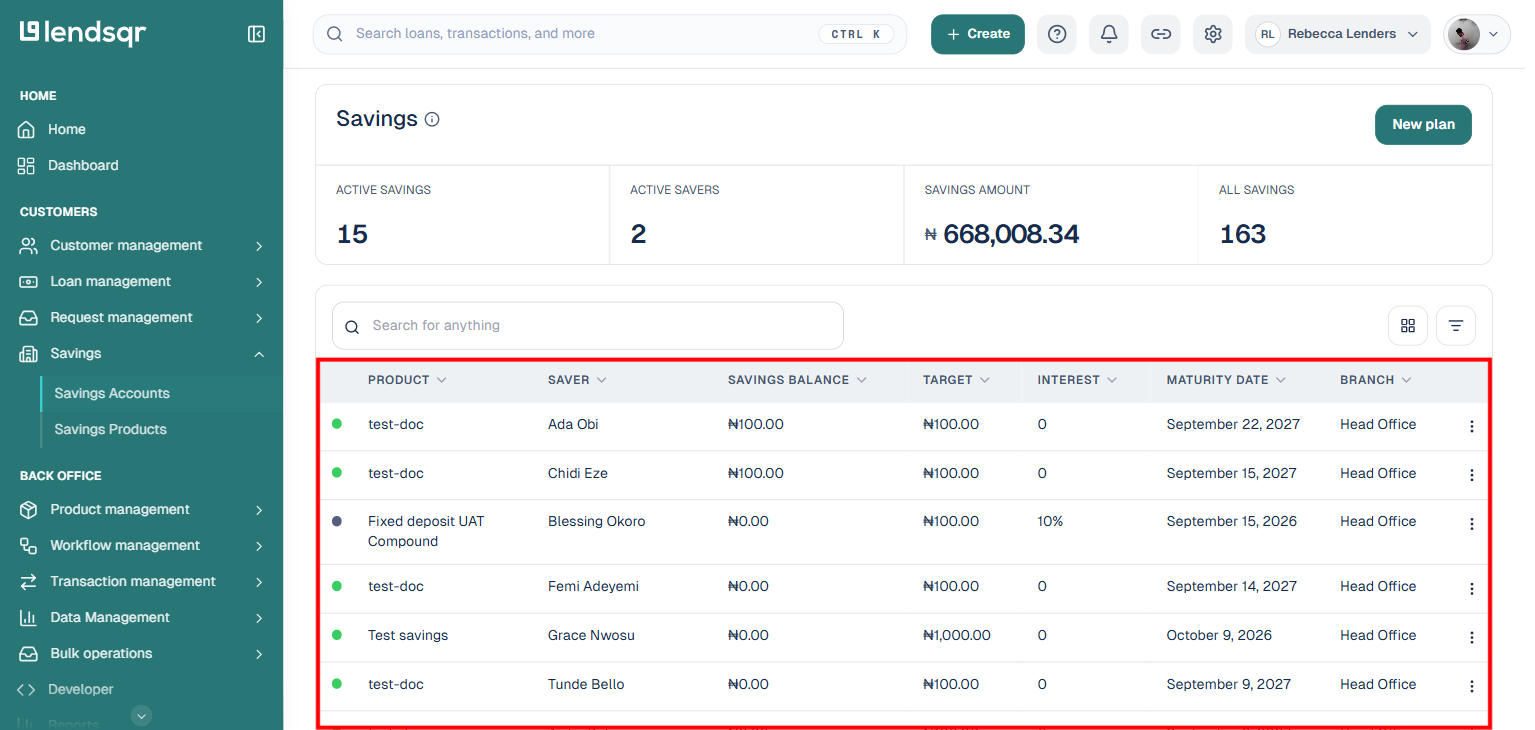
Log in to the Lendsqr admin console. From the left sidebar, select Savings, then Savings Accounts to view all savings activity on the console.
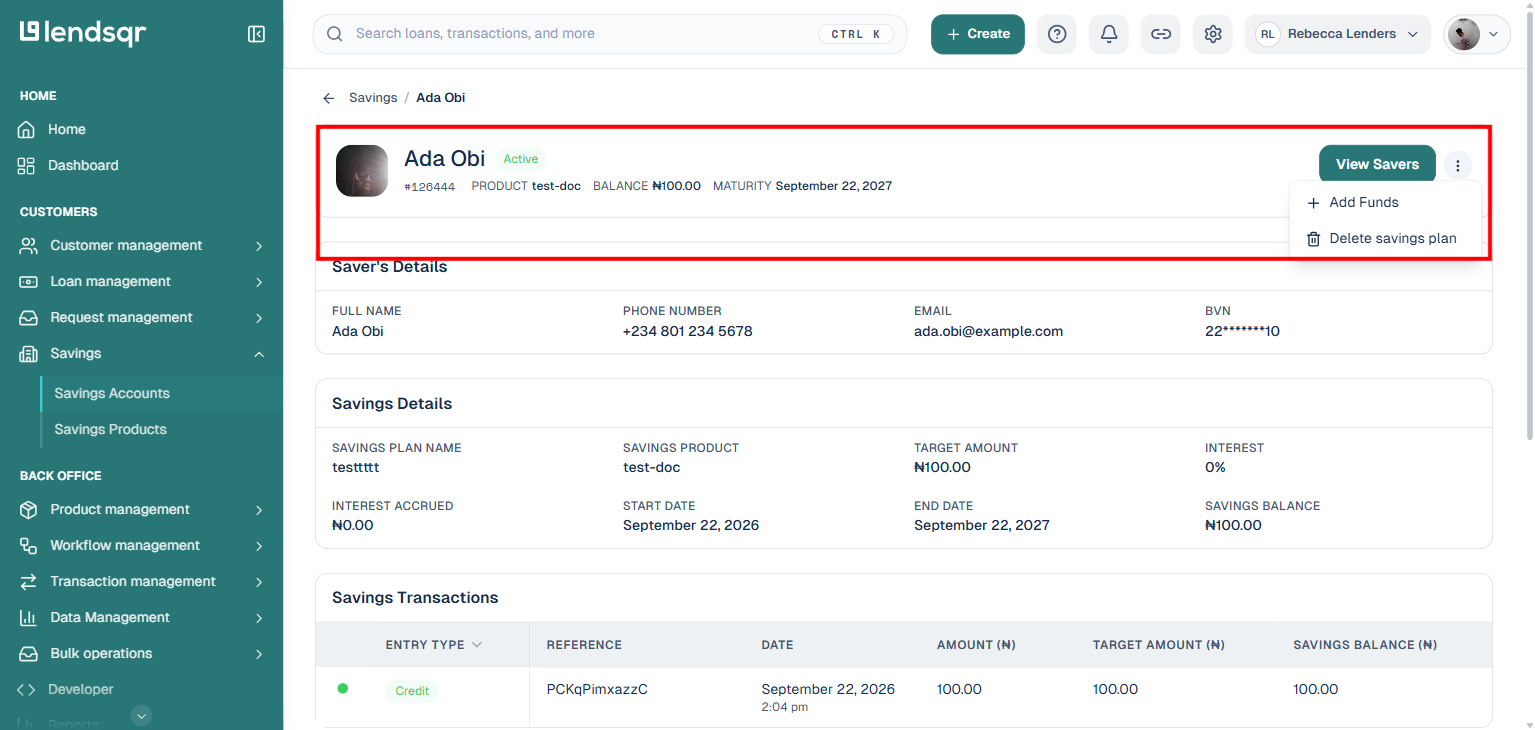
Find the specific savings plan you want to fund and click on it to open the plan details.
On the plan’s details page, click the More actions icon (the three dots) near the top of the page.
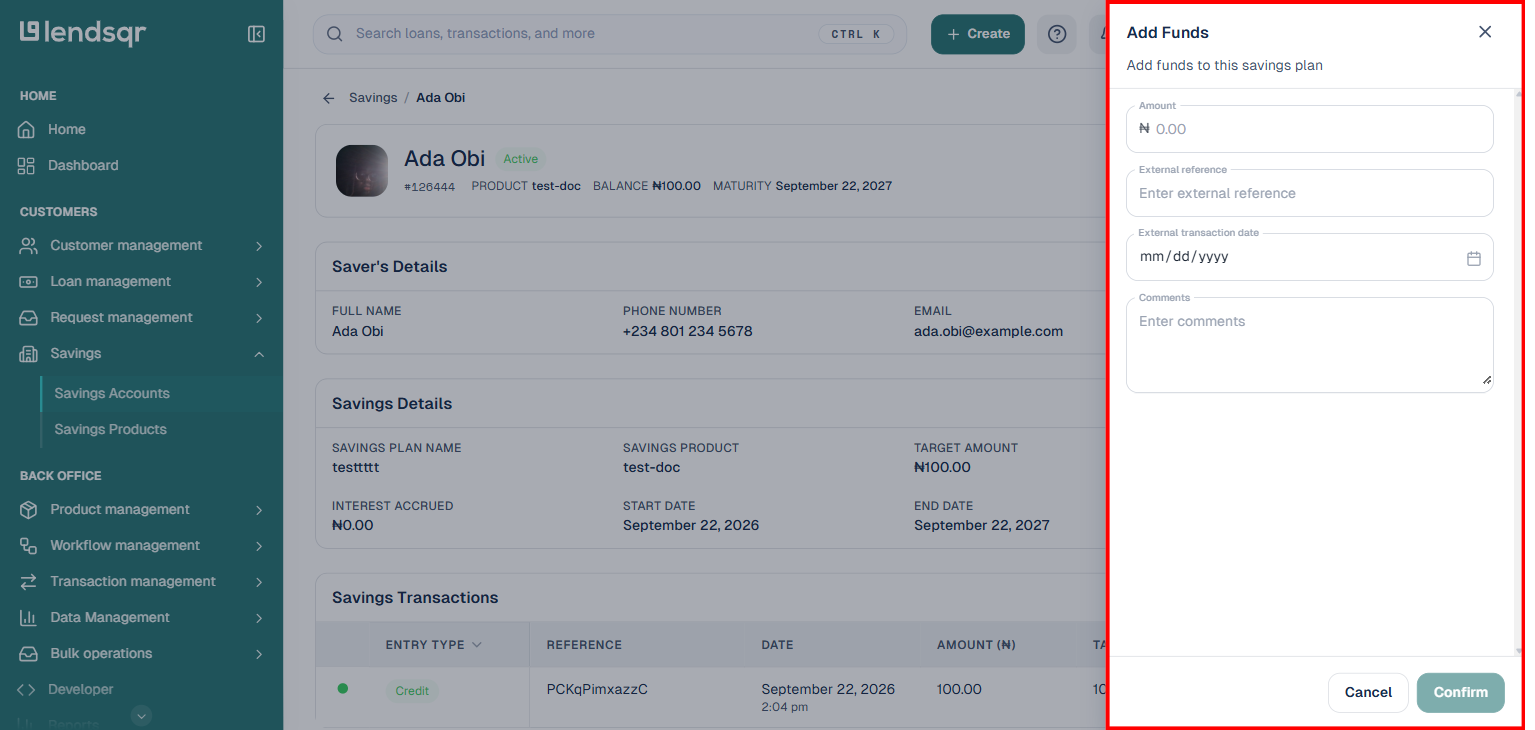
Click Add Funds from the dropdown. A funding panel will slide in.
Fill in the required fields: the Amount to add, an External reference such as a transaction ID or receipt number, and the External transaction date. You can also add optional Comments for internal record-keeping.
Review the details and click Confirm. Your disbursement account will be debited, and the customer’s savings plan balance will be updated immediately.
What happens to your disbursement account
When you submit a manual funding entry, Lendsqr debits your disbursement account for the entered amount and credits the customer’s savings plan. This means your disbursement account needs sufficient balance to cover the funding.
If your disbursement account does not have enough funds to cover the entry, the transaction will not go through and the savings plan will not update. You will see an error indicating that the funding could not be completed. This is worth checking before you sit down to process a batch of manual entries, particularly at the end of a collection cycle when you may be recording multiple contributions in sequence. Make sure your disbursement balance is adequate before processing multiple manual entries in a single session. For guidance on managing your disbursement account balance, read the guide on how to fund your disbursement account.
Keeping records clean after manual entries
Each manual funding entry should include a meaningful reference that links it back to the original payment evidence. A receipt number, bank transfer reference, or agent collection code gives your team an audit trail for disputes or reconciliation queries.
For plans with recurring manual contributions, use consistent reference naming so your team can filter and trace records easily. A simple convention like combining the customer initials, plan name, and month works well and reduces confusion when reviewing historical entries.