Access your Back Office at your fingertips.
Download the app now on Google Play Store.
Scan the QR code
You can also scan QR code with your phone to download the app.
Adding checks to a loan before approval
Updated
On this page
Approving a loan is one of the most consequential actions a team member can take on the Lendsqr admin console. Once a loan is approved and disbursed, reversing it is difficult and potentially costly. Adding structured pre-approval checks to your loan products gives you a reliable way to ensure that every loan your team approves has passed a defined set of internal verifications before funds leave your disbursement account.
Lendsqr allows you to configure mandatory approval requirements at the loan product level. Once set up, these checks appear as a form that your team member must complete before the system will allow them to approve any loan under that product. The team member cannot skip this form. They must answer each required question before the approval action becomes available.
This guide explains what approval checks are, why they matter, when to use them, how to configure them using JSON format, what the JSON fields mean, and what the experience looks like for your team members on the ground.
What are pre-approval checks on Lendsqr?
Pre-approval checks are a set of verification questions or confirmations that a lender administrator attaches to a loan product. Each time a team member tries to approve a loan under that product, the system presents a form containing those questions. The team member must work through every required field on the form and submit it successfully before the loan can be approved.
The checks are fully customisable. You define them in JSON format and attach them to a specific loan product through the Product Attributes settings. You can ask your team members to confirm anything that matters to your credit or compliance process, whether that is verifying the borrower’s identity documents, confirming a phone call was made, checking that a selfie BVN match passed, or confirming that the borrower provided supporting documentation.
The system enforces the checks at the point of approval, which means you do not rely on individual team members remembering to carry them out. The platform makes the confirmation mandatory.
Why you should add pre-approval checks to your loan products
Automated credit scoring and credit risk rules do a significant amount of the verification work in Lendsqr, but some checks require a human eye. Reviewing whether a scanned ID looks authentic, confirming that the phone number in the system actually belongs to the borrower, or ensuring that a field agent spoke with the borrower before disbursement are tasks that automated systems cannot always complete on their own.
Adding pre-approval checks addresses this gap by creating a formal, recorded confirmation at the point of approval. Here is why this matters in practice:
Reduces the risk of internal errors and fraud. Without a mandatory checklist, an approval can move through on the strength of a single team member’s judgment alone. A structured checklist introduces a step that requires the approver to actively confirm each condition, which reduces the likelihood of careless or fraudulent approvals.
Creates a documented audit trail. When a team member submits the pre-approval form, the system records their responses. If a loan later defaults or is disputed, your organisation has a documented record of what the approving team member confirmed at the time of approval.
Enforces credit policy consistency. Different team members may apply different standards when reviewing loan applications if no structured requirement exists. A mandatory checklist ensures that every loan, regardless of who approves it, has gone through the same set of confirmations.
Supports regulatory compliance. Responsible lending frameworks often require lenders to demonstrate that they took reasonable steps to verify borrower information before disbursing credit. A recorded pre-approval check provides that evidence.
Improves team accountability. When team members know that their confirmations are recorded and attached to the loan, they take greater care in completing each check before submitting. This raises the quality of decisions across the board.
When to use pre-approval checks
Pre-approval checks are most useful in the following scenarios:
High-value loan products. For loans above a certain amount threshold, your risk policy may require additional human verification before disbursement. Attaching a checklist to these products ensures that higher-risk approvals receive appropriate scrutiny.
Products targeting new or unverified borrowers. First-time borrowers who have no prior loan history on your platform represent higher uncertainty. Pre-approval checks let you require your team to confirm that the borrower’s identity and contact details have been manually verified before their first loan goes through.
Loans processed by field agents or sales teams. If your team books loans on behalf of borrowers who they have met in person, a pre-approval checklist ensures that the agent records confirmation of key in-person verifications, such as sighting of an original ID document.
Products in regulated or sensitive categories. Certain loan types may carry additional regulatory obligations. Attaching a checklist to these products helps your compliance team confirm that all required steps were taken before disbursement.
Any product where manual review is part of your credit process. If your standard operating procedure includes a manual review of documents or a confirmation call before approval, a pre-approval checklist formalises that step inside the platform rather than relying on emails or verbal confirmations.
Before you begin
Before you configure pre-approval checks, confirm the following:
Admin access. You must hold an administrator or product manager role on the Lendsqr admin console. Team members with read-only or operational roles cannot modify loan product settings.
An existing loan product. Pre-approval checks are attached to specific loan products. You need at least one product already configured in your account. If you do not have one, create a loan product first before proceeding.
Your checklist content is ready. Have the list of checks you want to enforce ready before you start. Decide what questions you want your approvers to answer, what the response options are, and whether each question is mandatory.
No JSON knowledge required. Checks are now built using a visual drag-and-drop form builder, the same one used for other forms on the platform. A raw JSON view is still available for advanced use, but you will not need it to complete the steps below.
Step-by-step guide to adding checks to a loan before approval
1. Log in to the Admin Console
Open your web browser and log into the Lendsqr admin console with your admin credentials.
2. Navigate to Loan Products
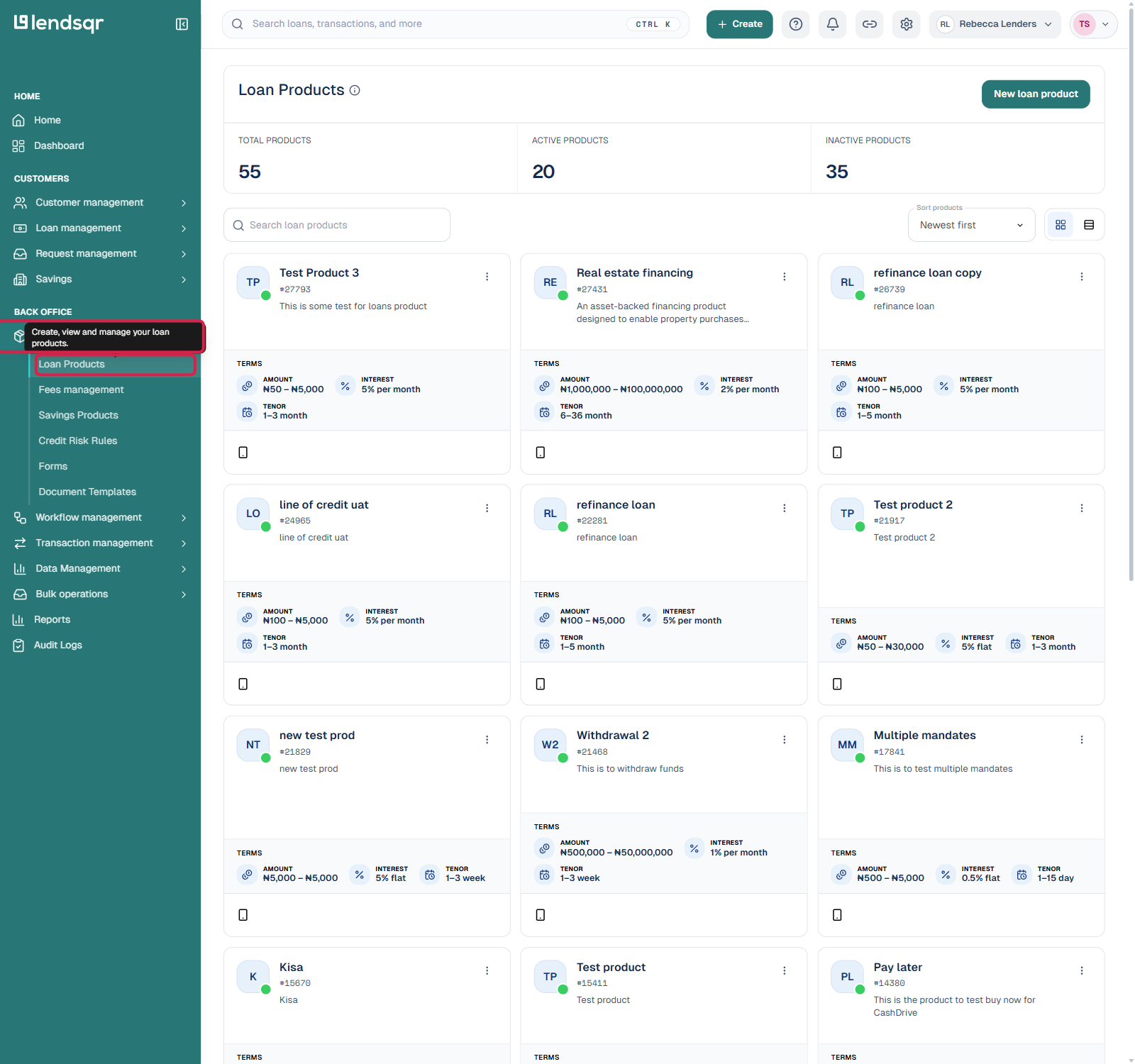
From the sidebar, click “Product management”, then select “Loan Products” from the submenu that expands.
3. Create a loan product or open an existing one
You can add pre-approval checks to a brand new product or to one that already exists.
To create a new loan product, click “New loan product” at the top of the Loan Products page and complete the product configuration flow.
To edit an existing loan product, click its card in the list. Either way, you land on that product’s detail page.
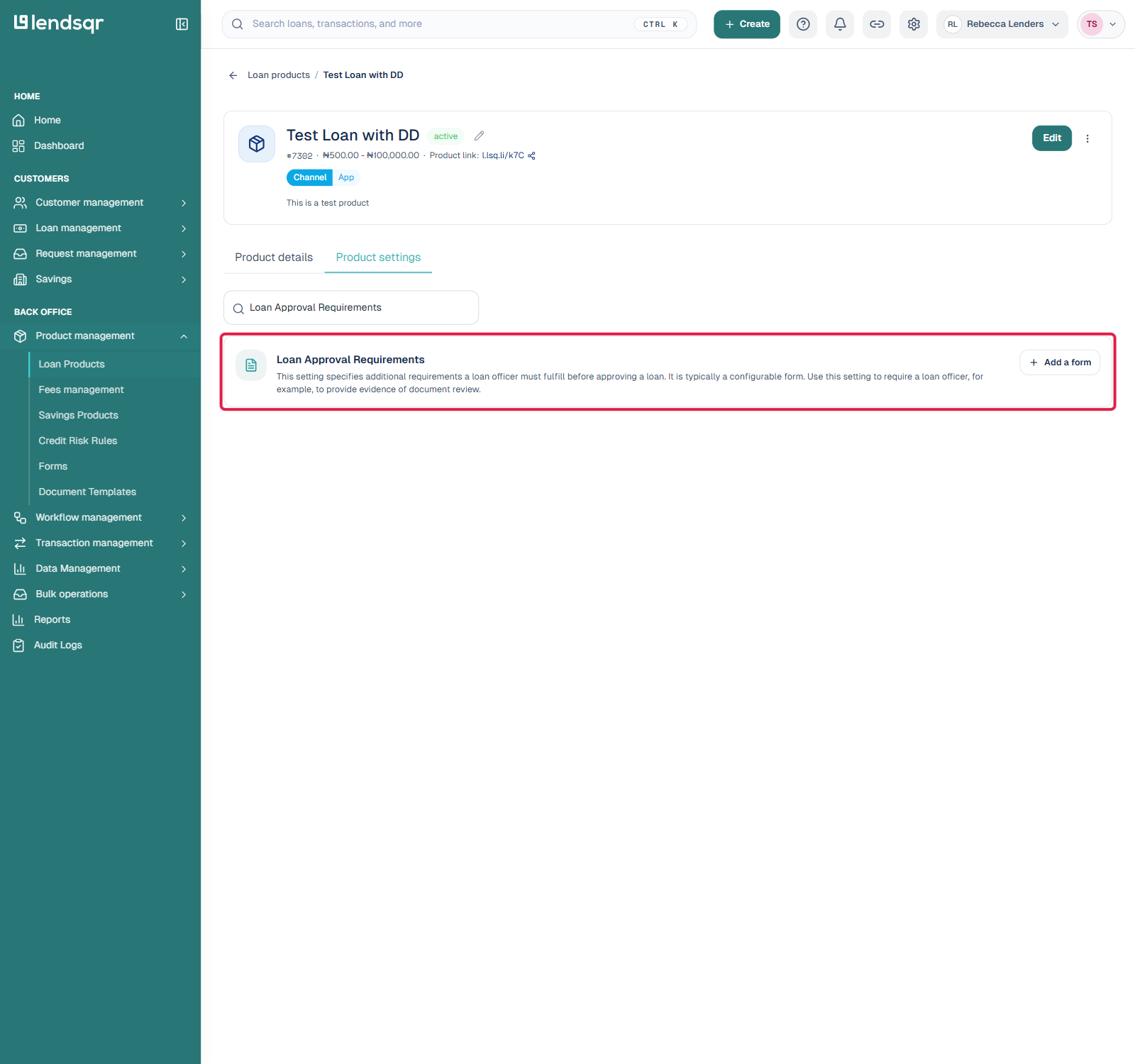
4. Click the “Product settings” tab, then search for “Loan Approval Requirements”
On the product’s detail page, click the “Product settings” tab. This opens a searchable list of individual settings rather than a single form. Type “Loan Approval Requirements” into the search box to filter the list down to that setting.
5. Click “Add a form”
Unlike the older flow, pre-approval checks are no longer written as raw JSON in a text box. They are built using Lendsqr’s shared Forms system, the same visual form builder used elsewhere on the platform (for example, loan application forms). Click “Add a form” next to the setting: you can either attach a form you have already built, or click “Create a new form” to start one from scratch.
6. Set the form’s name and details
In the form builder that opens, fill in the Name (for example, “Loan Approval Requirements”), confirm the Type, optionally set a Language, and add a Description summarising what this form captures.
7. Add your checks as questions
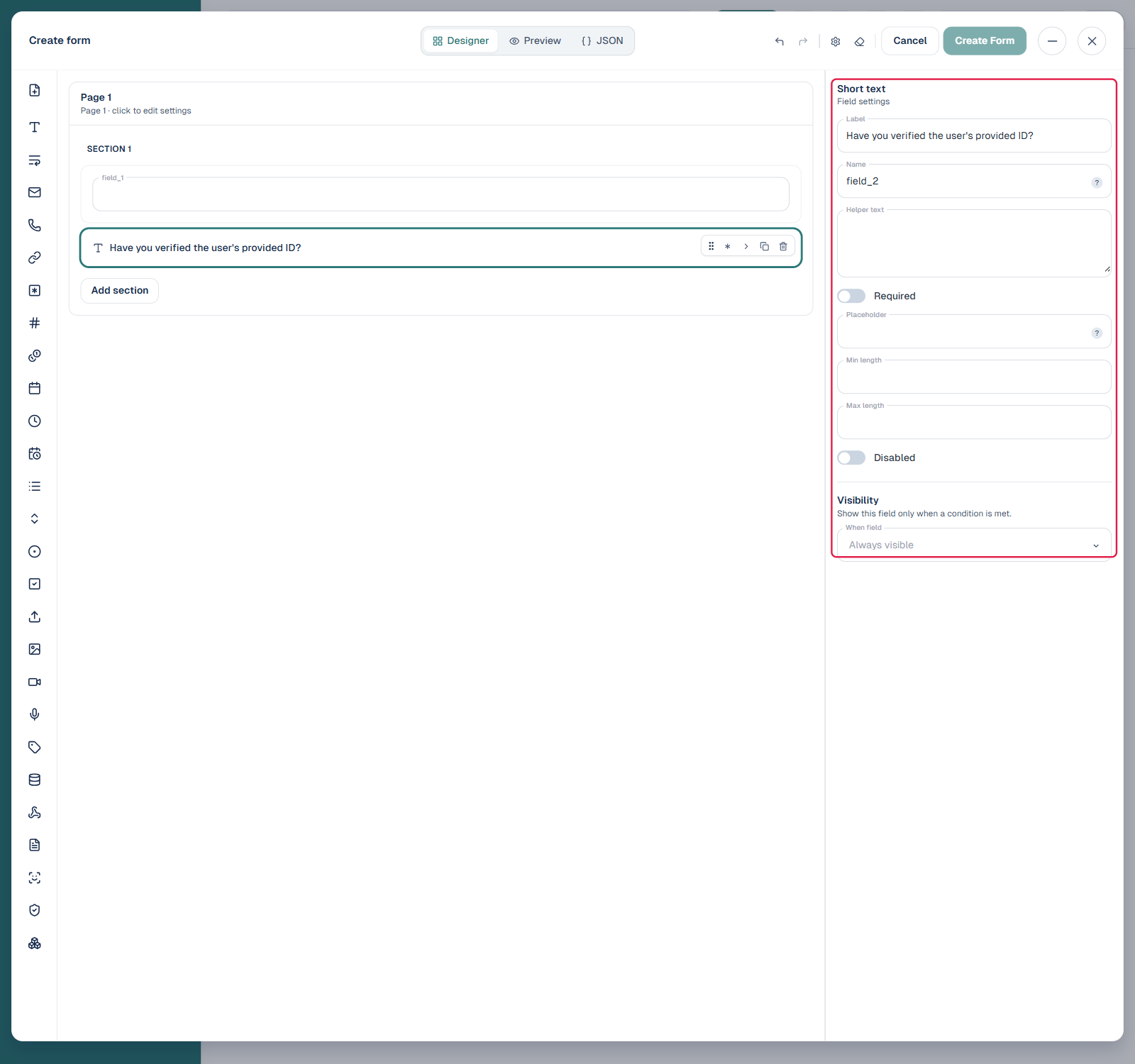
Click “Add question”, or drag a field type from the icon rail on the left, to add a check to the form. Click a question to open its Field settings panel on the right, where you can configure it:
Label: The question text shown to the approver, for example: “Have you verified the user’s provided ID?”
Name: The internal field identifier, auto-generated but editable.
Helper text: Optional guidance shown below the question.
Required: Switch this on to make the question mandatory. The approver cannot submit the form without answering it.
Placeholder, Min length, Max length: Additional constraints, available depending on the field type you chose from the icon rail (short text, dropdown, checkbox, and others).
Visibility: Set a question to always be visible, or only show it when another field meets a condition you define.
Repeat this for each check you want your approvers to confirm, and use “Add section” if you want to group related questions.
8. Review in Preview, then create the form
Switch to the “Preview” tab at any point to see the form exactly as your approvers will. If you prefer to work with the underlying data structure directly, the “JSON” tab shows the same form as raw JSON, useful if you are scripting form creation or migrating checks from another system, though it is no longer necessary for day-to-day use. When you are satisfied, click “Create Form”. The form is now attached to the Loan Approval Requirements setting, and a loan officer will be required to complete it before approving a loan booked on this product.
To reuse the same form on another loan product later, open that product’s settings, search “Loan Approval Requirements”, click “Add a form”, and select the existing form from the list instead of creating a new one.