Access your Back Office at your fingertips.
Download the app now on Google Play Store.
Scan the QR code
You can also scan QR code with your phone to download the app.
How to use magic links for loan products in Lendsqr
Updated
On this page
Many lenders want a simple way to let potential borrowers apply for specific loan products without filling out long forms upfront or waiting for manual invites. Product links, also called magic links, on Lendsqr solve this problem.
A product link is a public, shareable URL tied to a specific loan product on your platform. Anyone who clicks it can begin the application process immediately, without the lender needing to send a personal invite or pre-enter any customer details. Unlike traditional loan invites that require customer information in advance, product links are open-ended and work for cold outreach, marketing campaigns, and website embeds equally well.
This guide explains what magic links are, why they are useful, when to use them, and how to generate and share them step by step in the Lendsqr admin console.
What are magic links for loan products?
A product link is a direct, one-click URL to a specific loan product on your borrower-facing web app. When a potential borrower clicks the link, they land on the product page and can begin their application instantly.
The link is generated automatically the moment a loan product is created in Lendsqr. You do not need to configure anything additional, the link exists as soon as the product does. It removes friction from the customer journey and makes your loan offers easy to distribute through any channel you choose.
Why use magic links for loan products?
Product links offer several practical advantages for lenders who want to grow their borrower base efficiently:
Reduce customer drop-off: Borrowers who can start an application immediately are far less likely to abandon the process than those who have to wait for a personal invite or navigate from a homepage.
Expand your marketing reach: A shareable link can be distributed anywhere: SMS campaigns, WhatsApp messages, social media posts, email newsletters, or embedded on a partner website. The same link works across all channels.
Support BNPL and merchant partnerships: If you run a Buy Now Pay Later product, you can share the product link with merchants who embed it at checkout, allowing their customers to apply for financing directly at the point of purchase.
Enable affiliate and referral campaigns: Referral partners, agents, or affiliates can use product links to drive loan applications without needing access to your admin console.
By using magic links, you can turn your loan products into truly public offers that anyone can access and apply for with minimal effort.
When should you use magic links?
Use magic links in these common scenarios:
Running social media or digital marketing campaigns
Sharing loan offers on WhatsApp, Instagram, Facebook, or other platforms
Embedding the link on your website or partner sites
Offering BNPL options at checkout with merchants
Working with affiliates or referral partners who promote your products
Launching seasonal or targeted promotions
For example, a salary advance lender in Nigeria can share a magic link on WhatsApp groups or Instagram stories so employees can apply for quick advances instantly. A microfinance institution might embed the link on a partner website so community members can access group loans without multiple steps.
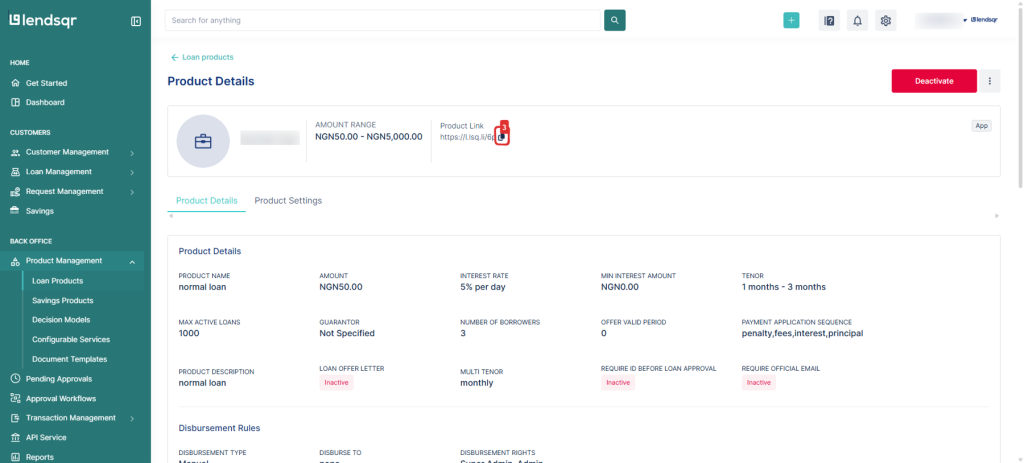
Locate the loan product you want to share and click on it to open the details.
In the product overview page, find the product link or magic link section.
Click the copy link button to copy the magic link to your clipboard.
Share the link through your preferred channels (WhatsApp, social media, email, website embed, etc.).
The link is ready to use immediately after copying.
Tip: Test the link yourself first to ensure it directs users to the correct product page and application flow.
What does the borrower experience when they click a product link?
When a borrower clicks a product link, they are directed to your branded borrower web app and shown the specific loan product page. If they already have an account on your platform, they can log in and proceed to apply. If they are new, they will be prompted to create an account first before continuing with the application.
The product information, including loan amount range, tenure, interest rate, and any fees, is displayed on the page so the borrower can review the terms before applying. The application flow that follows is the same as any standard loan application on your platform.
Who can generate product links
Any team member with access to the Loan Products section of the Lendsqr admin console can view and copy product links. If a team member cannot see the Loan Products section, their role may not include the necessary permissions. Contact your organization admin to review and update role permissions as needed.
What this enables in your lending workflow
With magic links in the lendsqr admin console, you can instantly generate shareable links for any loan product. This helps you reach more customers, speed up onboarding, reduce drop-offs, and run effective marketing campaigns, all without extra technical work.
Many lenders use this feature to make their loan products more accessible and to grow their borrower base faster.
Important things to know about product links
Links do not expire automatically: A product link remains active as long as the loan product itself is active. If you deactivate or delete the loan product, the link will no longer work and borrowers who click it will not be able to apply.
The same link can be shared unlimited times: There is no cap on how many borrowers can access a product through a single link. You can share the same URL across multiple campaigns and channels simultaneously.
Deactivating a product stops the link: If you need to temporarily stop accepting applications through a product link, deactivate the loan product in the admin console. This immediately prevents new applications without deleting the product configuration.