Access your Back Office at your fingertips.
Download the app now on Google Play Store.
Scan the QR code
You can also scan QR code with your phone to download the app.
How to activate or deactivate a customer
Updated
On this page
The ability to activate and deactivate customers is a key function that allows lenders to manage user access and engagement effectively. Whether you are responding to suspicious activity, a policy violation, or a customer’s own request, this feature gives you direct control over who can interact with your platform, without losing any of their data in the process.
It enables lenders to enforce rules, safeguard the platform, and prevent unauthorized activity, all while keeping the customer’s data intact for potential future reactivation or auditing purposes. For instance, if a customer repeatedly defaults on payments or engages in suspicious behavior, an admin may choose to deactivate the account to prevent further risk to the organization.
On the other hand, if the issue is later resolved, such as settling debts or providing missing documentation, the same customer can be reactivated without needing to start a new registration process. This flexibility ensures operational efficiency, helps maintain platform integrity, and allows for a better-managed customer lifecycle.
Overview
When you deactivate a customer on Lendsqr, their access to the platform is suspended. They can no longer log in, apply for loans, or carry out transactions. However, their profile, loan history, documents, and data remain intact in the system. This means that if the reason for deactivation is resolved, you can reactivate the account without the customer needing to go through registration again.
This flexibility is important for lenders managing a large and diverse borrower base across different markets. A customer who temporarily loses access due to missing documentation can be reactivated the moment they provide it, just as easily as a customer whose account was flagged for unusual activity can be suspended while the issue is investigated.
When to use this feature
Deactivate a customer when:
The customer repeatedly defaults on loan repayments and poses a risk to your portfolio
Suspicious or fraudulent activity is detected on the account
The customer has violated your platform’s terms and conditions
The customer requests that their account be suspended temporarily
Regulatory or compliance requirements in your region require you to restrict access pending a review
Activate a customer when:
A previously deactivated customer has resolved the issue that led to their suspension, such as settling outstanding debts or submitting required documents
A customer’s account was deactivated in error and needs to be restored
Prerequisites
Admin role and permissions: Only admins with the appropriate role can activate or deactivate customers. If you do not see the action in the menu when following the steps below, contact your system administrator to confirm your access level.
Review active loans: Before deactivating a customer, check whether they have any active or ongoing loans. Deactivating a customer does not automatically cancel or pause their loans. Any outstanding repayments will still be due and will continue to appear in your reports.
Have your reason ready: Deactivating a customer requires you to enter a reason before it takes effect, so it is good practice to know why beforehand, particularly if it relates to fraud or a compliance issue.
Step-by-step: how to activate or deactivate a customer
If you are not yet familiar with finding a specific customer on the admin console, see Locating users’ profile page first.
On the side navigation, go to Customer management under Customers, then select Customers.
Filter or search for the customer you need, using their email or phone number, then click on their row to open their profile.
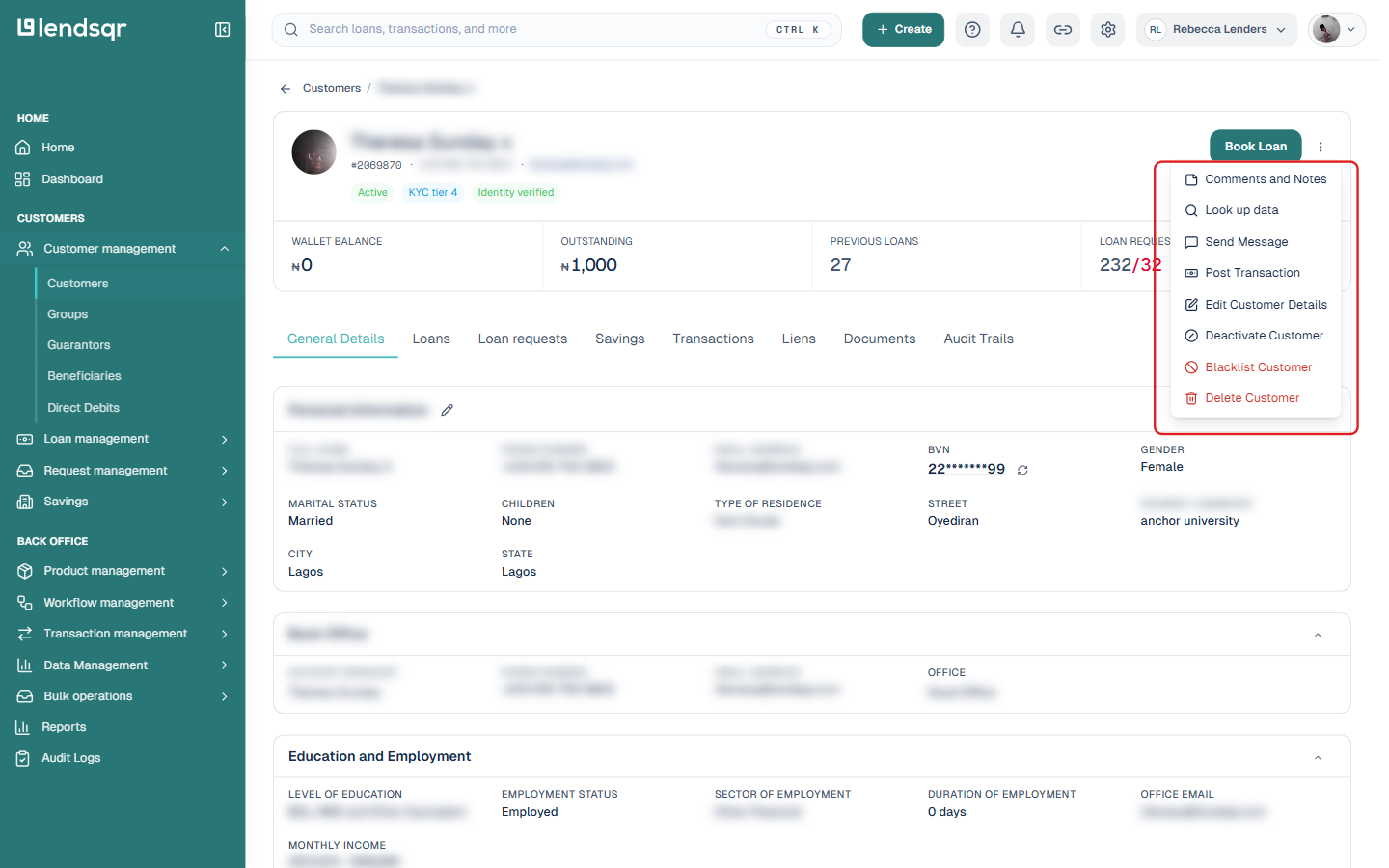
Click the three-dot More actions button near the top of the profile. This opens a menu with several actions for that account, including Comments and Notes, Send Message, Edit Customer Details, and either Deactivate Customer or Activate Customer depending on the customer’s current status.
If the customer is currently active, you will see “Deactivate Customer” in the menu. If the customer is currently inactive, you will see “Activate Customer” instead.
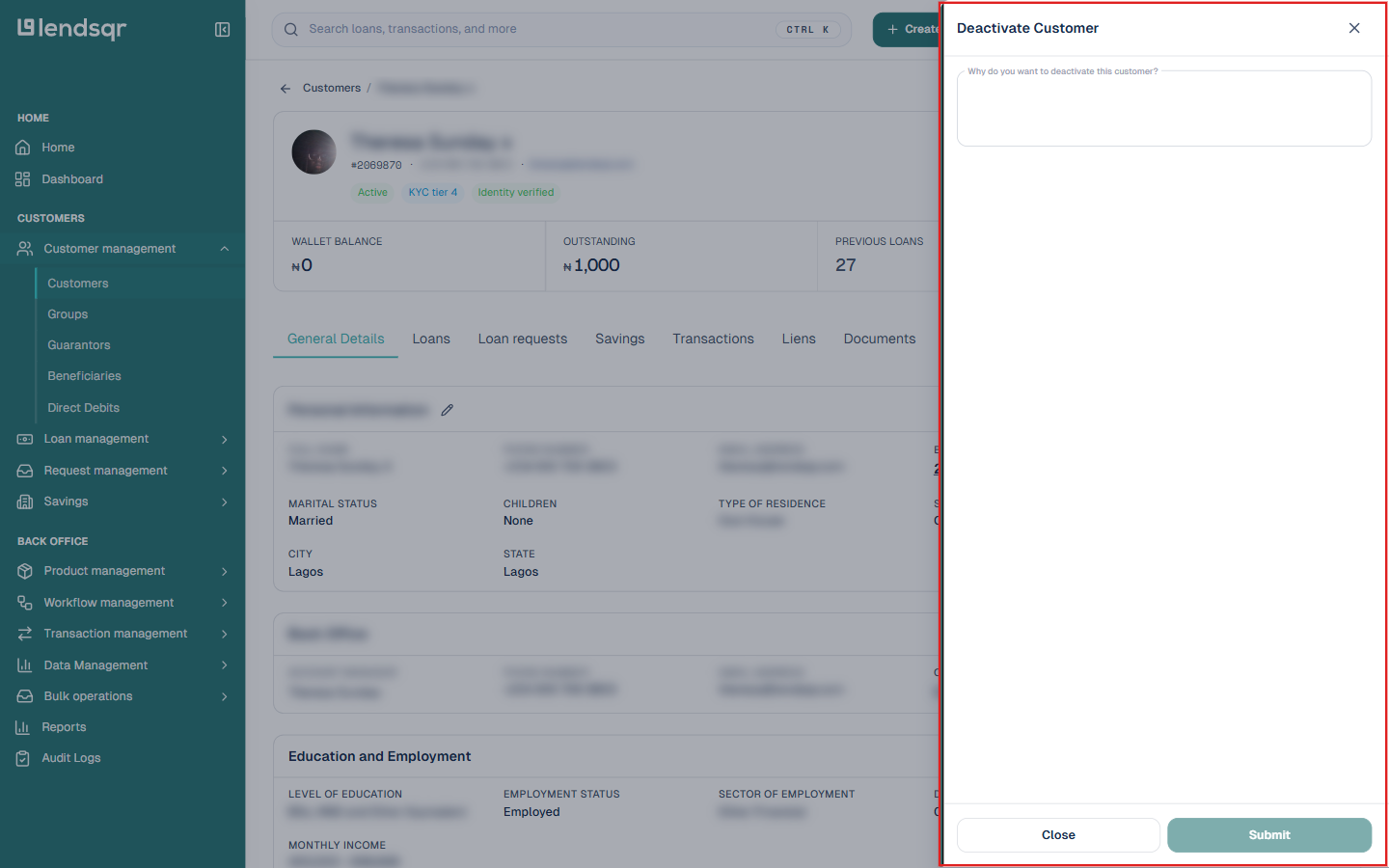
Clicking Deactivate Customer opens a panel asking why you want to deactivate the customer. Enter a reason, then click Submit to confirm. The Submit button stays disabled until a reason is entered.
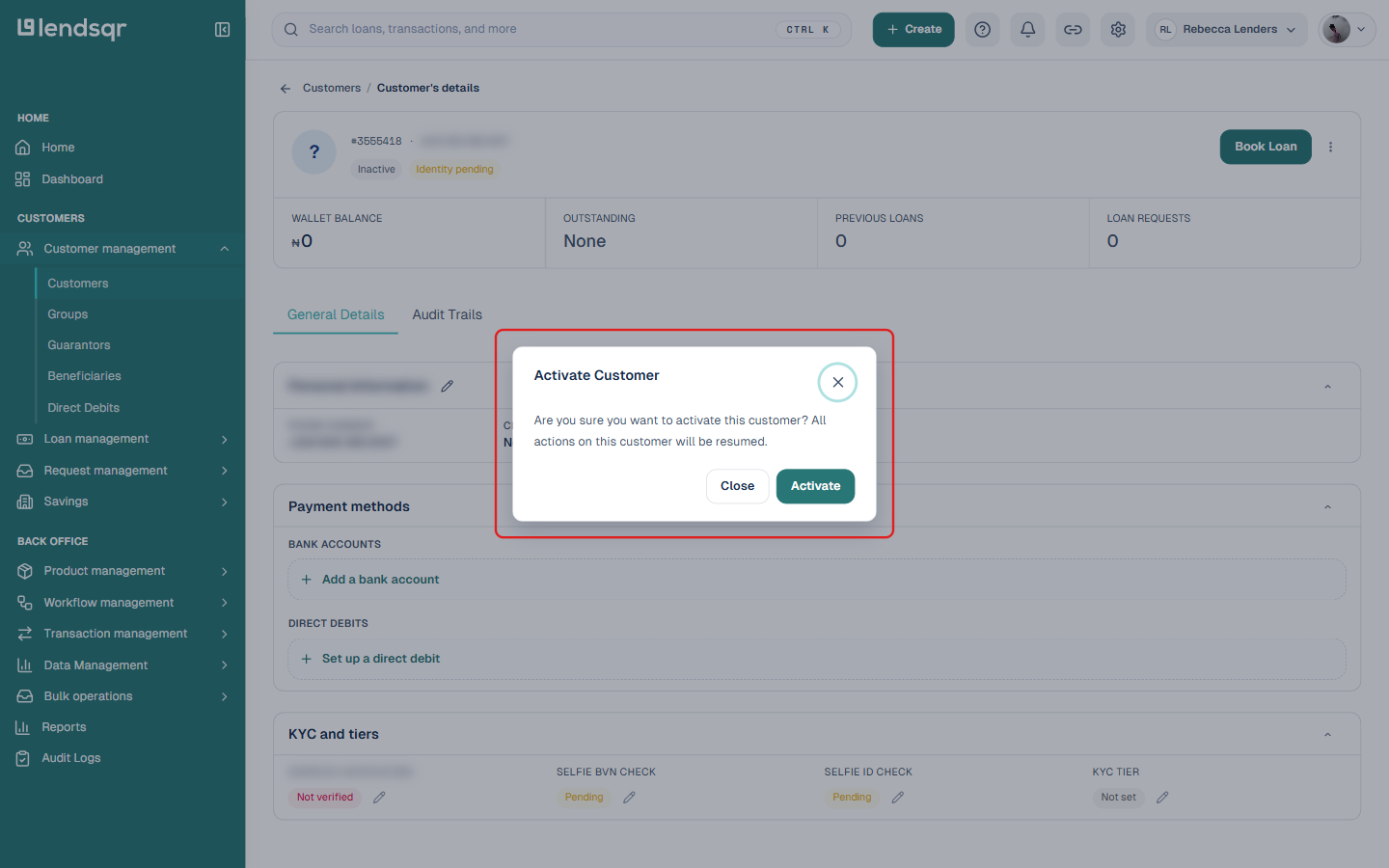
Clicking Activate Customer instead opens a simple confirmation dialog asking “Are you sure you want to activate this customer? All actions on this customer will be resumed.” No reason is required for activation.
What happens after
Understanding the effects of each action helps you use this feature responsibly and avoid unintended consequences.
After deactivating a customer:
The customer loses access to the platform and can no longer log in or carry out transactions
Any active loans linked to the account remain active. Repayments are still due and will continue to appear in your reports
The customer’s profile, documents, and loan history remain fully intact in the system
The action, along with the reason you entered, is recorded and viewable from the customer’s Audit Trails tab
After activating a customer:
The action is recorded and viewable from the customer’s Audit Trails tab
The customer regains access to the platform
Their previous profile, loan history, and documents are restored exactly as they were
A quicker way from the customers list
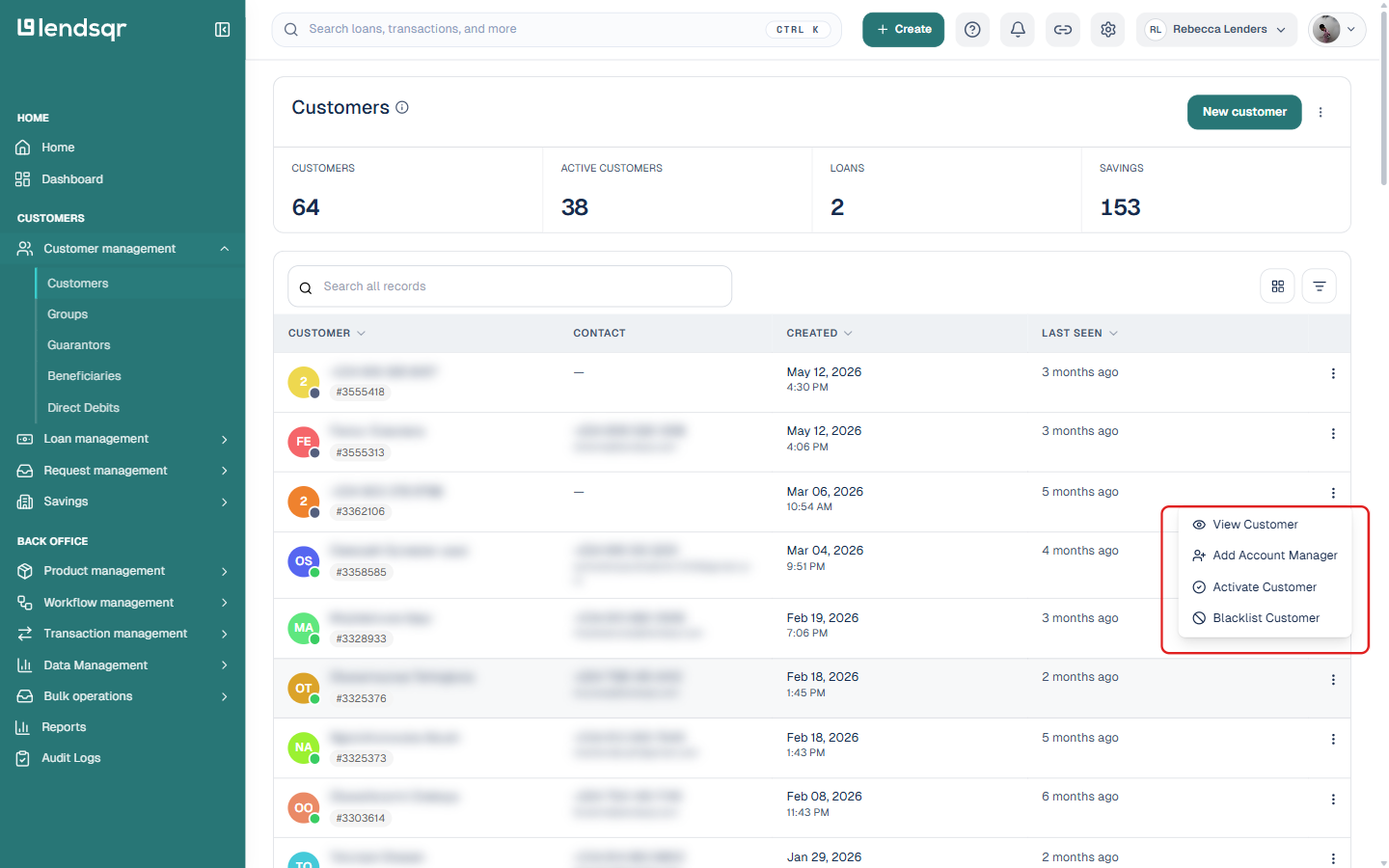
You do not always need to open a customer’s full profile first. On the Customers list itself, each row has its own three-dot menu at the far right. Clicking it shows a shorter menu with View Customer, Deactivate Customer (or Activate Customer, depending on status), and Blacklist Customer. Selecting Deactivate or Activate here opens the same reason panel or confirmation dialog described above, without leaving the list.