Access your Back Office at your fingertips.
Download the app now on Google Play Store.
Scan the QR code
You can also scan QR code with your phone to download the app.
Enterprise Authentication with SSO for Back Office Admins
Updated
On this page
Introduction
Single Sign-On (SSO) is a secure authentication method that allows users to log in once and access multiple applications without needing to remember separate credentials for each. For Back Office admins, enabling SSO ensures consistent, centralized access control, reduces password fatigue, and enhances security by integrating with your enterprise identity provider.
Use Case: Organizations using Lendsqr’s Back Office can enforce enterprise-level authentication by requiring all users to authenticate through a trusted identity provider such as OneLogin, Okta, or Azure AD. This is particularly useful for companies that want to:
Centralize authentication management
Enforce strict security policies
Improve user experience with seamless logins
Configuration Overview
To enable SSO, you need a configuration payload. This payload is automatically encrypted when saved in the system to ensure sensitive data like client_secret remains secure.
sso_enabled: Enables SSO for your organization. Set to true to activate.
sso_required: Enforces SSO login for all users. Set to true to make it mandatory.
sso_protocol: Defines the protocol used. Most providers use oidc (OpenID Connect).
sso_provider: Specifies the identity provider (e.g., onelogin, okta).
client_secret: The secret key from your SSO provider. This should be kept confidential.
client_id: The client identifier from your SSO provider.
issuer_url: URL provided by your identity provider that issues authentication tokens.
redirect_uri: The URI where users are redirected after successful authentication. Replace ORG_SLUG with your organization’s unique slug.
scopes: Permissions requested during authentication. Common scopes include openid, profile, and email.
provider_specific_config: Additional configuration unique to your provider. For OneLogin, this includes subdomain.
Step-by-Step Setup Guide
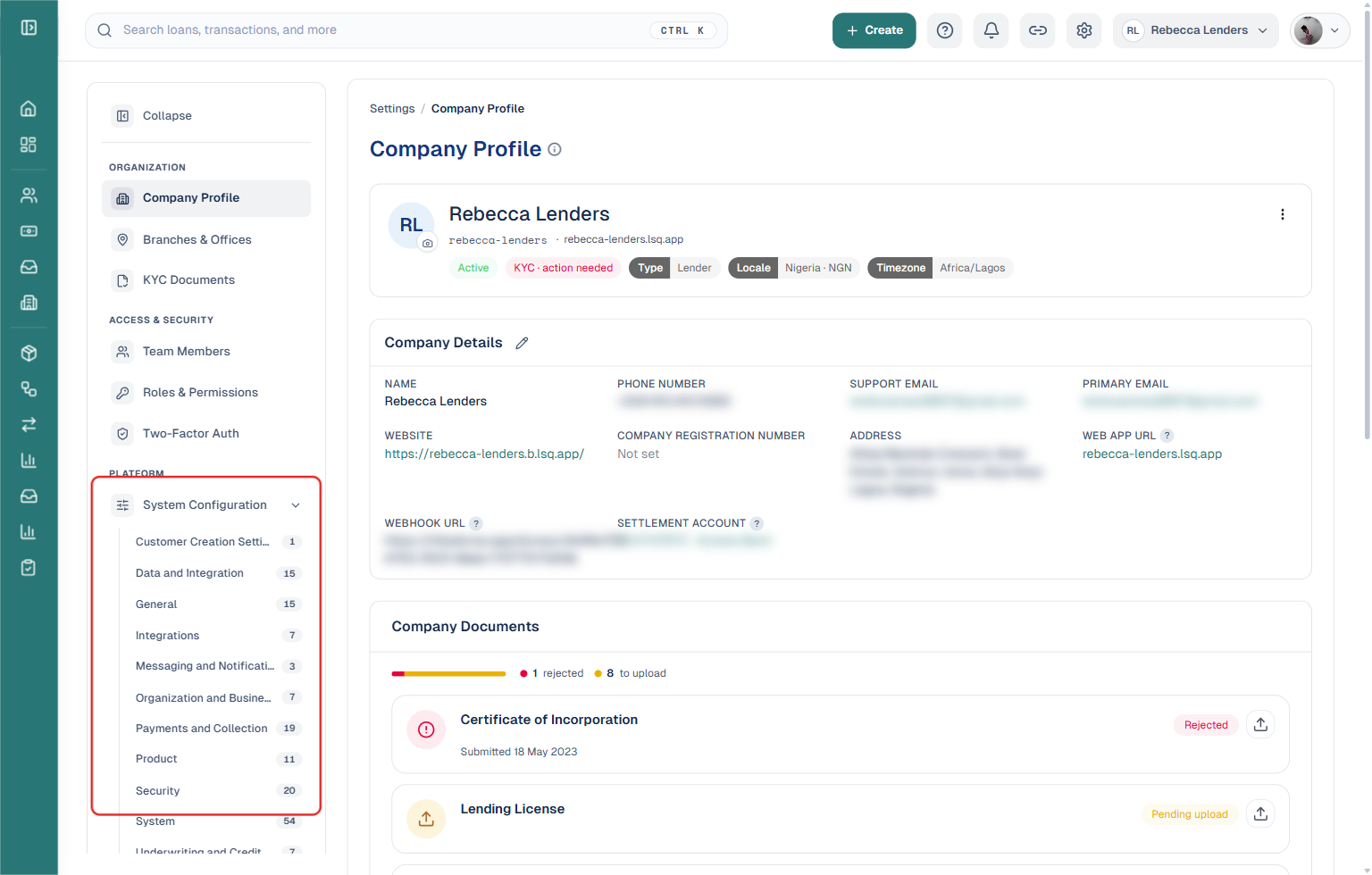
1. On the admin console, click the Settings (Gear) icon in the top navigation bar.
2. Under “Platform“, click “System Configuration” to expand its list of categories (Customer Creation Settings, Data and Integration, General, Integrations, Messaging and Notifications, Organization and Business Profile, Payments and Collection, Product, Security, System, Underwriting and Credit Risk).
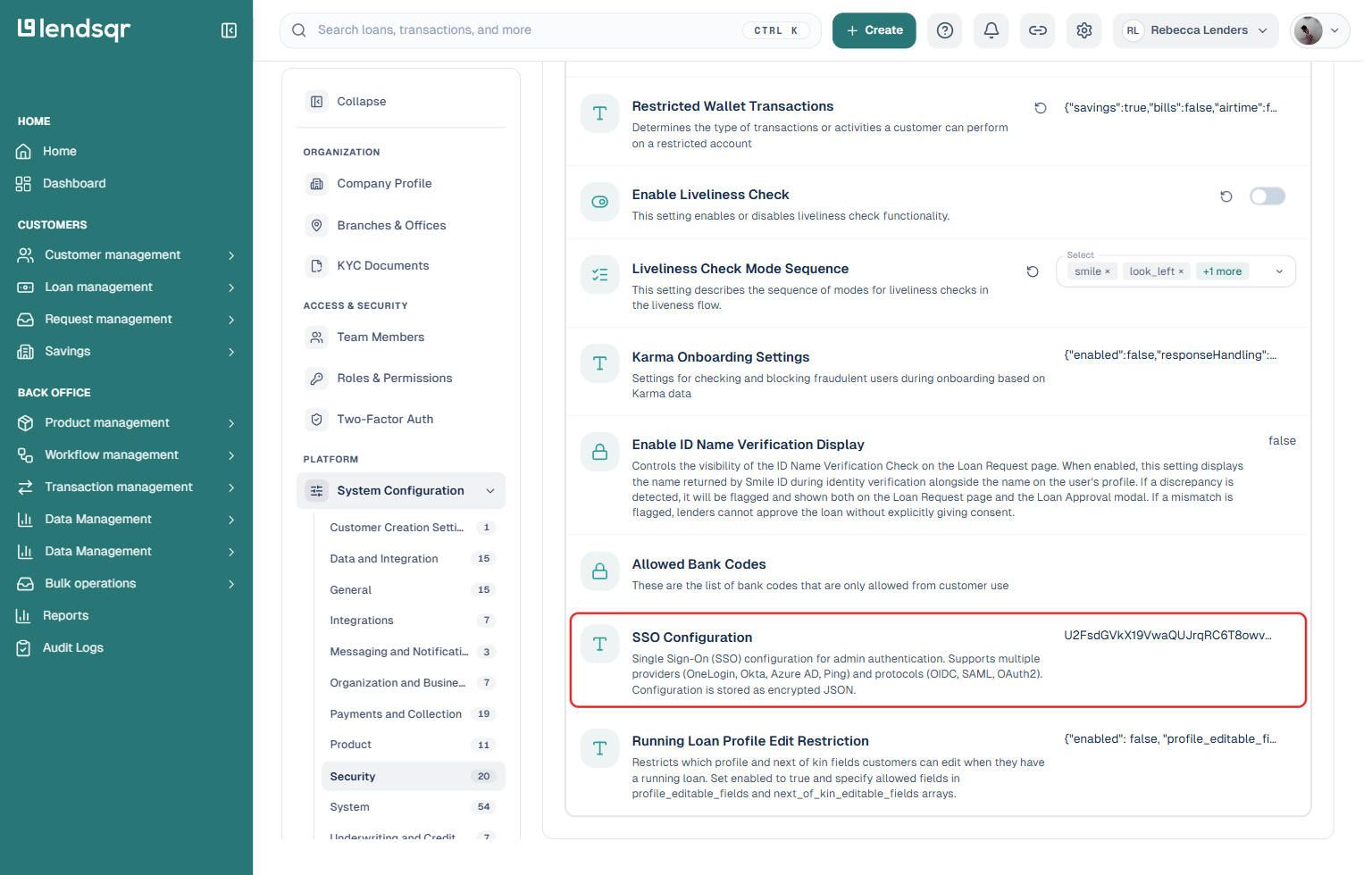
3. Click “Security“, then scroll down to “SSO Configuration“. Its description confirms it supports OneLogin, Okta, Azure AD, and Ping, using OIDC, SAML, or OAuth2, and that the value is stored as encrypted JSON.
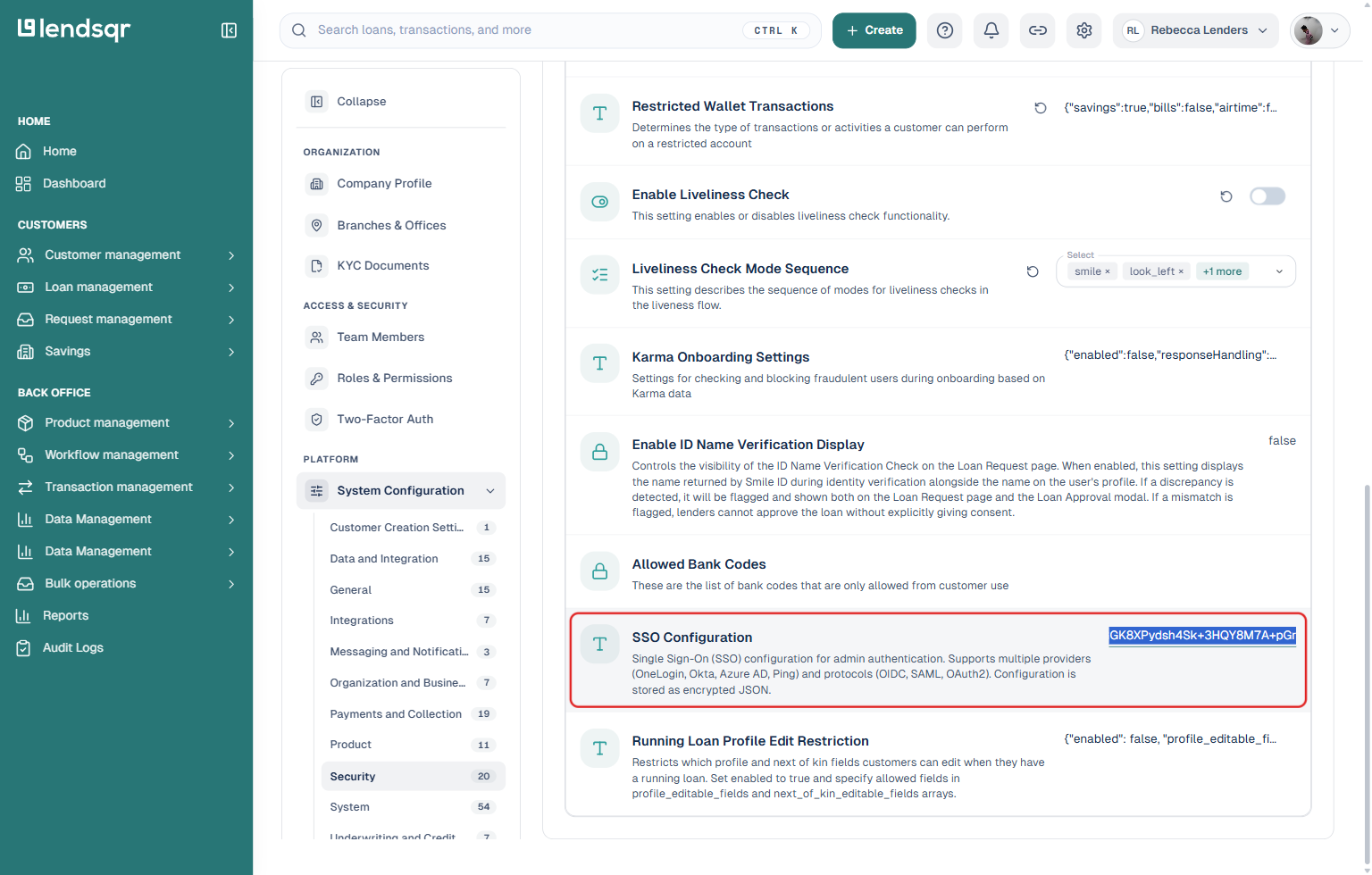
4. Click directly on the encrypted value shown next to “SSO Configuration” — this turns it into an editable text field in place (there’s no separate edit modal). Select all and replace it with your provider’s configuration payload (see the example above).
5. Confirm to save your changes.
Note: if a setting doesn’t appear where you expect it in System Configuration, it may simply be further down a long list — these category pages only load a limited number of items by default. Appending ?page=0&limit=100 to the category’s URL forces it to load the full list.
Notes
Make sure your identity provider settings (client ID, secret, redirect URI) are correctly configured.
Always test the SSO flow with a test user before enforcing it organization-wide.
If SSO is misconfigured, users may be unable to log in.