Access your Back Office at your fingertips.
Download the app now on Google Play Store.
Scan the QR code
You can also scan QR code with your phone to download the app.
How to use loan invitations
Updated
On this page
Waiting for borrowers to find your loan product on their own is a passive approach to lending. Loan invitations give you a more direct and proactive tool, which is the ability to reach out to specific individuals with a personalized loan offer, sent straight to their email or phone, with a single link that takes them through the entire application and onboarding process.
This guide explains what loan invites are, when to use them, how to send a single invite or a bulk batch directly from the Lendsqr admin console, and how to troubleshoot common issues.
What are loan invitations?
External loan invites are notifications sent by a lender from the Lendsqr admin console to inform a prospective borrower about an available loan offer. They can be sent via email or SMS and contain a direct application link.
When the borrower clicks the link, they are taken to a dedicated web page where they can complete the entire process, registration and loan application in one seamless flow. They do not need to sign up separately before applying; the link doubles as an onboarding process.
The loan details shown to the borrower depend on how the lender configured the invite. Lenders can either share the details of an existing loan product or create a custom invite with specific terms tailored for that individual, including a specific loan amount range, interest rate, tenor, repayment frequency, and guarantor requirements.
When to use loan invites
Loan invites are most useful when you want to proactively reach borrowers rather than waiting for them to apply on their own. Common use cases include:
Reaching new borrowers who are not yet on your platform If you have a list of prospective customers, for example, employees at a partner company, members of a cooperative, or referrals from existing borrowers, loan invites allow you to bring them onto your platform with a single link rather than directing them to find and download your app on their own.
Offering pre-approved or customized loan terms If you want to offer a specific borrower a loan with terms that differ from your standard product such as a higher loan limit for a trusted returning customer or a lower interest rate for a promotional campaign, you can configure a custom invite with those specific terms.
Running targeted lending campaigns Loan invites are an effective tool for running outreach campaigns to a defined list of prospective borrowers. Using the bulk invite feature, you can upload hundreds of invites at once and let the system handle delivery.
Real-world example: A microfinance lender in Lagos has partnered with a logistics company to offer salary advance loans to its drivers. The lender has a list of 200 drivers with their names, email addresses, and phone numbers. Rather than waiting for drivers to find the loan app on their own, the lender uploads the list as a bulk invite, selects their salary advance loan product, and sends all 200 invites in one action.
Each driver receives an SMS with a link that takes them directly to a registration and application page pre-configured with the salary advance product details. Drivers who click the link and complete the process are onboarded and their loan applications are submitted automatically.
Before you start
Roles and permissions Not every admin can send loan invites. A team member must be granted the Loan Invites permission, which authorises them to view, create, decline, and delete loan invitations on the admin console.
Have borrower details ready For a single invite, you will need the borrower’s name, email address, and phone number. For a bulk invite, you will need these details for all recipients in the upload sheet. If you are using an existing loan product, have the product name ready.
If you are configuring custom loan terms, have the specific loan amount limits, interest rate, tenor, repayment frequency, and other relevant details prepared before opening the admin console.
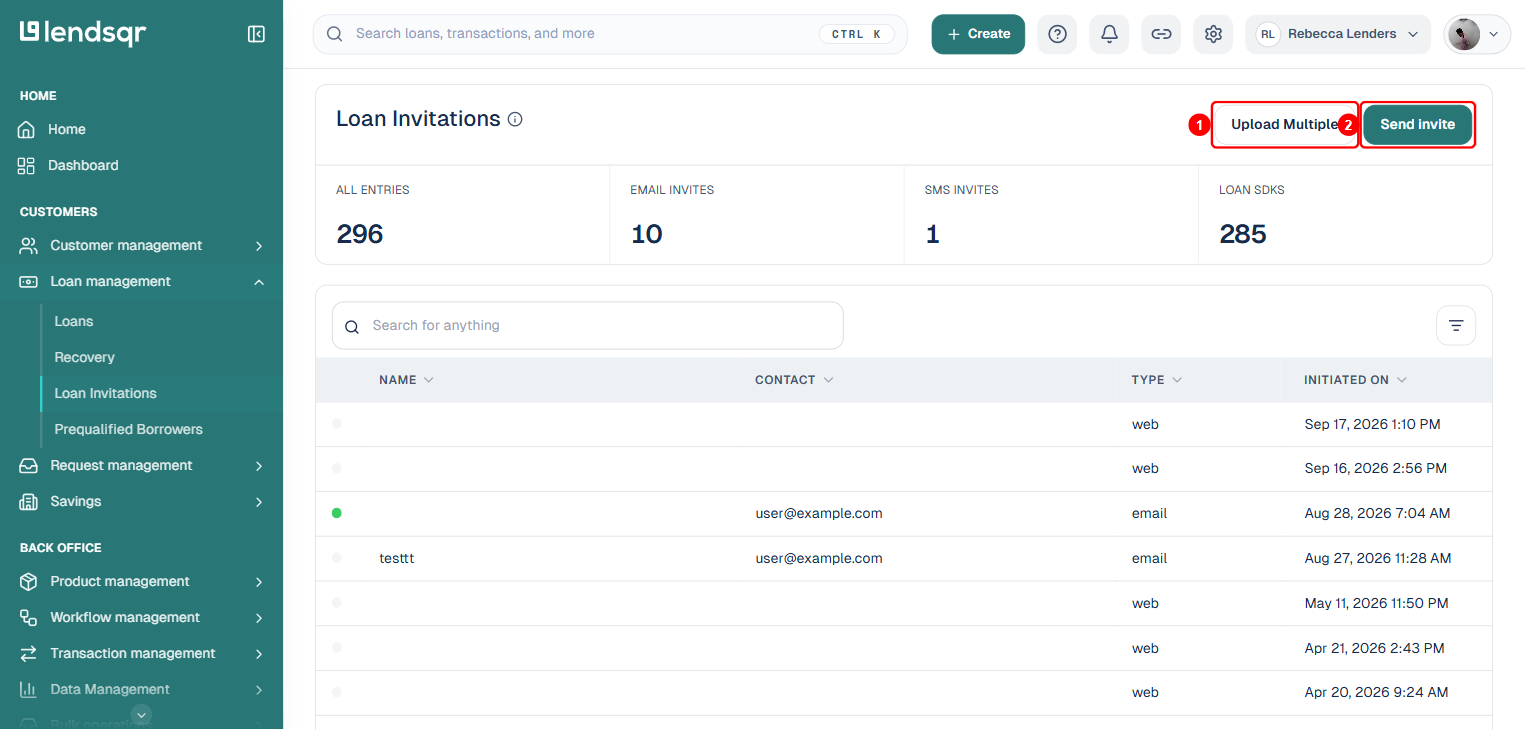
Additionally, you can choose to send a single invite or quickly send multiple invites to several users directly from the Lendsqr admin console. You can also view all sent invites on the “Loan Invitations” page.
From this page, you can send a single invite or upload multiple invites at once using the two buttons at the top right.
How to send a single loan invite
To send a loan invite to a single person, follow the steps below:
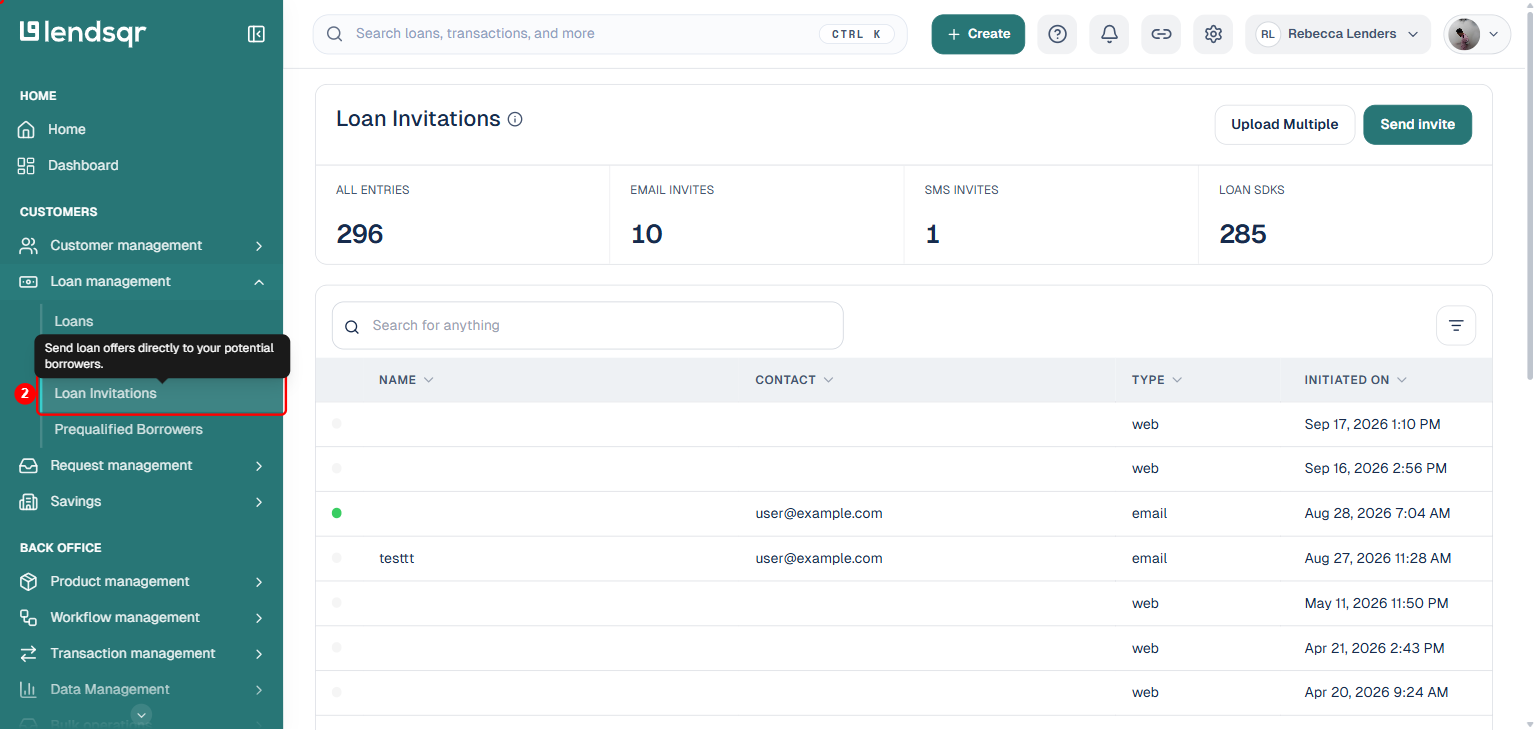
Navigate to “Loan Invitations” under “Loan Management” in the side navigation.
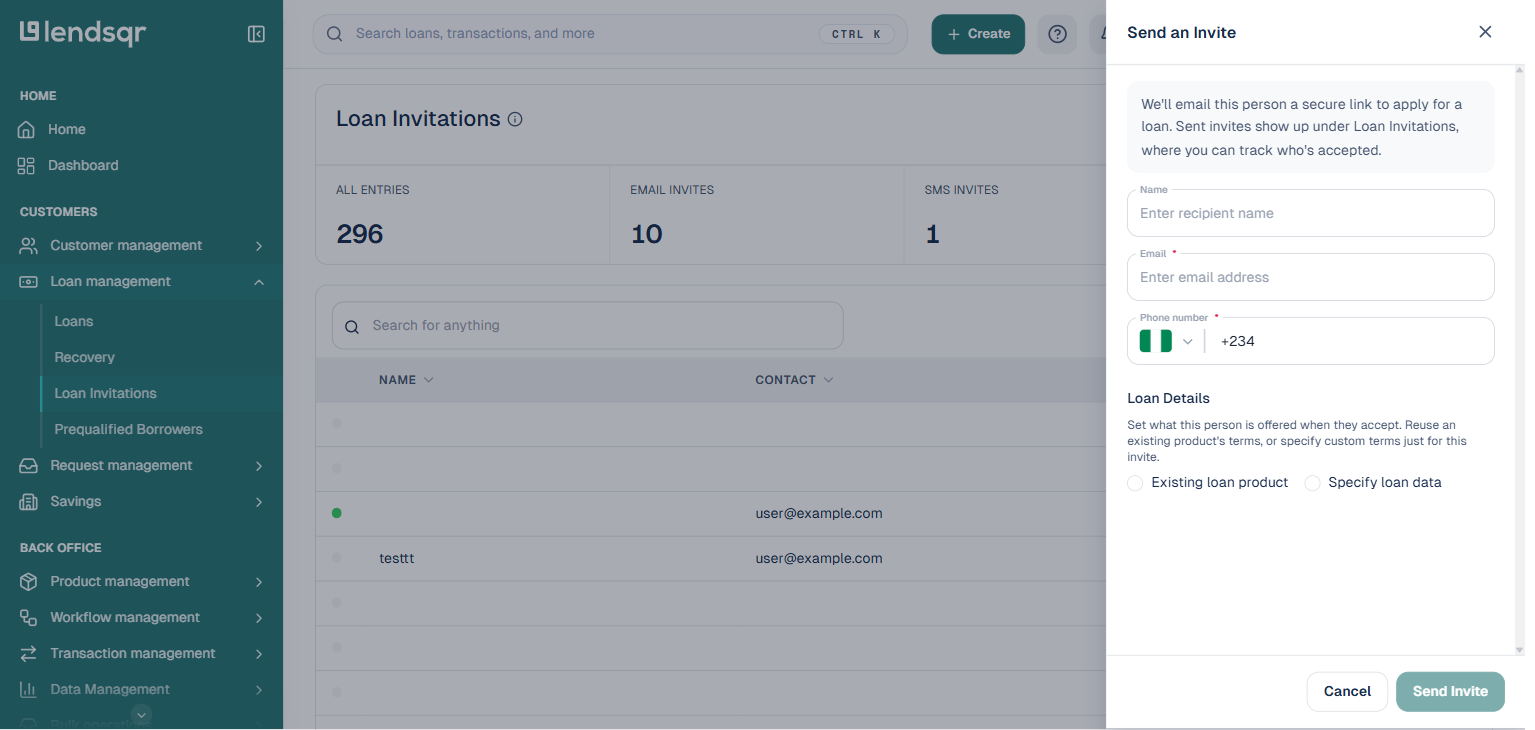
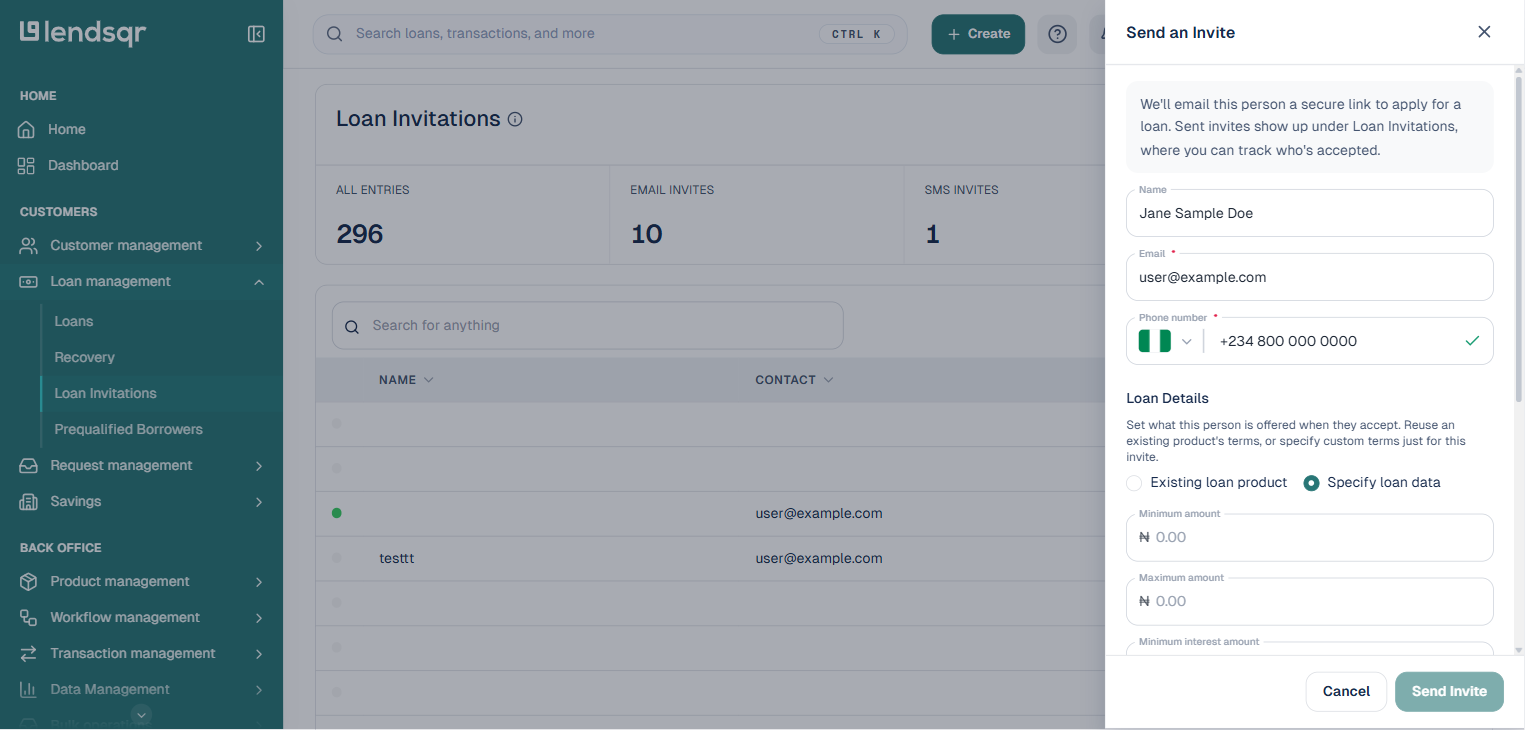
Click the “Send invite” button. This opens the “Send an Invite” panel directly, there is no separate menu to choose from.
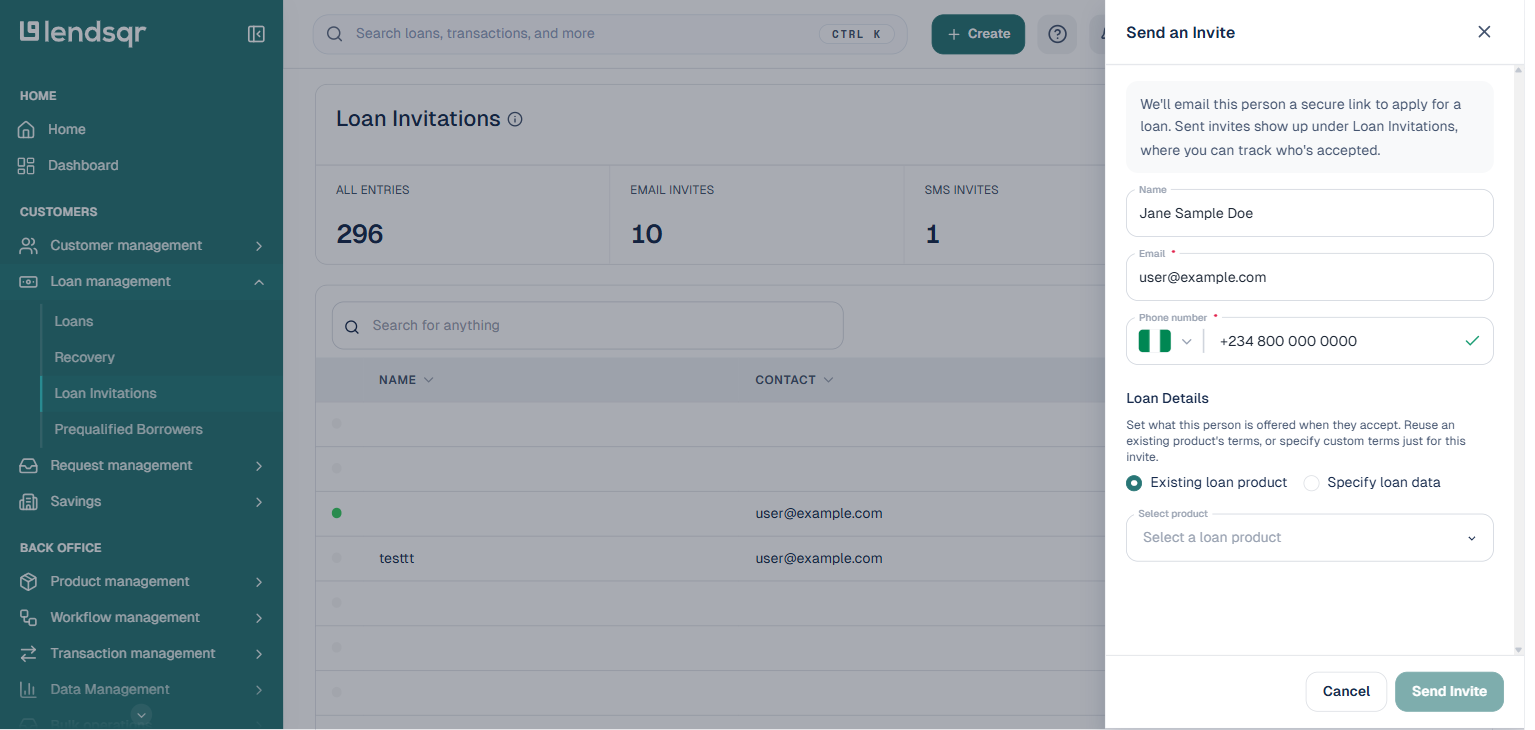
Enter the invitee’s name, email address, and phone number. The panel sends the invite by email by default; there is no separate SMS/Email channel toggle on this form.
Under “Loan Details“, choose “Existing loan product” to reuse a loan product’s standard terms, then pick the product from the “Select a loan product” dropdown that appears.
Or choose “Specify loan data” to set custom terms just for this invite, including minimum and maximum loan amount and minimum interest amount.
After filling in all the required information, click “Send Invite.” The invite is sent to the recipient by email, and the invite appears in the Loan Invitations list.
What the borrower sees
Once the borrower receives the invite, they will find either an email or an SMS containing a direct application link. Clicking the link takes them to a dedicated web page where they can register on your platform and apply for the loan in a single flow. They do not need to download an app or sign up separately before starting the application.
The loan details displayed to the borrower will reflect either the standard terms of the existing product you selected or the custom terms you configured for that specific invite.
How to send bulk loan invites
To send a loan invite to multiple people, follow the steps below:
Navigate to “Loan Invitations” under “Loan Management” in the side navigation.
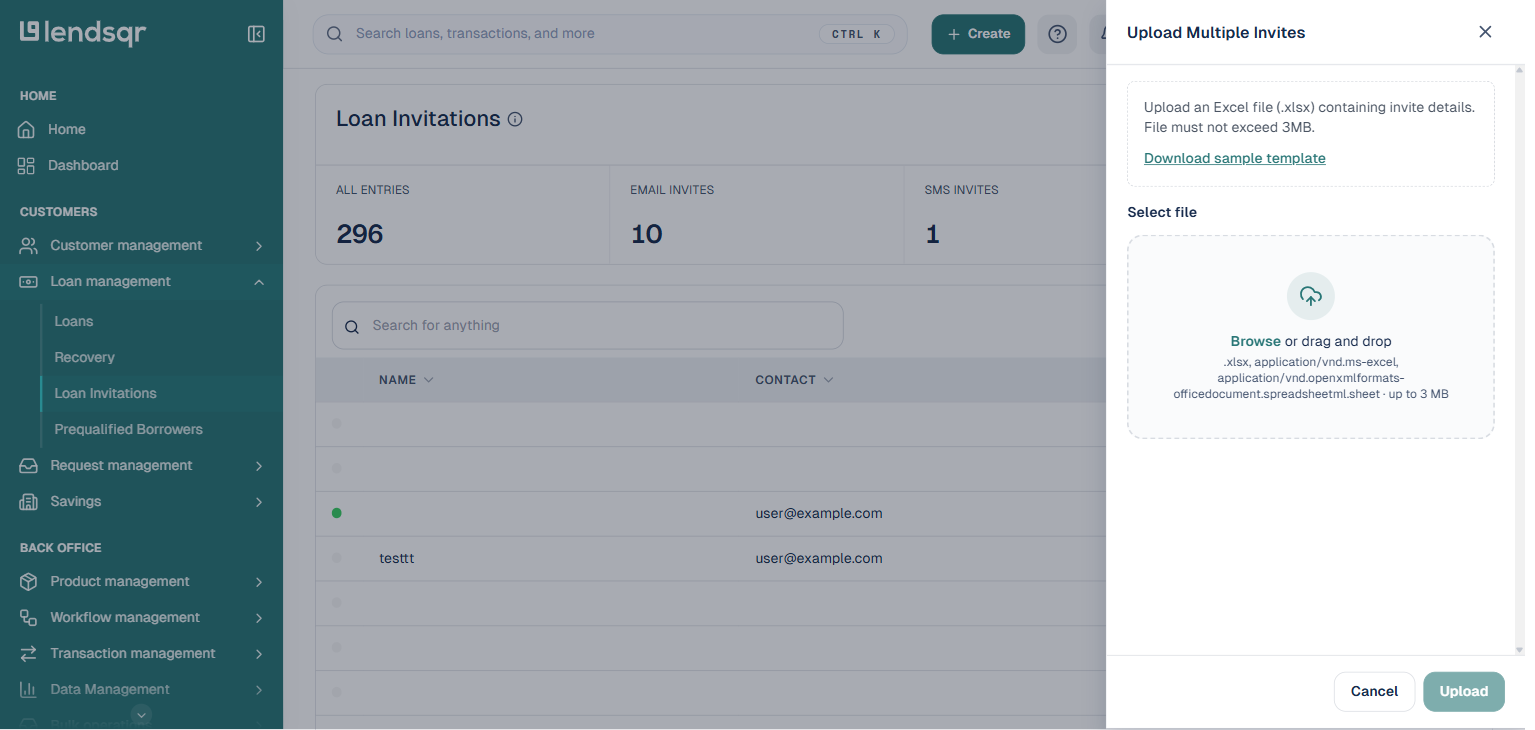
Click the “Upload Multiple” button. This opens the “Upload Multiple Invites” panel directly, no separate “External loans” page or “Create Invite” menu is needed.
Click “Download sample template” to get the Excel (.xlsx) template, fill in the required fields for each invitee, and save the file (max 3MB).
Back in the “Upload Multiple Invites” panel, click “Browse” (or drag and drop) to select your completed file, then click “Upload” to send the loan invites as specified on the sheet.
Viewing sent invites
All sent loan invitations are visible on the Loan Invitations page. Here you can see the status of each invite, including whether it is pending or has been accepted by the borrower. Use this page to monitor which borrowers have clicked their invite link and completed the application process, and to follow up with those who have not yet responded.
Best practices
Personalize where possible Borrowers are more likely to act on an invite that feels relevant to them. If you are sending to a specific group such as employees at a partner company or members of a cooperative, consider configuring custom loan terms that reflect their specific financial profile rather than using a generic product.
Choose the right channel for your audience Email invites are best for borrowers who regularly check their email and are comfortable with digital communication. SMS invites are better for borrowers in markets where SMS is the primary communication channel or where smartphone and internet penetration is lower. In many African markets, SMS significantly outperforms email for borrower outreach.
Use bulk invites for campaigns If you are running a lending campaign to a defined list of prospective borrowers, the bulk invite feature will save significant time. Prepare your Excel sheet carefully before uploading, errors in the sheet may cause some invites to fail.
Follow up on pending invites Monitor the Loan Invitations page regularly to identify borrowers who received an invite but have not yet completed the application. Consider sending a follow-up SMS or email reminder to increase conversion.