Access your Back Office at your fingertips.
Download the app now on Google Play Store.
Scan the QR code
You can also scan QR code with your phone to download the app.
Using Postman to call the API
Updated
On this page
Postman is a popular API development and testing tool that simplifies working with APIs (Application Programming Interfaces). It provides a user-friendly interface to make API calls (requests) and view responses, allowing developers to test and debug their APIs without writing code. Here’s how to call the Developer APIs using Postman:
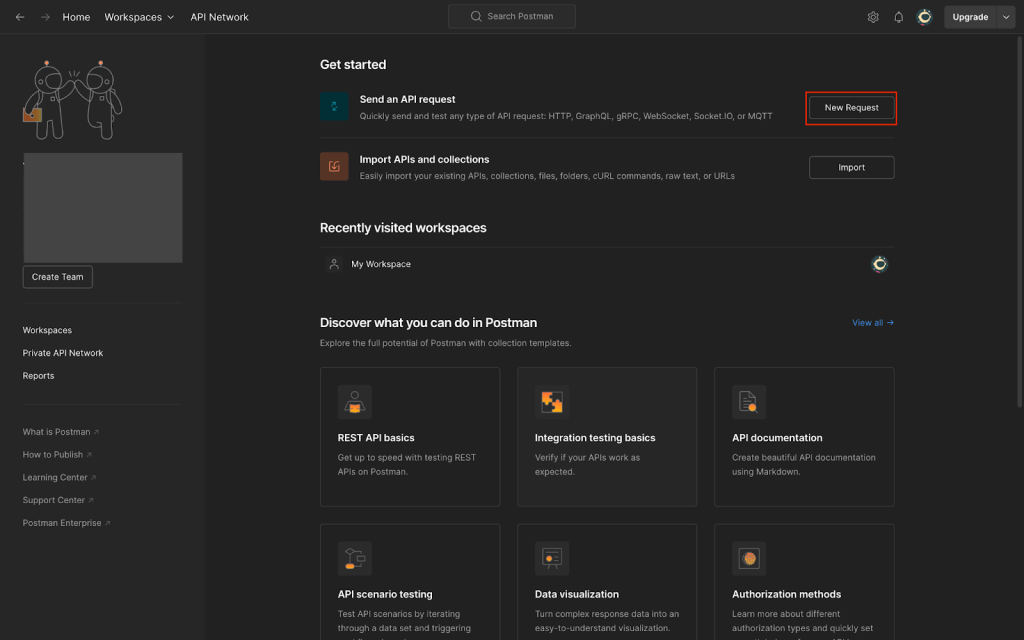
On opening Postman, you can quickly make a request by clicking on the ‘New Request’ button.
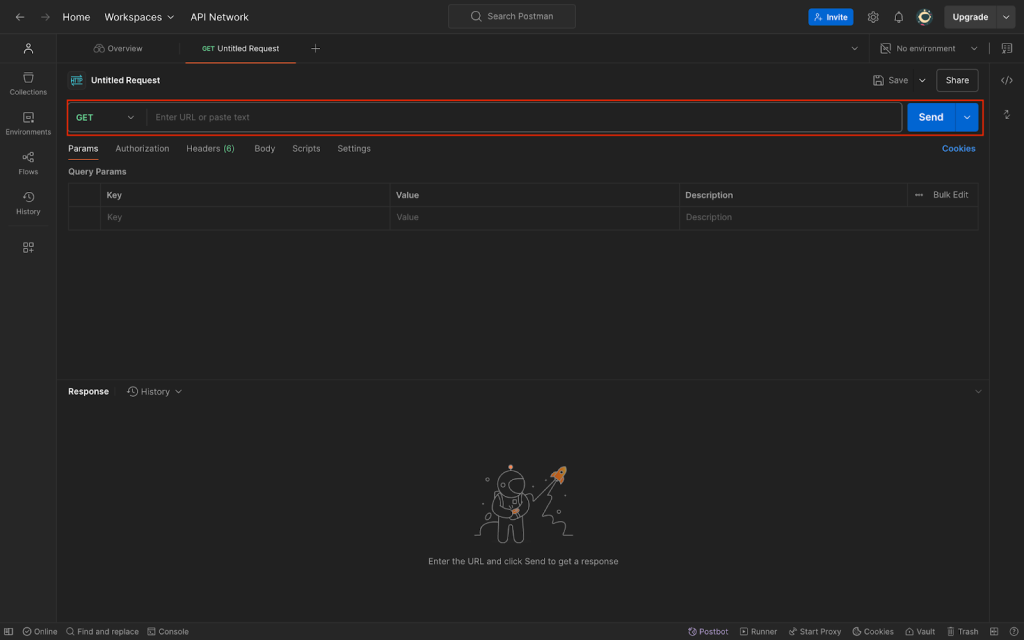
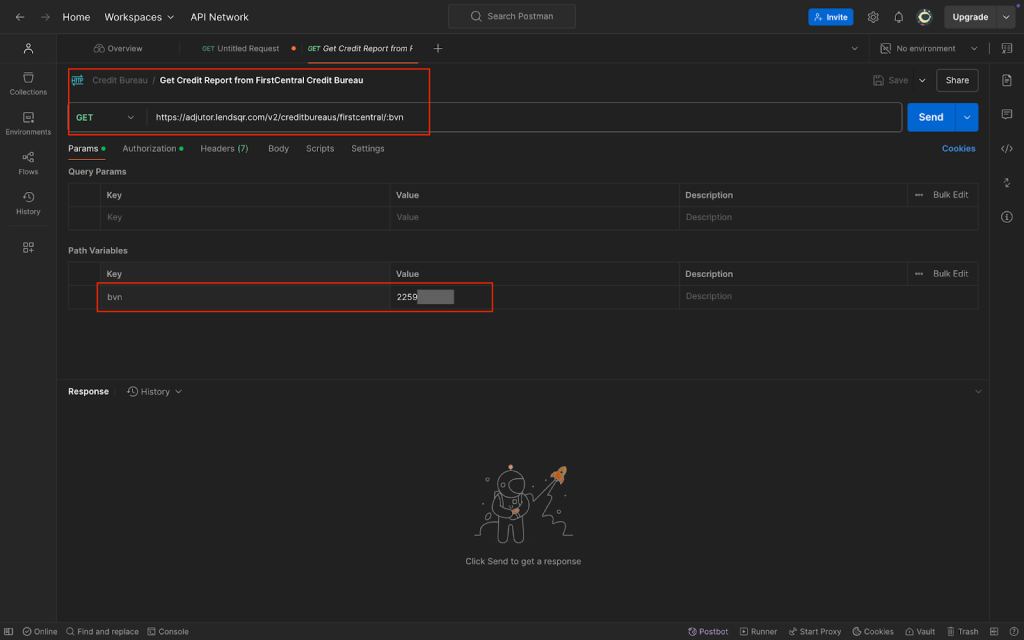
Next, you’ll land on the requests page, where you can input the endpoint you wish to query.
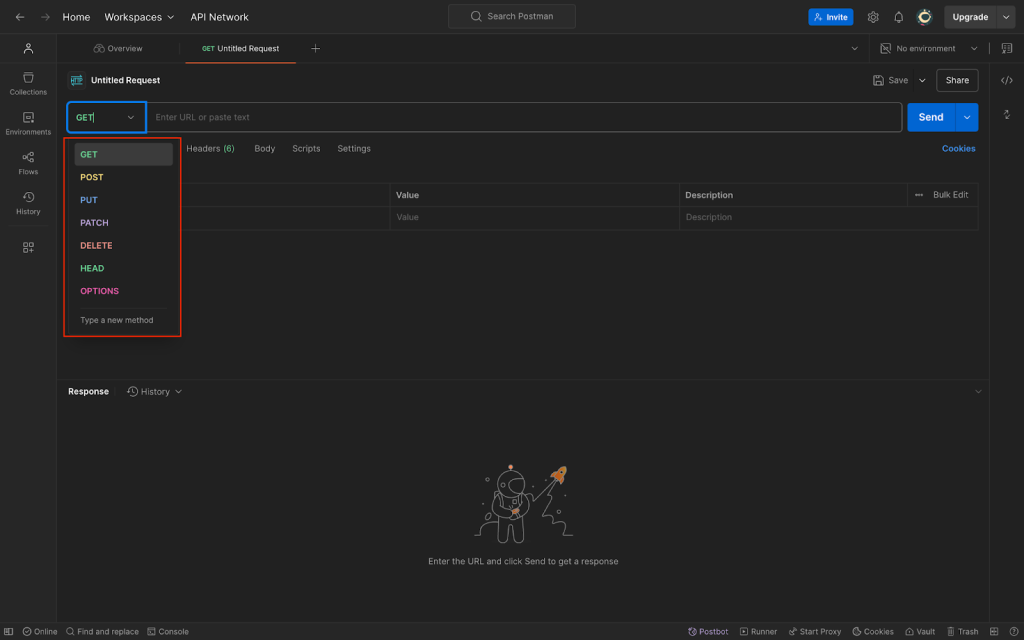
On Postman, you can make a series of requests using the GET, POST, PUT, PATCH, DELETE, and other methods.
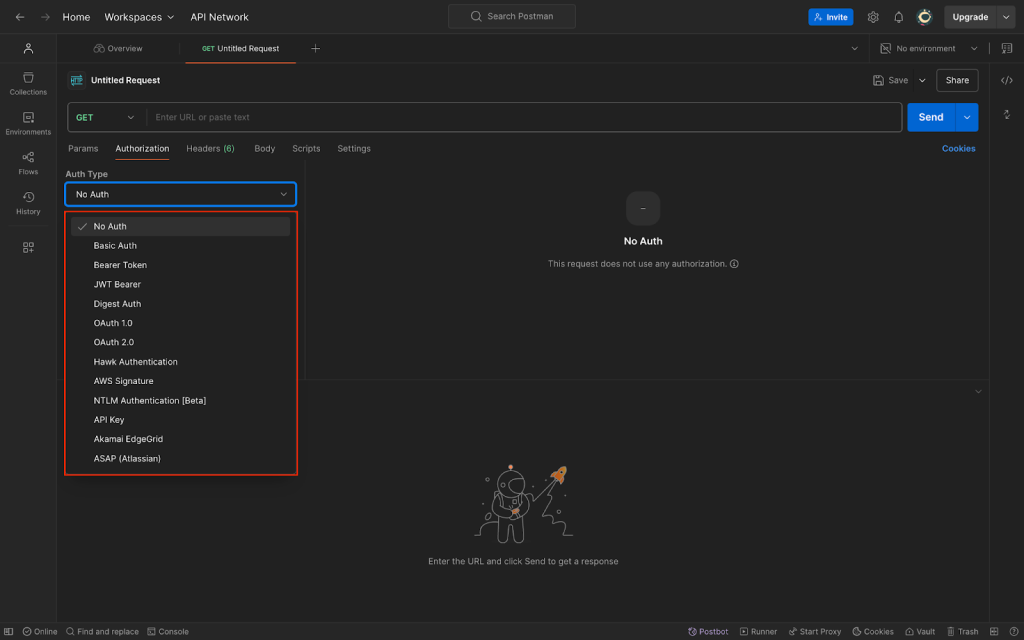
Under the Authorization tab, you can also see the various authentication types supported by Postman.
Getting your Bearer token
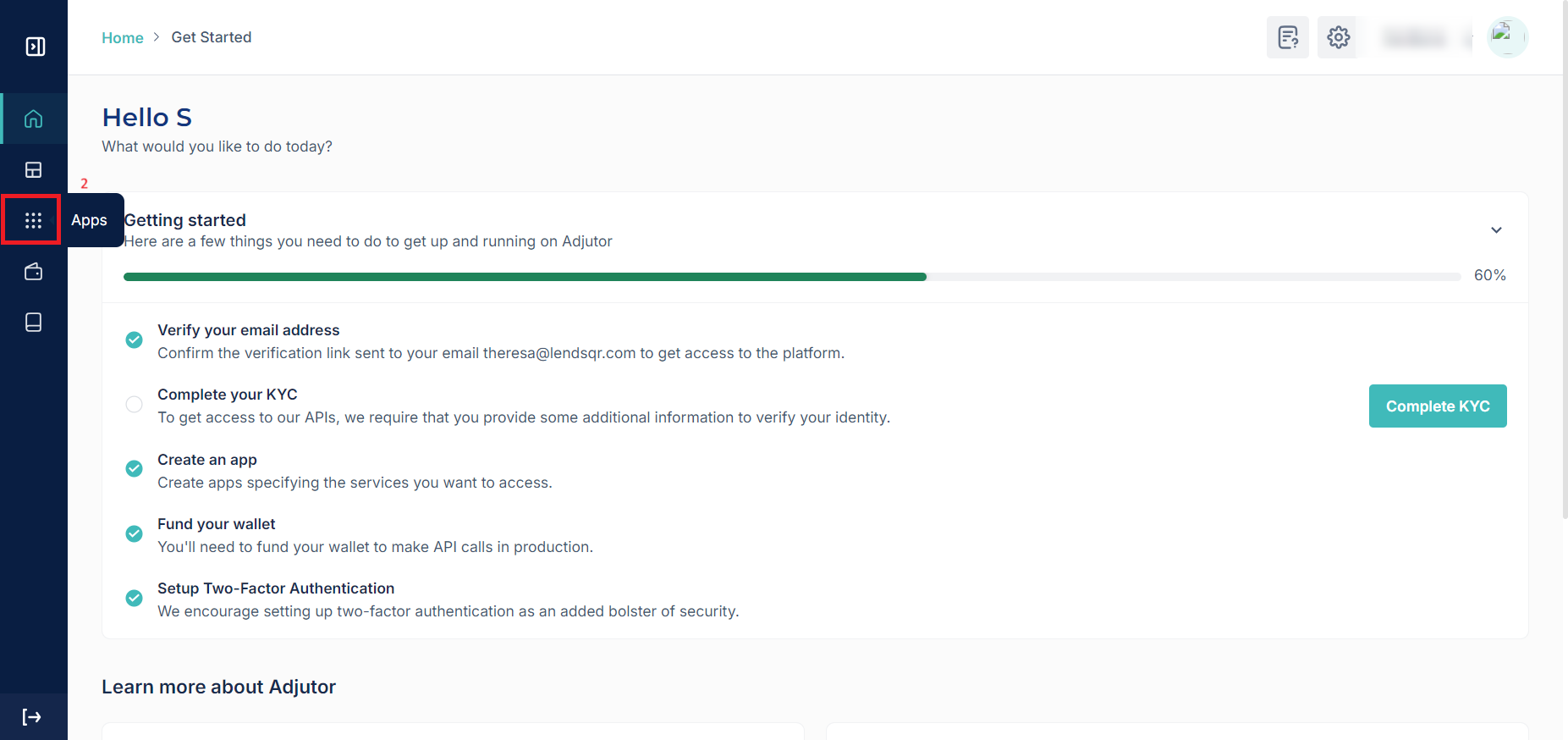
Every Developer API endpoint requires a Bearer token. In your Lendsqr admin console, expand Developer in the sidebar and select Apps. Create an app (or open an existing one) and select the API scopes it needs; the app’s API key is your Bearer token. See Getting started with the Developer APIs for the full walkthrough.
Making a request in Postman
With your Bearer token in hand, set up the request directly: there’s no separate API documentation site or collection to import.
Set the request method (GET, POST, etc.) and enter the full endpoint URL, for example a credit bureau lookup: GET https://adjutor.lendsqr.com/v2/creditbureaus/{bureau}/{identifier}
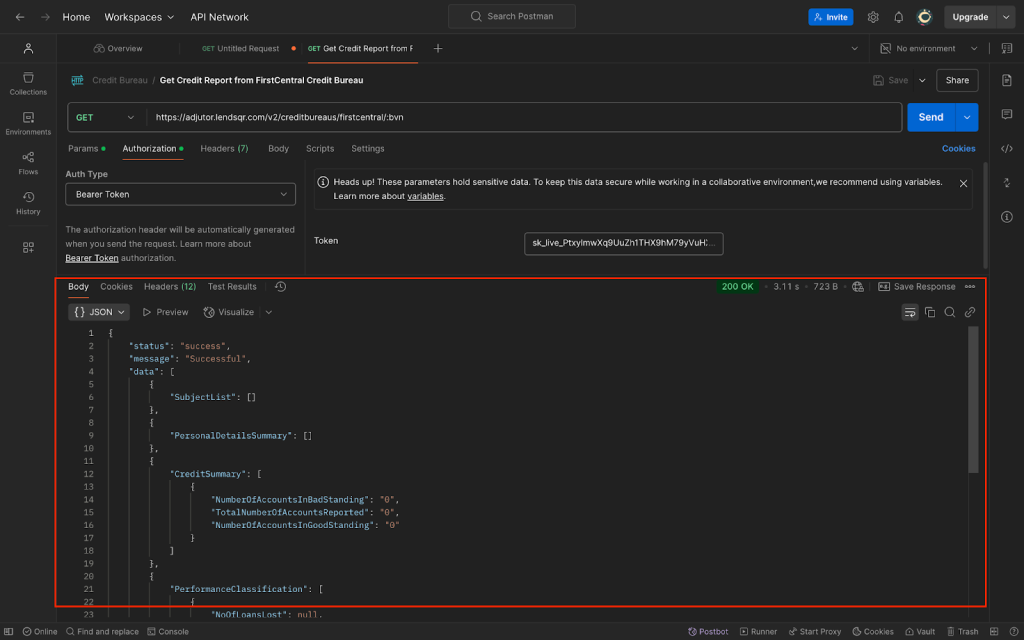
Under the Authorization tab, select Bearer Token and paste in your app’s API key.
Where the endpoint takes a request body, switch to the Body tab, select raw / JSON, and fill in the required fields.
In the credit bureau lookup example, {bureau} is the configured credit bureau provider and {identifier} is a region-specific unique customer identifier (for example, a national ID number or other accepted identity reference). See Credit Bureau APIs for details.
Once all details have been filled in, click Send to make the request. You should get a successful response.