Access your Back Office at your fingertips.
Download the app now on Google Play Store.
Scan the QR code
You can also scan QR code with your phone to download the app.
How to create a savings plan for a user on the admin console
Updated
On this page
Creating a savings plan for a user on the admin console allows you to proactively help customers reach financial goals through structured deposits. This guide walks you through the process step by step, along with important prerequisites and configuration dependencies to watch out for.
Overview
A savings plan is an instance of a savings product opened for a specific user, with its own amount, tenor, and start date. Admin-created plans are especially useful in assisted onboarding scenarios, enterprise use cases, or when managing users who require manual setup.
Why create a savings plan manually?
Most borrowers on digital lending platforms create their own savings plans through a web or mobile app. But not everyone has consistent smartphone access, and not every lender runs a fully digital operation.
Consider a microfinance institution serving artisans in a market. A field agent collects savings contributions in cash from 40 customers every week. Without the ability to create savings plans from the admin console, all of that data lives in a spreadsheet, invisible to the platform and untrackable in real time.
On Lendsqr, administrators can manually create savings plans for any registered user directly from the admin console. This is useful for:
Creating plans on behalf of field customers enrolled by agents.
Onboarding non-digital users who do not use the web app.
Migrating historical savings data from a previous system.
Prerequisites
Before creating a savings plan, ensure the following conditions are met:
1. Admin roles and permissions
You must have a role with permission to create and manage savings plans. If you are unable to access the Savings module or create a plan, contact your system administrator to update your role permissions.
2. Savings product configuration
Savings plans can only be created from an existing, active savings product. Ensure that a savings product has been fully configured with a name, amount range, interest rate, tenor range, funding method, and savings type. If no suitable product exists, create one first. Read here.
3. Customer profile
The user must already be registered on your Lendsqr platform before you can create a savings plan for them, and their BVN must be on file. If they are not yet registered, create their profile first, then return to this step. Read here
How to create a savings plan for a user
1. Log in to your Lendsqr admin console.
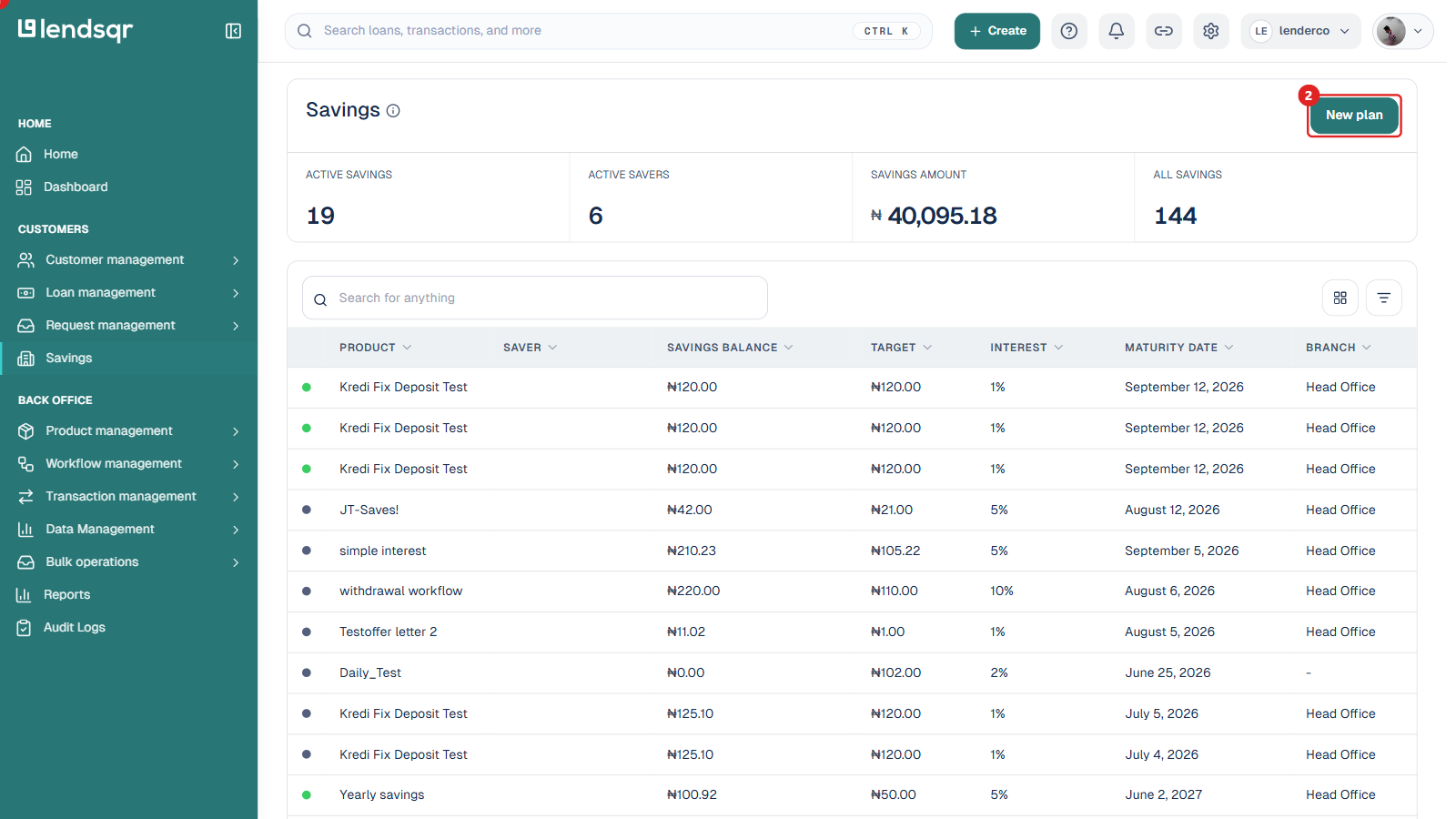
2. On the left-hand sidebar, click Savings to open the savings dashboard. This shows active savings, active savers, total savings amount, and a table of all savings plans.
3. At the top right of the page, click New plan to begin.
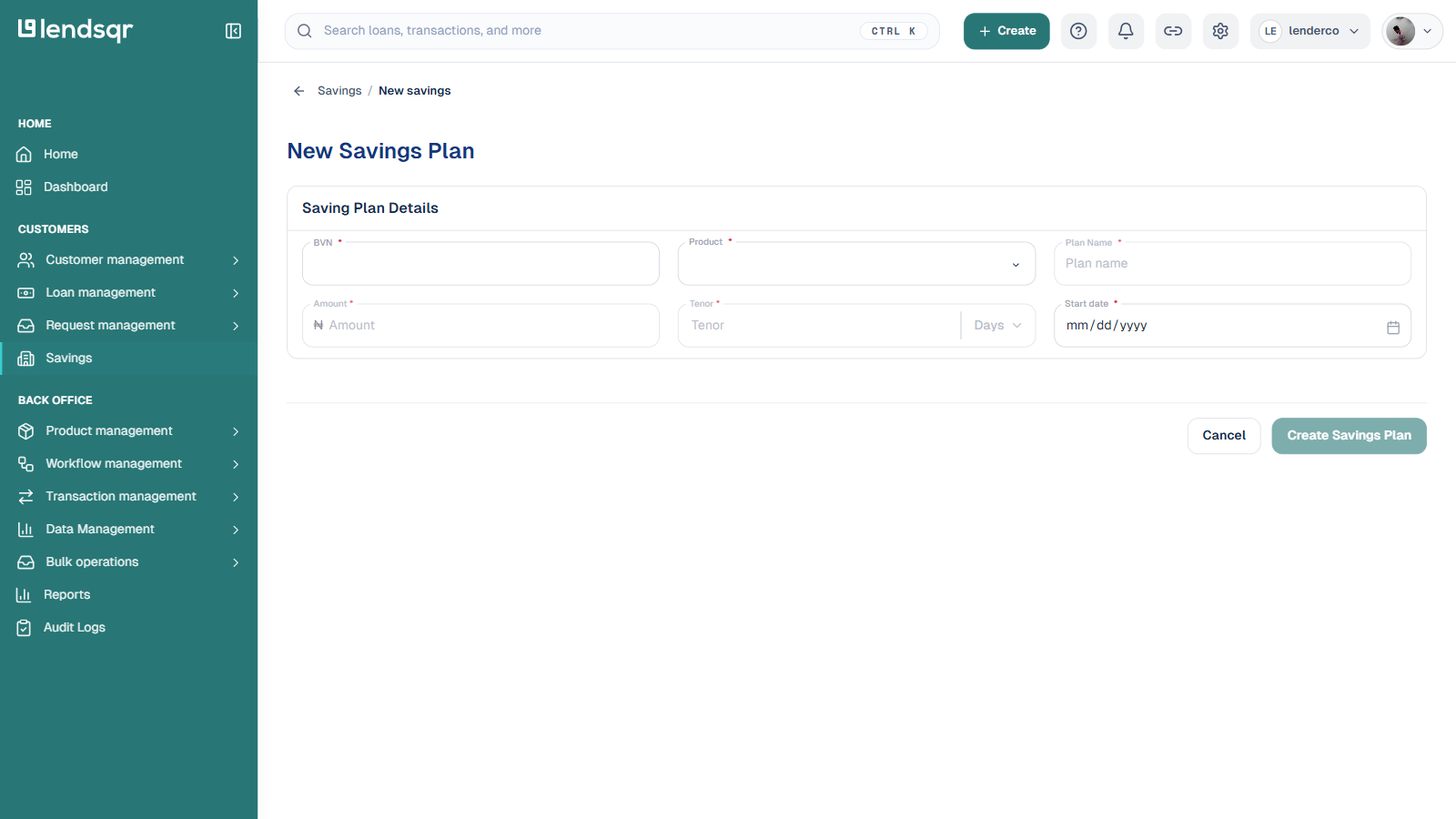
4. The New Savings Plan form opens. Fill in the fields:
BVN: the BVN of the user you are creating the plan for. The console resolves this to the matching customer record.
Product: the savings product this plan will be based on. This determines the interest rate, tenor range, and funding method.
Plan Name: a clear name the user will recognize, for example “School Fees Target” or “Emergency Fund”.
Amount: the amount for the plan. Ensure it falls within the minimum and maximum limits defined on the savings product.
Tenor: how long the plan runs, entered as a number with a period unit (for example, a number of days), within the tenor range allowed by the product.
Start date: the date contributions begin.
5. Once every field is filled in correctly, click Create Savings Plan to finalize the plan. The plan becomes active immediately and is visible on the user’s profile.
Note: The savings plan appears immediately on the user’s profile and can be funded manually or through the funding method configured on the savings product.
Funding the savings plan after creation
Once the plan exists, you can also fund it directly from the admin console on behalf of the user, for example to record a cash contribution made in person. Open the user’s profile, locate the plan under their savings, and use the option to fund it. Enter the amount and confirm. See How to fund a user’s savings plan from the admin console.
Best Practices
Always verify the savings product configuration before creating plans against it
Use clear and descriptive plan names
Communicate plan details to users (amount, tenor, start date)
Regularly monitor active plans for funding consistency
Frequently asked questions
Can the user see their savings plan on the web app after I create it?
Yes. Once you create a savings plan from the admin console, it is visible to the borrower on their web app under their savings section. They can track their balance and contribution history in real time.
What happens if I select the wrong savings product?
The savings product determines the interest rate, tenor range, and funding method for the plan. If the wrong product is selected, you may need to close the plan and create a new one with the correct product. Check your product settings before proceeding.
Can I create multiple savings plans for the same user?
Yes, a single user can have multiple active savings plans at the same time, each under a different savings product or goal. There is no platform limit on the number of concurrent plans per user.