Access your Back Office at your fingertips.
Download the app now on Google Play Store.
Scan the QR code
You can also scan QR code with your phone to download the app.
How to set up Google Analytics tracking for your web app
Updated
On this page
If you run paid or organic traffic to your web app, loan application form, or microsite, you usually want to know where borrowers drop off, how many complete an application, and which channels actually convert. Lendsqr lets you plug your own Google Analytics tracking into your web app for exactly this, without needing any code changes.
What this setting does
The GA Tracking ID setting takes a Google Tag Manager container ID, not a raw Google Analytics measurement ID on its own. Google Tag Manager is Google’s own wrapper around Analytics (and other tracking tags), so once your container ID is set here, Lendsqr loads that container on your customer-facing web app. From there, whatever tags, triggers, and Analytics configuration you have set up inside that Tag Manager container start firing on your web app, including conversion events like a loan application being started, submitted, or completed.
In practice, this means the setup work of deciding what counts as a “conversion” and configuring the actual GA4 property happens on Google’s side, inside Tag Manager and Google Analytics. Lendsqr’s part is just loading your container onto the web app so those tags have something to track.
How to set it up
Create a Google Tag Manager container for your web app if you don’t already have one, and set up Google Analytics (GA4) tags and a conversion trigger inside it on Google’s side. This part happens entirely outside Lendsqr, in your Google Tag Manager and Google Analytics accounts.
In your Lendsqr admin console, open the settings menu and click System Configuration, then select Data and Integration.
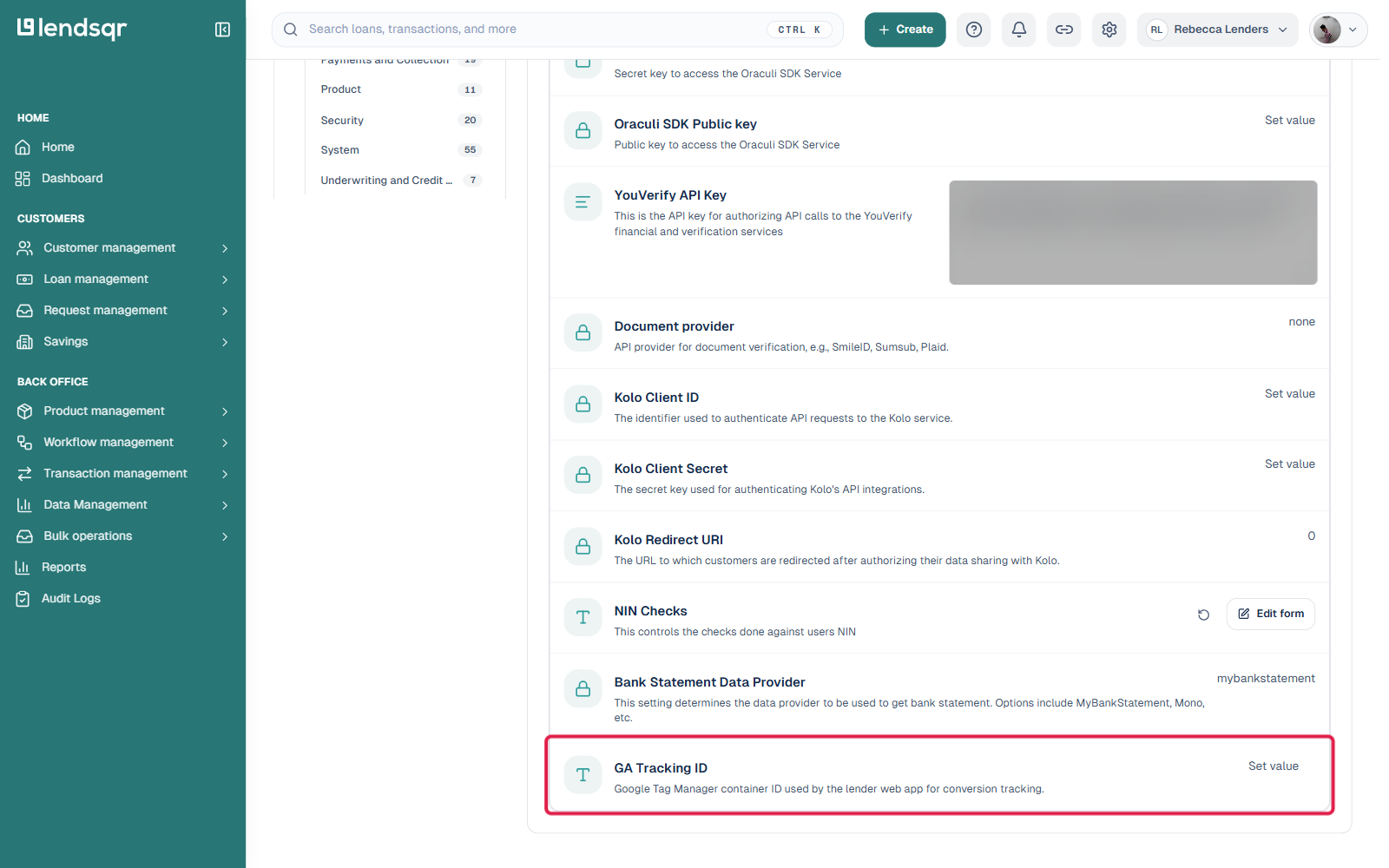
Search or scroll to find GA Tracking ID, described as the “Google Tag Manager container ID used by the lender web app for conversion tracking.”
Click Set value and paste in your Google Tag Manager container ID (it looks like GTM-XXXXXXX).
Once saved, the container loads on your web app, and any conversion events you’ve configured in Tag Manager start reporting into your connected Google Analytics property.
Verifying it’s working
Use Google Tag Manager’s own Preview mode against your web app’s URL to confirm the container is loading and your tags are firing as expected. Once confirmed there, check your Google Analytics real-time report while browsing your web app to see events coming through.