Access your Back Office at your fingertips.
Download the app now on Google Play Store.
Scan the QR code
You can also scan QR code with your phone to download the app.
Viewing and understanding loan transactions on Lendsqr
A borrower calls your support line and says they made a payment three days ago, but their loan still shows as overdue. Your collections officer says no payment appears in the system. Who is right?
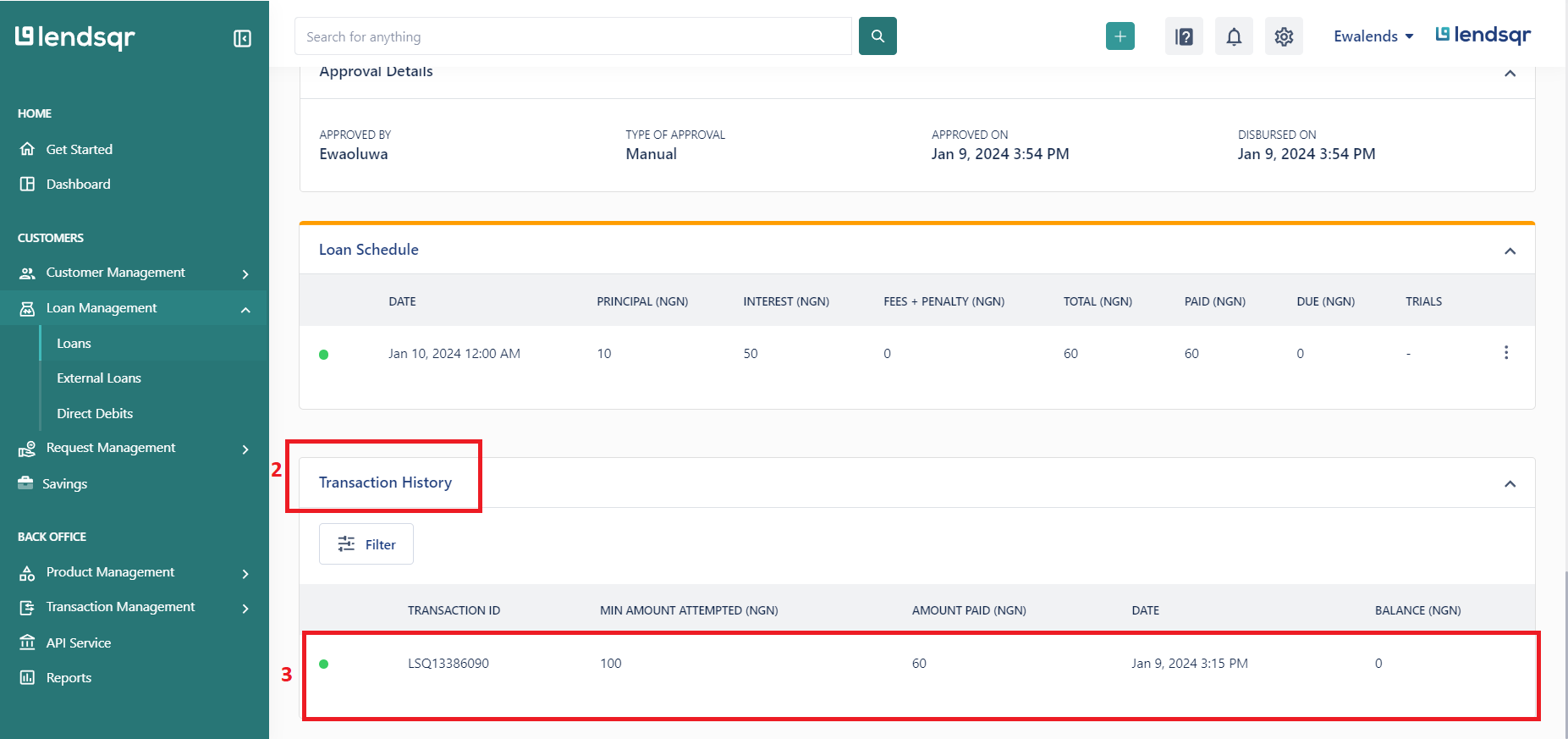
The answer is in the loan transaction history. On Lendsqr, every repayment tied to a loan shows up in the Transaction History section of that loan’s profile. You can see the exact date, amount, and status of each transaction, and click through to get full details on any specific entry.
This guide explains where to find transaction history, what the details tell you, and how lenders use this information in practice.
Why loan transaction history matters
Every loan on your platform moves through a series of financial events: disbursement, scheduled repayments, partial payments, penalty charges, and eventual closure. Each of these events leaves a transaction record.
Loan transaction history is the source of truth for everything related to a borrower’s repayment activity. Lenders use it in several important ways.
Resolving payment disputes: When a borrower claims they paid, but the loan still shows as overdue, transaction history gives you a timestamped record of every amount that came in. You can confirm whether the payment landed, when it landed, and what status it carried.
Tracking repayment behavior: Consistent on-time payments tell a different story from a mix of late, partial, and missed ones. Transaction history lets your team assess a borrower’s behavior over the life of the loan, not just the current status.
Verifying collection activity: If your team ran a manual collection attempt or recorded an external repayment, the transaction log confirms whether it posted correctly.
Supporting loan decisions: When a borrower requests a second loan or a loan increase, their transaction history on existing or past loans is one of the most reliable signals of whether they are likely to repay.
What you will see in the transaction history
Each entry in the Transaction History section represents a single financial event on the loan. When you click on a specific transaction, it opens a detailed view with the full information for that event.
The details typically include the transaction date and time, the amount, the transaction type, and the status. Here is what each field tells you:
Transaction date and time: This confirms exactly when the payment hit the system. If a borrower says they paid on a certain day, this field will either confirm or contradict that claim.
Amount: The value of the transaction. For repayments, this reflects how much the borrower paid in that particular instance. Partial repayments and full installment payments appear as separate entries.
Transaction type: This indicates what kind of financial event the entry represents, for example, a repayment, a penalty charge, or a fee deduction. Knowing the type helps you understand what each line item reflects without further investigation.
Status: This tells you whether the transaction completed successfully or encountered a problem. A successful status confirms that the money has been moved. A failed or pending status signals that something went wrong and may need investigation.
A practical example: verifying a borrower’s payment claim
A borrower contacts your support team and insists they made a repayment of ₦15,000 on the 5th of the month. Their loan currently shows as overdue.
Your support officer opens the borrower’s loan profile in the Lendsqr admin console and navigates to the Transaction History section. They scan the entries for the date in question and find a transaction on the 5th for ₦15,000. The status shows as failed.
This one check answers the question. The borrower did attempt a payment on the date they mentioned, but it did not process successfully. Your team can now work with the borrower to understand why the payment failed and guide them through completing it.
Without the transaction history, this conversation could take much longer and create unnecessary friction on both sides.
How to view loan transaction history on Lendsqr
Locate the specific loan you want to review. Follow the steps in the guide on how to locate a user’s loan if you need help finding it.
On the loan profile page, scroll to the bottom. You will find the “Transaction History” section there.
Review the list of transactions. Each entry shows the key details at a glance, including date, amount, and status.
Click on any specific transaction to open the full detail view for that entry.
Viewing a user’s loan repayment transaction history
That is all the navigation you need. The transaction history loads directly within the loan profile and does not require switching to a separate section of the admin console.
What to do when a transaction shows as failed or pending
If a transaction in the history shows a failed or pending status, it usually means one of the following: the borrower’s account had insufficient funds, the debit attempt encountered a technical issue, or the payment was initiated but not yet settled.
For failed transactions, your next step is to check whether the borrower needs to retry the payment or whether a manual collection attempt is appropriate. For pending transactions, allow time for the payment processor to settle before taking action, as some payment methods take one to two business days to confirm.
If a payment appears to have succeeded on the borrower’s end but shows as failed in your system, check with your payment processor using the transaction reference to reconcile the records.