Access your Back Office at your fingertips.
Download the app now on Google Play Store.
Scan the QR code
You can also scan QR code with your phone to download the app.
How to find a customer’s direct debit mandate on the Lendsqr Admin Console
To locate a customer’s direct debit mandate on Lendsqr, go to their profile in the admin console, open the “Bank details” tab, and scroll down to the mandate section. The mandate ID, start date, end date, and current status will all appear there.
That is the short answer. But knowing where to find a mandate is only part of the picture. Understanding what the details mean and how to use them in your day-to-day lending operations is what makes this information genuinely useful. This guide covers both.
A direct debit mandate is a formal authorization a borrower gives to allow a lender to debit their bank account automatically. When a borrower signs up for direct debit as a repayment method, they agree that on specified dates, the lender can pull the loan repayment amount from their account without requiring them to initiate a transfer each time.
This authorization is not open-ended. Every mandate has a defined validity period, tracked by a start date and an end date. It also carries a status that tells you whether it is active, inactive, or expired. These details matter because a mandate that looks fine on paper may not work when your system tries to collect.
For lenders using direct debit as their primary collection method, mandate health is a key part of portfolio management. A borrower whose mandate has expired or lapsed cannot receive automatic debits. That means missed repayments, manual follow-ups, and potential delinquency, even when the borrower is otherwise willing to pay.
When you would need to look up a mandate
Most of the time, mandate checks happen in response to a specific situation. Here are the most common ones.
A repayment fails: Your direct debit attempt on a borrower’s account comes back unsuccessful. Before reaching out to the borrower, your collections team checks whether the mandate still holds active and valid. If it has expired or the lender deactivated it, that is likely the root cause.
A borrower contacts support: A borrower says they are confused about why their account was debited or why a payment did not go through. Looking up their mandate gives your team the exact mandate ID, the dates it covers, and its current status, so you can explain what happened clearly.
A loan is being reviewed: A loan officer reviewing a borrower’s file wants to confirm that a valid direct debit mandate is in place before approving a new loan or restructuring an existing one.
Compliance or audit checks: Your team needs to verify that a mandate was active at the time a specific debit was made, as part of a complaint investigation or internal audit.
In each of these cases, the mandate lookup takes seconds through the Lendsqr admin console.
How mandate details affect your collections workflow
When you pull up a mandate on Lendsqr, you will see several key fields. Here is what each one means for your operations.
Mandate ID: This is the unique reference number for the mandate. Use it when communicating with your payment processor or when logging a dispute. It ties the authorization record directly to the borrower’s account.
Start date: The date from which the mandate became valid. If your system attempted a repayment before this date, the attempt would have failed because the mandate had not yet been activated.
End date: The date the mandate expires. Once a mandate passes its end date, your system can no longer process automatic debits against it. If a borrower still carries an active loan beyond the mandate’s end date, you need to create a new mandate before the next collection attempt.
Status: This tells you the current state of the mandate. An active status means your system can proceed with debits. An inactive or expired status means it cannot. If a borrower’s mandate status does not match what your schedule expects, investigate that mismatch before escalating a missed payment.
Knowing how to read these fields helps your team move faster when something goes wrong in the collection cycle. Rather than waiting for a payment processor report or chasing the borrower first, you can confirm the mandate state in under a minute and decide your next action from there.
How to find a customer’s mandate on Lendsqr
Managing your Lendsqr direct debit mandate records requires systematic navigation through the admin console. Follow these detailed steps to access any customer’s mandate information efficiently:
Log in to your Lendsqr admin console and click on “Customers” in the navigation menu.
Use the search or filter options to find the specific customer whose mandate you want to review. Click on their name to open their profile.
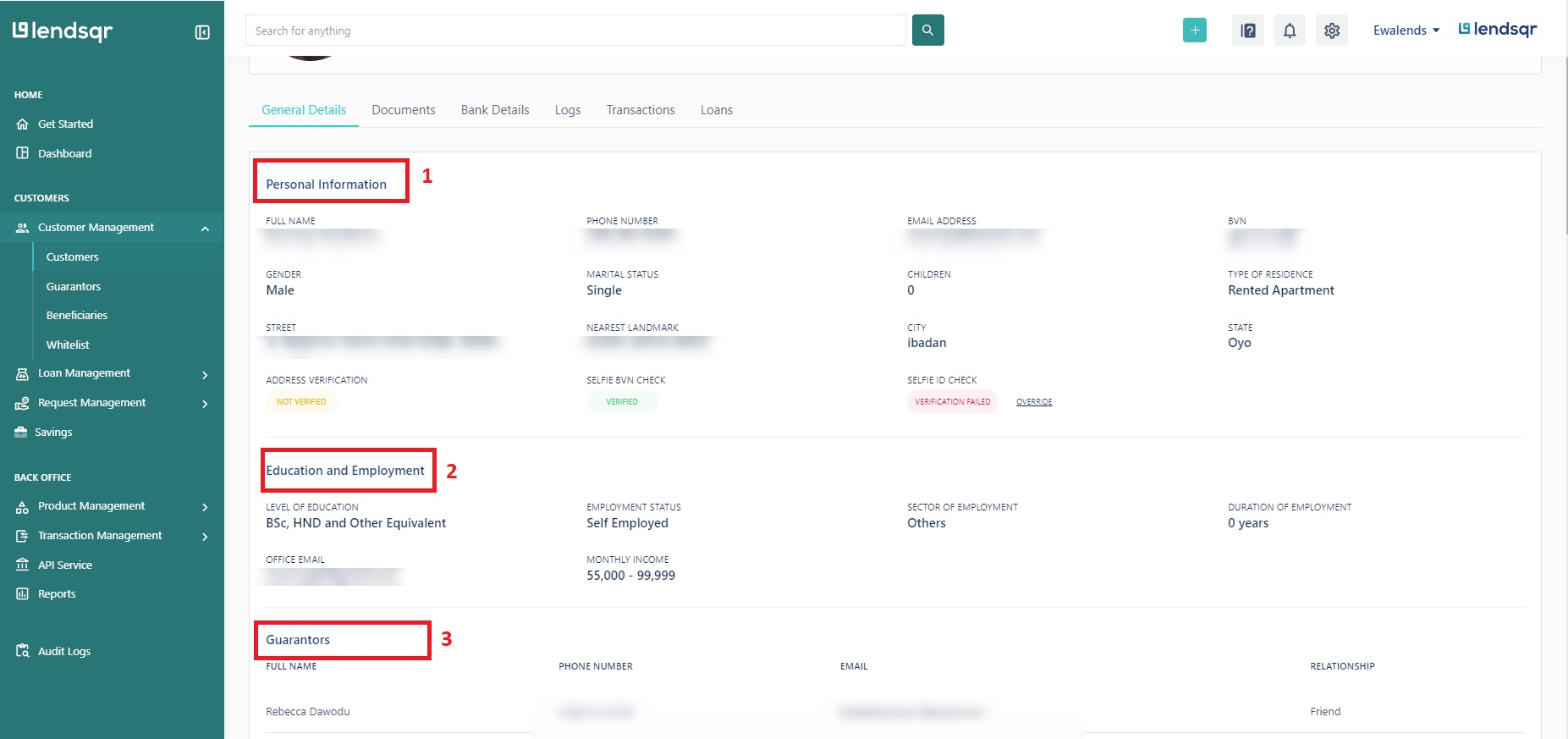
Inside the customer’s profile, click on “Bank details” from the profile navigation tabs.
Scroll down past the customer’s bank account and card details. The direct debit mandate information appears below, showing the mandate ID, start date, end date, and status.
What to do after checking the mandate
Finding the mandate is usually step one in a larger action. Here is what typically comes next, depending on what you find.
If the mandate is active and within its validity period, the issue causing a failed debit likely lies elsewhere. Check the borrower’s account balance, confirm the bank details are correct, and review whether the debit was triggered at the right time.
If the mandate has expired, you need to get a new mandate signed before your next collection attempt. Reach out to the borrower and guide them through creating a fresh direct debit authorization.
If the mandate is inactive, someone may have deactivated it manually, or the payment provider flagged it. Review the mandate history and contact your payment processor if needed.
For more on managing mandate statuses and the actions available against each one, read the guide on understanding mandate statuses. To learn more about how direct debit fits into your overall repayment setup, visit the Lendsqr blog.