Access your Back Office at your fingertips.
Download the app now on Google Play Store.
Scan the QR code
You can also scan QR code with your phone to download the app.
How to set up your Two-Factor Authentication (2FA) on Lendsqr
A lending platform is only as secure as the people who can access it. Every admin account on your Lendsqr console has the power to approve loans, view borrower data, trigger disbursements, and modify critical settings. If someone gains unauthorised access to even one of those accounts, the consequences can be serious: fraudulent loans approved, customer data exposed, and funds moved to the wrong places.
Two-factor authentication (2FA) is one of the most effective ways to prevent this. It adds a second layer of verification beyond a password, so even if a password gets compromised, an attacker still cannot get in without the second factor.
This article explains what 2FA is, why it matters specifically for lending operations, and how to set it up on your Lendsqr admin console account.
What two-factor authentication is
Two-factor authentication requires a user to provide two separate forms of verification before gaining access to an account. The first factor is usually a password. The second factor is typically a time-sensitive code generated by an authenticator app on a separate device.
Because the code changes every 30 seconds and only exists on a device the user physically holds, it is extremely difficult for someone who does not have that device to complete a login, even if they know the password.
Why 2FA matters in lending operations
A password alone is not enough protection for a lending back office. This is because the risk is higher than in most businesses. A lending admin console is not just a content management system. It holds real borrower financial data, controls loan approvals, and connects directly to disbursement flows. A compromised admin account can cause direct financial harm to your business, to your borrowers, and to investors or depositors, depending on your model.
A practical scenario
Imagine a loan officer at a digital lender uses the same password for their Lendsqr admin account and their personal email. A data breach at a third-party service exposes the email password. Someone now has both their email address and their password, and tries it on the Lendsqr login page. Without 2FA, they get in.
With 2FA activated, the attacker hits a wall. They have the password, but they do not have access to the loan officer’s phone, where the authenticator app generates a fresh code every 30 seconds. The attempt fails. The account stays secure.
This is not a theoretical scenario. Credential stuffing, where attackers try leaked username-password combinations across multiple platforms, is one of the most common attack vectors against business accounts.
When to enforce 2FA in your operations
You should set up 2FA on your own account right away. But you should also think about when to require it across your team.
As your lending operation grows, consider mandating 2FA for:
All staff who can approve or decline loan applications
Team members with access to disbursement accounts or financial settings
Anyone who can view or export customer data
Admins who can modify system settings or team roles
Use a reliable authenticator app: Google Authenticator, Microsoft Authenticator, and Okta Verify all work with Lendsqr. If you use Microsoft Authenticator, turn on cloud backup. This protects you if you lose or change your device, since you can restore your accounts from backup rather than going through account recovery.
Save your recovery codes. After activating 2FA, Lendsqr will give you recovery codes. Download and store these somewhere secure, such as a password manager or a printed copy kept offsite. If you ever lose access to your authenticator app, these codes are your way back in.
Do not share your authenticator with anyone. The second factor only works as a security measure if only you can access it. If you share your phone or your authenticator app with a colleague, the protection 2FA offers effectively disappears.
How to set up 2FA on your Lendsqr account
You will need an authenticator app installed on your mobile device before you begin. Download one of the following if you do not already have one: Google Authenticator, Microsoft Authenticator, or Okta Verify. Once this is done, here are the steps to follow to set up 2FA on your Lendsqr account:
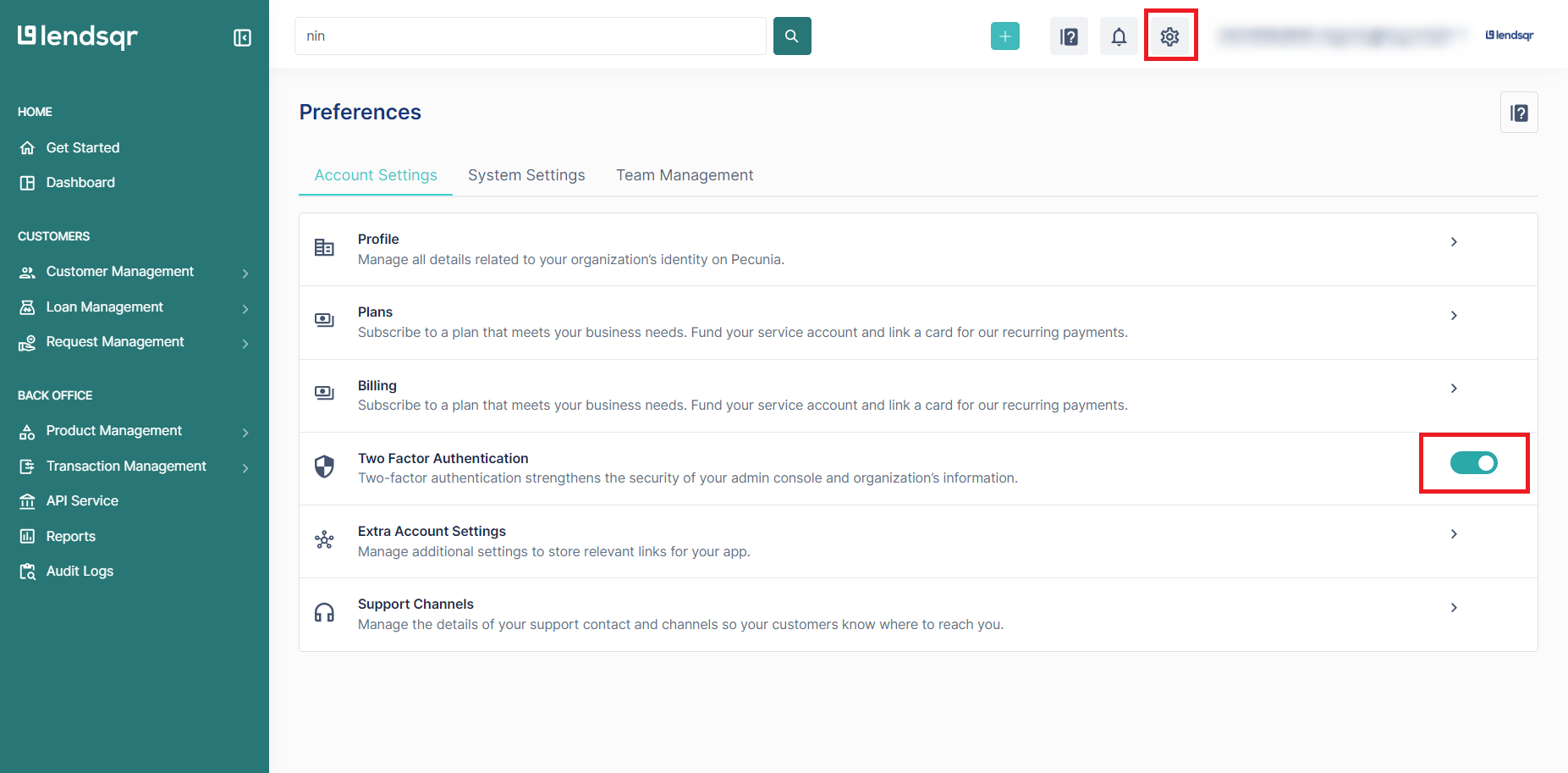
Click the Settings icon at the top right of the admin console to open the Settings menu.
On the Settings page, locate and move the toggle on the “Two-Factor Authentication” option to the right to activate the feature.
Click the Activate button on the confirmation modal that appears.
A QR code will appear on the screen. Open your authenticator app, select the option to add a new account, then choose the QR code scanning option. Point your phone camera at the QR code on your screen.
Once scanned successfully, the platform will appear in your authenticator app as “Lendsqr Admin” alongside a 6-digit code that refreshes every 30 seconds.
Note: If you are using Microsoft Authenticator, ensure that cloud backup is turned on. This will allow you to retrieve your account information in case of any issues with your device.Learn more
Click Proceed on the admin console, then type in the 6-digit code currently displayed in your authenticator app. This confirms that your authenticator app is correctly linked to your account.
After successfully activating 2FA, a success confirmation page will appear along with your recovery codes. Click the Download button to save these codes immediately.
Store your recovery codes in a safe place. If you ever lose access to your authenticator app, these codes are the only way to recover your account without contacting support.
What happens if you do not set up 2FA
If you choose not to activate 2FA, you will still be able to log in to your Lendsqr admin console. However, you will receive a one-time password (OTP) to your registered email address each time you log in instead. This is a less secure option because email accounts themselves can be compromised. Setting up authenticator-based 2FA provides a stronger layer of protection.