Access your Back Office at your fingertips.
Download the app now on Google Play Store.
Scan the QR code
You can also scan QR code with your phone to download the app.
How to stop loan repayment dates from falling on weekends and public holidays
If you run a digital lending business, you have probably run into this problem. A borrower’s repayment date falls on a Sunday. Your system tries to collect, and nothing goes through. The borrower gets a missed payment notification and feels unfairly penalized. Your collections team has to step in to sort it out manually.
This is not a borrower failure. It is a scheduling problem, and it is entirely preventable.
Lendsqr gives lenders a skip days feature that automatically pushes repayment dates forward whenever they land on a weekend or public holiday. This article explains how the feature works, how it affects your repayment schedules in different scenarios, and how to configure it on your loan products.
Use Case Example
If repayments are scheduled monthly and the due date lands on a Saturday, you can configure the system to skip Saturdays, so the due date moves to the next valid day (e.g., Monday).
If a repayment date falls on Christmas Day (25th December), enabling Skip public holidays ensures the repayment is automatically moved to the next business day.
Why do loan repayment dates land on weekends and holidays?
When a loan is disbursed, the system builds a repayment schedule based on the loan tenure, repayment frequency, and disbursement date. That calculation is mathematical. It does not check whether the dates it generates fall on Saturdays, Sundays, or public holidays.
So a borrower who takes a monthly loan on the 25th of January will have repayment dates fall on the 25th of every subsequent month. Some of those dates will inevitably land on weekends or holidays, especially over longer tenures.
Without skip days configured, those dates stay fixed. Collections attempts on those days may fail depending on your payment infrastructure, and borrowers may feel penalized for something outside their control. This creates friction in your collections process and damages the borrower relationship.
What happens when you enable skip days
Skip days tells Lendsqr which calendar dates or day types to treat as non-collection days. When the system builds a repayment schedule and a due date lands on a skipped day, it automatically moves that date forward to the next valid day.
For example, if a borrower’s due date falls on Saturday, 26th April, and you have configured weekends as skip days, the system shifts the due date to Monday, 28th April instead. The borrower still owes the same amount. Only the collection date changes.
This matters for your business in a few concrete ways.
Fewer failed collections: Payment processors and direct debit mandates often have lower success rates on weekends and holidays. Moving due dates to business days improves your collection success rate without chasing borrowers.
Happier borrowers: A borrower who sees their due date fall on a public holiday and then receives a default notification is likely to feel the system is unfair. Skip days removes that friction entirely.
Cleaner loan books: Fewer false defaults and missed payment records mean your portfolio data stays accurate, which matters when you are reviewing borrower performance or reporting to credit bureaus.
How to configure skip days in Lendsqr
Skip days are configured at the loan product level. Any loan created under a product inherits its skip day settings automatically.
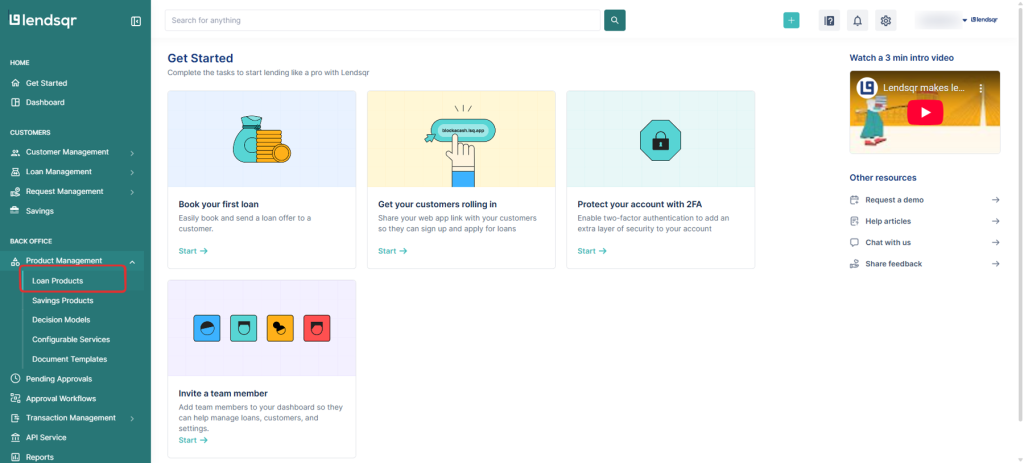
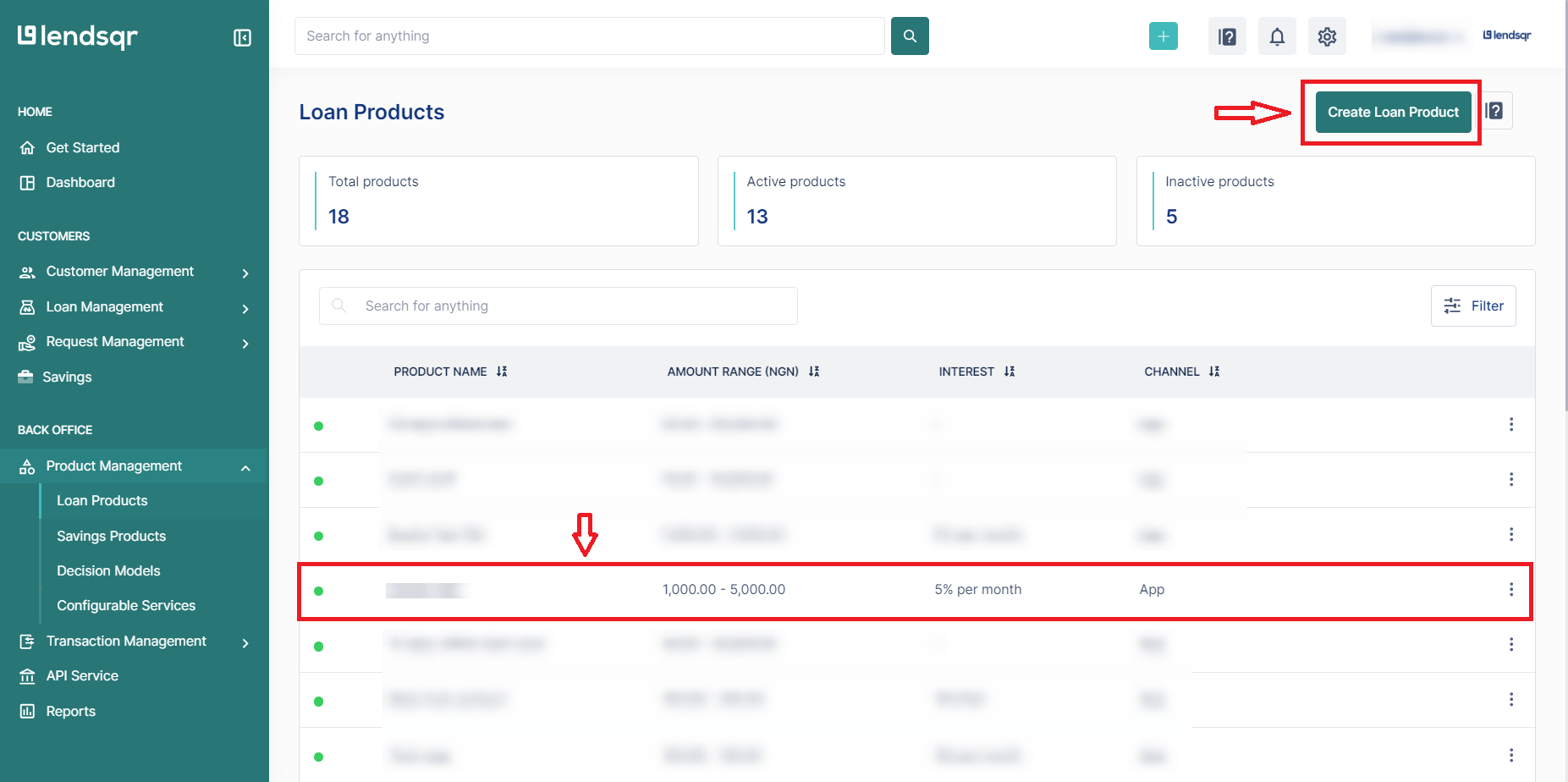
Log in to your Lendsqr admin console and navigate to Product Management, then select Loan Products.
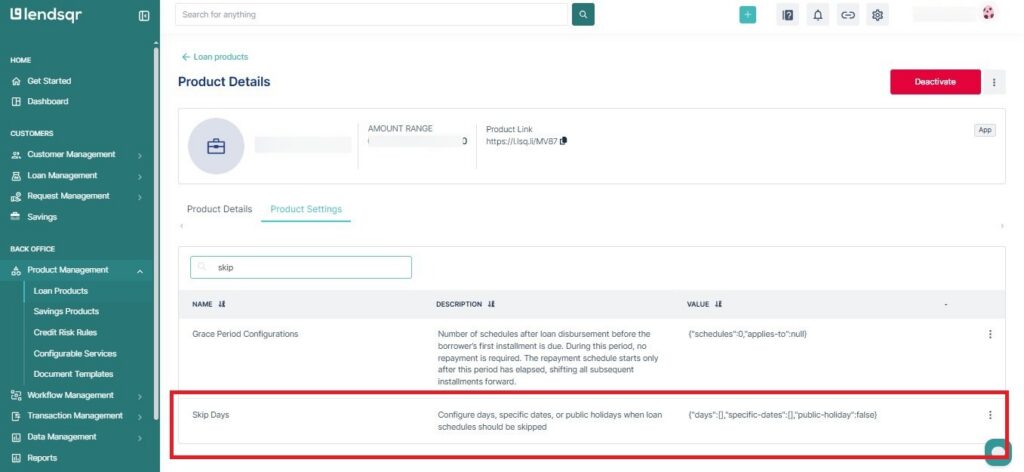
Select an existing loan product or create a new one. Go to the Product Settings section and click on Skip Days.
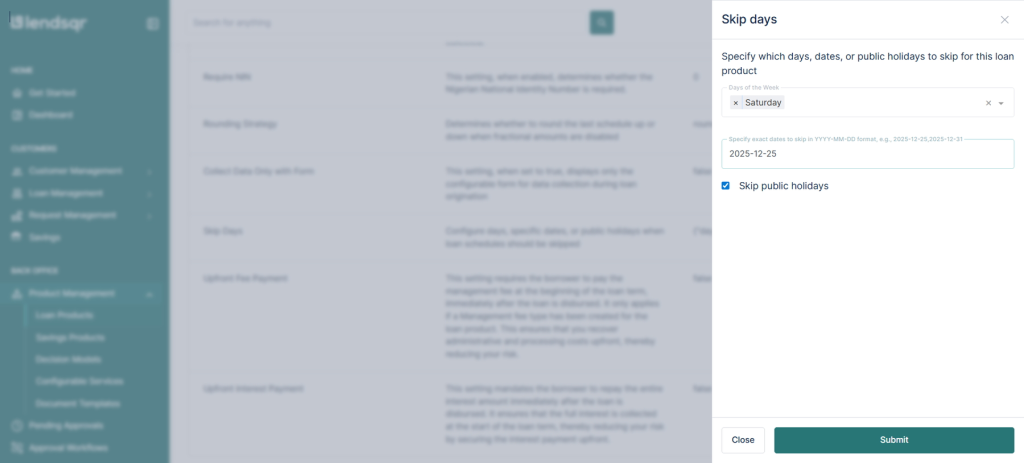
Under Days of the Week, select which days repayments should be skipped.
Example: Choose Saturday and/or Sunday to skip weekends.
The system will automatically adjust repayment schedules to the next valid day.
In the Specify exact dates to skip field, enter any fixed dates in the format YYYY-MM-DD, separated by commas. For example: 2025-12-25, 2025-12-31, 2026-01-01. Use this field for one-off public holidays or any dates specific to your operating environment.
Tick the Skip public holidays checkbox. This tells the system to skip any date recognized as a public holiday in your configured region and shift the repayment to the next valid day.
Once all skip days are configured, click Submit. The repayment schedule for all loans created under this product will now automatically avoid the selected days.
What to consider before configuring skip days
Set skip days before disbursing loans: Skip day configurations apply to loans created after the setting is saved. They do not retroactively adjust the schedules of existing loans. If you need to change the schedule on a live loan, you will need to do that manually.
Review your holiday calendar yearly: Public holidays change. In many countries, governments declare additional holidays or shift existing ones. Review your specific date list at the start of each year to make sure it stays accurate.
Communicate schedule shifts to borrowers: When a due date moves because of a skipped day, borrowers should know this in advance. Add a note in your loan offer or welcome message explaining how skip days work, so they are not caught off guard when a Monday collection follows a weekend due date.
Configure skip days per product: Different loan products may need different settings. A daily repayment product might need different skip logic than a monthly one. Set skip days individually on each product based on how repayments are structured.
⚠️ Note: Skip day configurations must be set at the loan product level during setup. If not configured, repayment dates will remain fixed, even if they fall on weekends or holidays.