To modify your settings, follow the steps below:
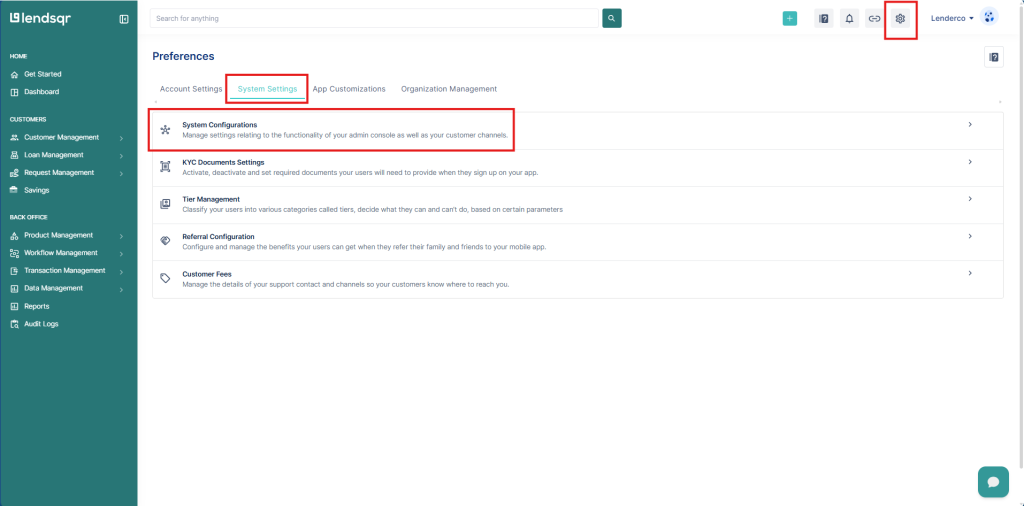
- Click the settings icon at the top-right of the Lendsqr admin console
- Select “System Configurations” under the System Settings section
- On the systems page, select the specific setting you wish to change
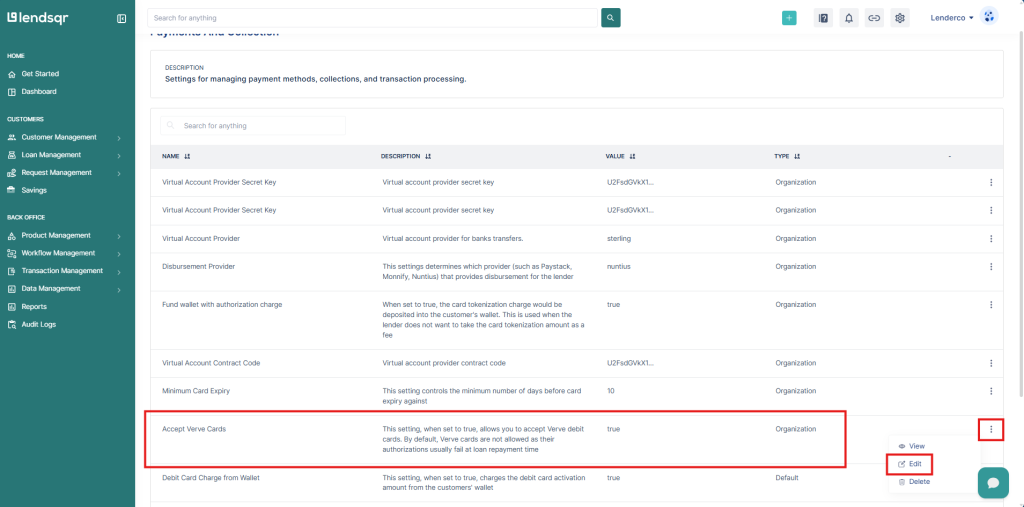
- Once selected, you can click the Edit button.
- Depending on the fields expected for the respective settings, enter the value and save changes.
Read more on managing your system settings
Kindly Note:
- Changing these values are sensitive and should not be shared publicly. Only with the designated support personnel.
- Carefully update the values of the setting as using incorrect values can affect the entire service the provider caters for.
- Preferably, kindly contact support personnel to assist with these checks.
This is an example of enabling Verve cards for your organization to be displayed. All other settings follow the same process.
This guide outlines the steps required to enable or disable this feature, as well as manage other functionalities in the system configurations.
1. Click the “Gear” icon at the top right corner of your dashboard
2. Click on “System Configuration” under “System settings”
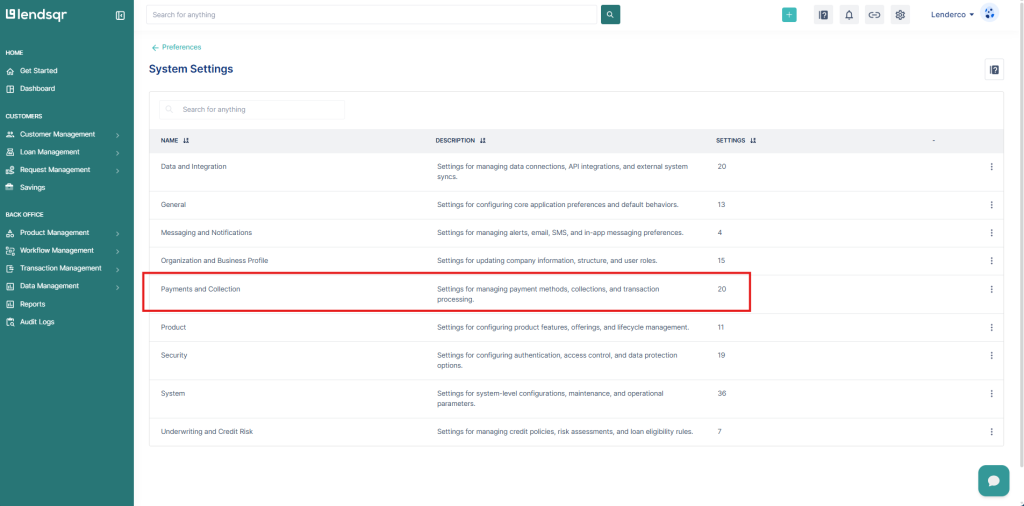
3. Click on “Payments and Collection”.
4. Click on “Accept Verve cards” and the more option besides it.
5. Select “True” and click on “Update“
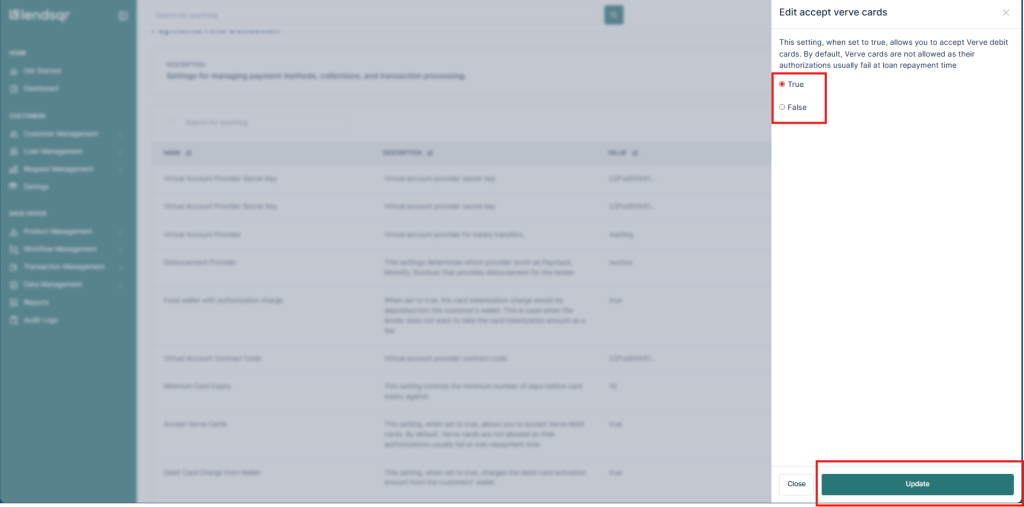
Modifying the values of your settings
Related Guides: