Access your Back Office at your fingertips.
Download the app now on Google Play Store.
Scan the QR code
You can also scan QR code with your phone to download the app.
How to introduce flexibility to your savings product
Lendsqr is designed to help you build savings offerings that align with how your business wants to operate. Instead of rigid product structures, you can configure behaviours that reflect your operational strategy, customer expectations, and regulatory requirements.
This flexibility allows you to design savings products that control interest behaviour, withdrawal rules, and maturity handling.
Interest computation method
You can choose how interest is calculated on customer balances.
Simple interest means interest is calculated only on the principal amount throughout the period. This model is typically easier to understand and is often used for straightforward savings or investment products where returns are predictable.
Compound interest means interest is calculated on both the principal and previously earned interest. This allows earnings to grow faster over time because interest is continuously reinvested into the balance.
Selecting the appropriate method helps you align your product with your pricing strategy, regulatory requirements, and target market behaviour.
Interest application frequency
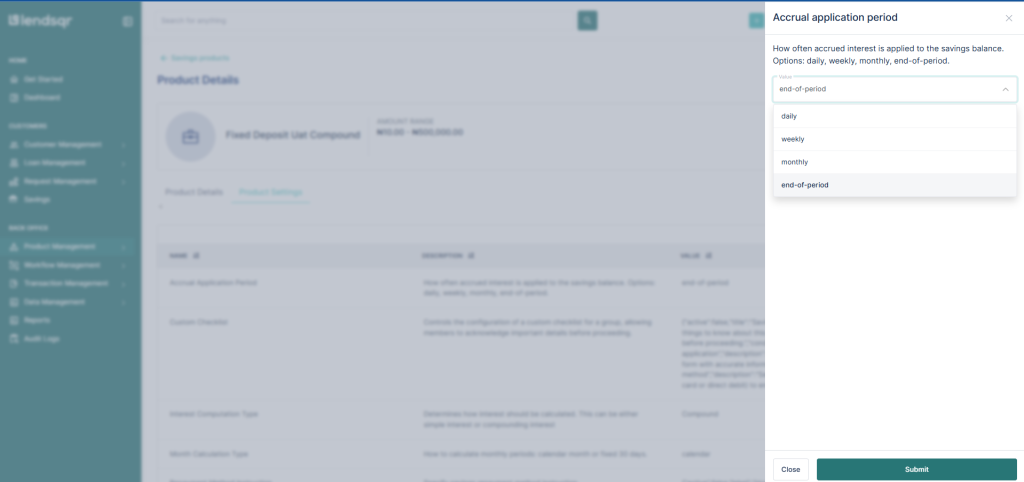
This setting determines how often earned interest is added to customer accounts.
You can configure interest to be applied:
Daily Interest is computed and added to balances every day. This is suitable for products that promote continuous growth and high engagement.
Weekly Interest is accumulated and applied once every week. This can help balance system processing load while still offering regular returns.
Monthly Interest is applied once every month. This is common for traditional savings or investment products.
End of period (maturity) Interest is only applied when the savings period ends. This is useful for fixed-term savings where returns are realised at maturity.
Choosing the right frequency helps shape customer expectations and manage operational processing schedules.
Month calculation behaviour
This setting defines how the system interprets the length of a month when computing interest.
You can choose between:
Fixed 30-day month model In this model, every month is treated as 30 days regardless of the actual calendar month length. This simplifies calculation and is often used for standardised financial modelling.
Actual calendar month model Interest is computed using the real number of days in each month. This approach provides more precise accruals because February, March, and other months are treated according to their true calendar duration.
This option helps you choose between computational simplicity and mathematical accuracy depending on your product policy.
How to configure these settings
Repayment method instructions are short, helpful messages that guide customers on how to set up or select a payment method when applying for a loan.
They appear at the exact point customers are adding a payment method (e.g., card, direct debit, bank transfer) on your platform, providing direction if they get stuck or do not have a payment method ready.
Step-by-Step Guide
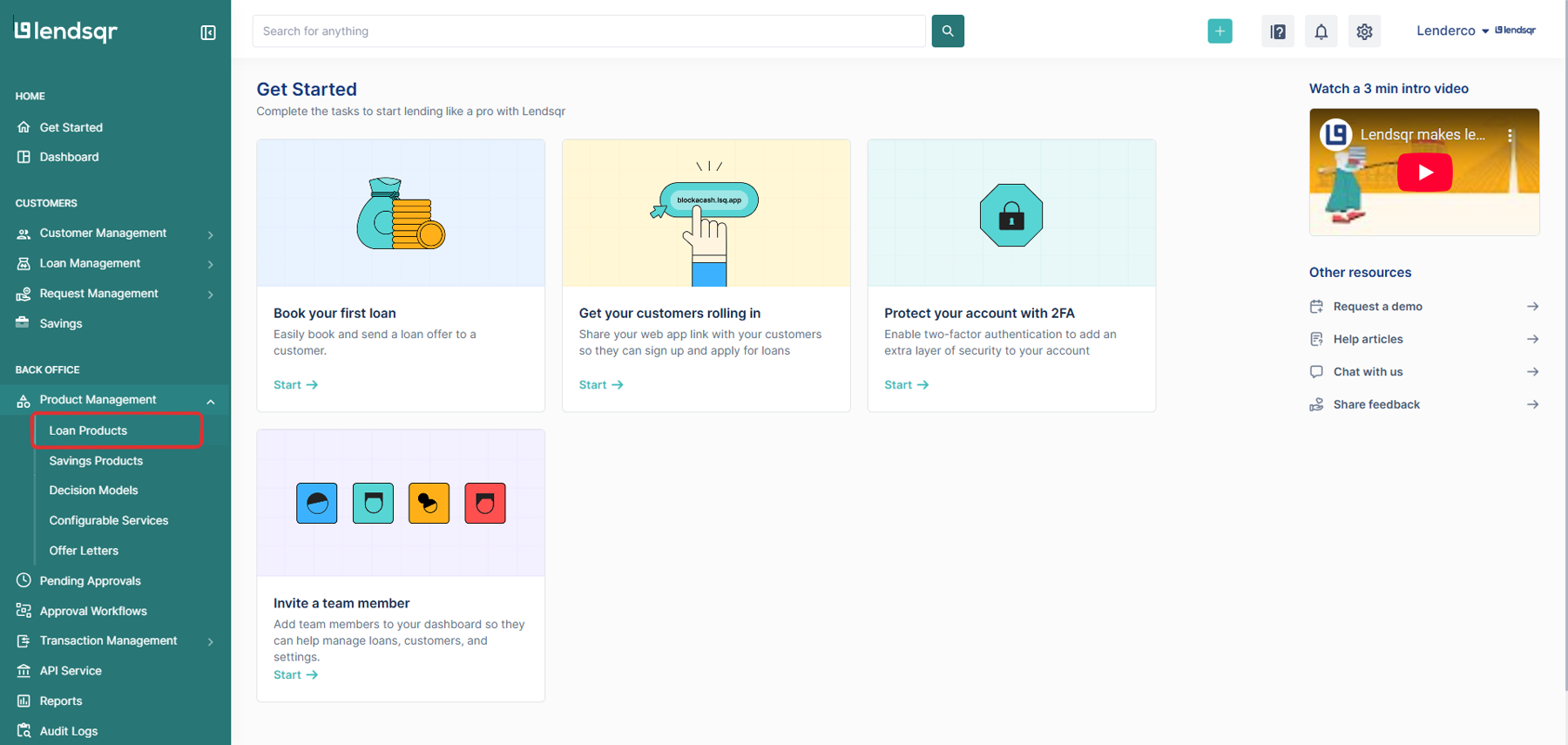
1. Login to the Admin Console
Open your web browser and log into the Lendsqr admin console with your credentials.
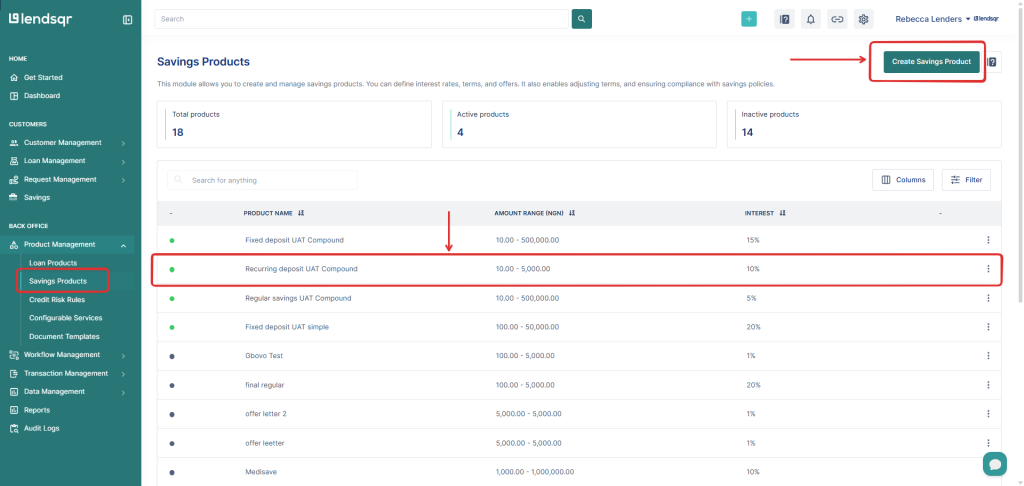
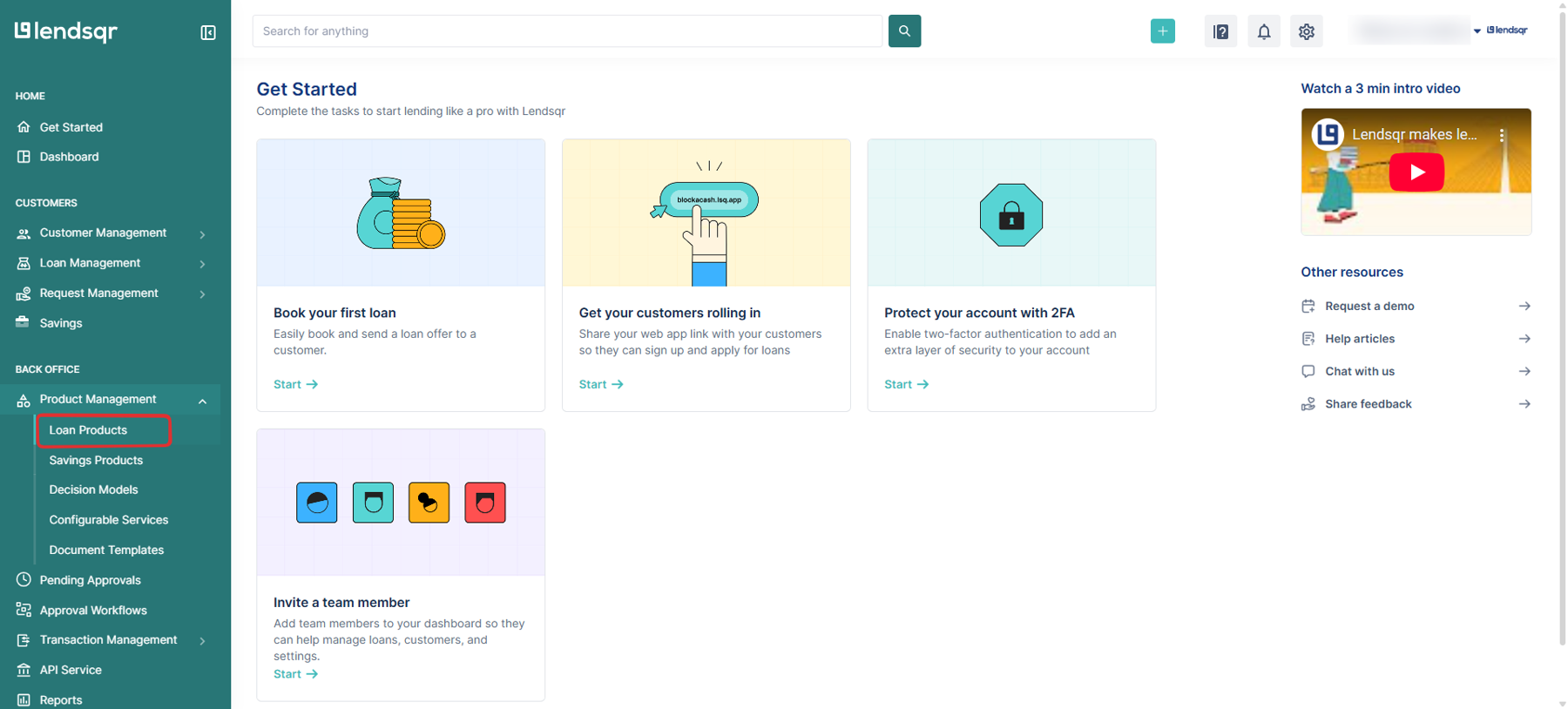
2. Click on “Savings Products” under Product Management
From the main dashboard, go to Product Management and select Savings Products. This will display a list of all the savings products you have created.
3. Create a Savings Product or Open an Existing One
If you need to create a new savings product, click on the Create button. If you want to an existing savings product, click on the product name to open it.
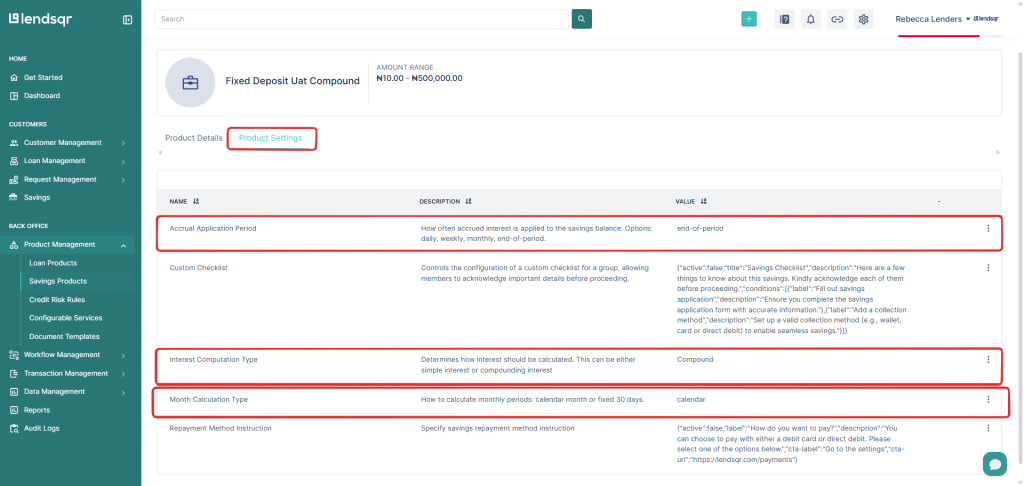
4. Click on the “Product Settings” Tab on the Product Page
In the savings product page, navigate to the Product Settings tab. Here, you can manage various attributes of the loan product.
5. Locate any of the settings you wish to configure
Scroll through the list of attributes until you find the specific attribute you wish to update.
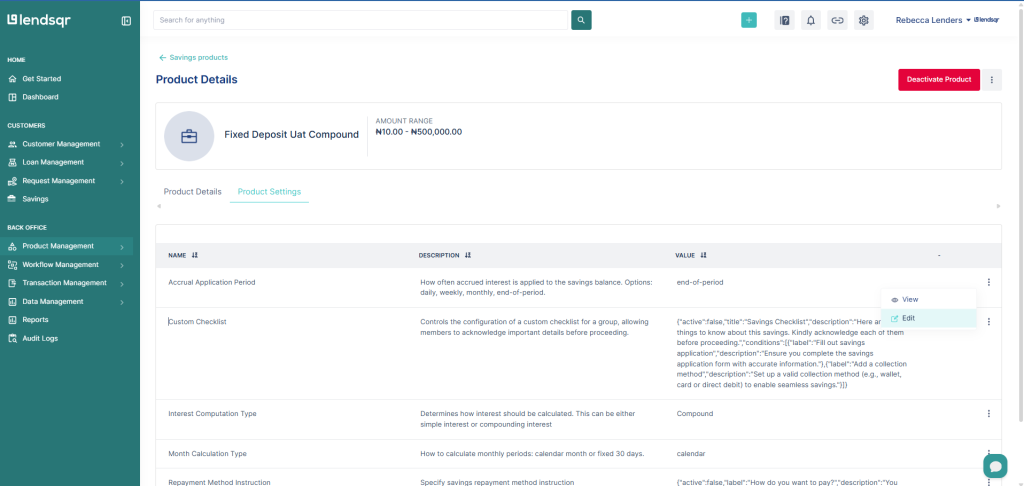
Click on the more options button and select “Edit” beside this attribute.
7. Click on “Submit” & then Confirm
Once you have configured the setting, click on Submit to review your changes and then Confirm to effect the changes.