Access your Back Office at your fingertips.
Download the app now on Google Play Store.
Scan the QR code
You can also scan QR code with your phone to download the app.
How to bulk edit multiple loan schedules
This guide explains how to edit repayment schedules for a loan at once using a file upload.
Overview
The bulk edit feature allows you to update multiple loan repayment schedules by uploading a properly formatted file containing the schedule data. This is useful when you need to modify payment dates, amounts, or other schedule details for one loans.
Preparing your upload file
Your file must be formatted correctly with specific columns to ensure successful processing.
Required columns
Your file must include these three columns:
due_date – The date when the payment is due (format: MM/DD/YYYY )
principal – The principal amount for this payment
interest – The interest amount for this payment
Optional columns
You may also include any of these columns as needed:
fees – Any fees associated with this payment
penalty – Penalty charges (if applicable)
principal_paid – Amount of principal already paid
interest_paid – Amount of interest already paid
fees_paid – Amount of fees already paid
penalty_paid – Amount of penalty already paid
paid_date – The date when payment was made (format: MM/DD/YYYY )
File Format Example
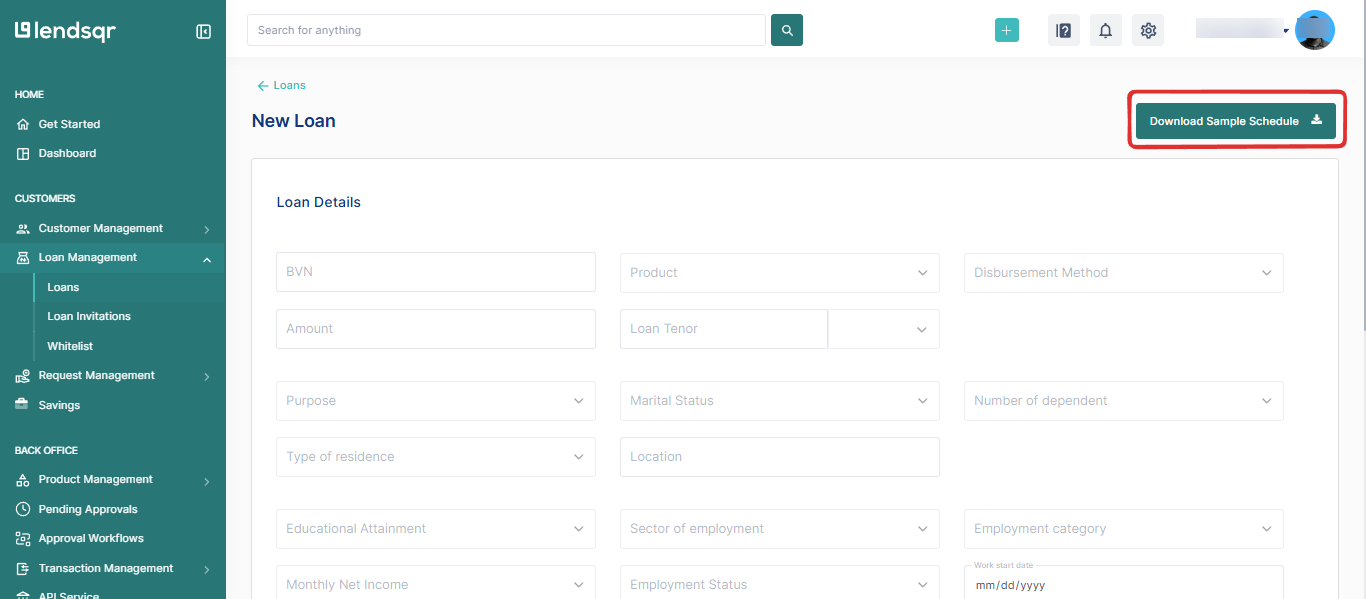
Your spreadsheet should look something like this:
due_date
principal
interest
fees
penalty
principal_paid
interest_paid
02/06/2026
10.00
1.00
0.00
0.00
0.00
0.00
03/06/2026
10.00
1.00
0.00
0.00
0.00
0.00
04/06/2026
10.00
1.00
0.00
0.00
0.00
0.00
Steps to upload and edit schedules
1. Access the Edit Repayment Schedules screen
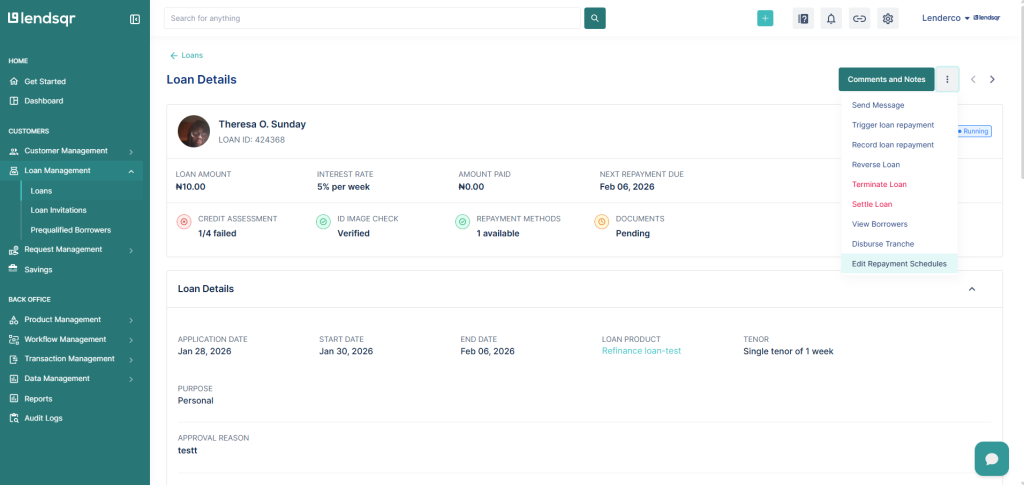
Navigate to the loan you want to edit and select “Edit repayment schedules” from the more options icon.
2. Set the start date
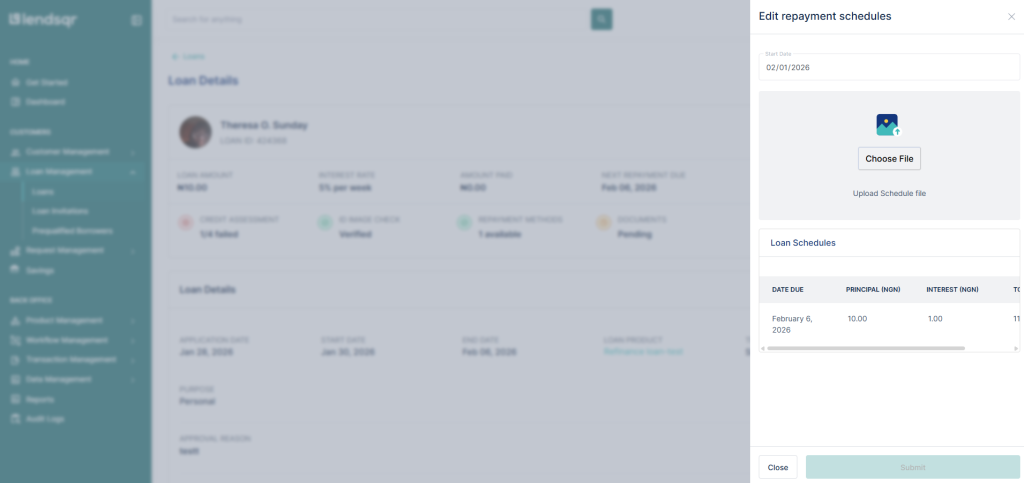
Enter the start date for your repayment schedule in the “Start Date” field (e.g., 02/01/2026).
3. Prepare your schedule file
Create a spreadsheet (Excel format) with the required columns and your loan schedule data.
4. Click “Choose File”
Click the “Choose File” button or the upload area shown in the dialog.
5. Select your file
Browse to locate your prepared schedule file and select it.
6. Review the loan schedules
After uploading, the system will display a preview of the loan schedules, showing the DATE DUE, PRINCIPAL, and INTEREST for each payment.
7. Submit the changes
Once you’ve reviewed the schedule and confirmed everything is correct, click the “Submit” button to save your changes.
Important Notes
Make sure all required columns are present in your file before uploading
Date formats should be consistent throughout your file
Numeric values should not include currency symbols or special characters
Double-check your data before submitting, as this will update the repayment schedules
Keep a backup copy of your original file in case you need to reference it later