Access your Back Office at your fingertips.
Download the app now on Google Play Store.
Scan the QR code
You can also scan QR code with your phone to download the app.
How to connect QuickBooks Online to Lendsqr
Updated
On this page
Keeping your books in sync with your loan book usually means someone manually re-entering customer, loan, fee, and repayment data into your accounting software after it happens in Lendsqr. Lendsqr’s QuickBooks Online integration removes that step by syncing this data into QuickBooks Online automatically as it happens on your Lendsqr account.
What the integration does
Once connected, the integration syncs customers, loans, fees, and repayments from your Lendsqr account outward into QuickBooks Online, so your accounting records reflect your lending activity without manual re-entry. It connects using OAuth 2.0, the same standard sign-in flow QuickBooks uses for its own app marketplace, rather than requiring you to hand over your QuickBooks password directly to Lendsqr.
Getting access
The QuickBooks Online integration is set up from your own admin console, but you will need Lendsqr’s team to enable it on your account first. To get started, contact [email protected].
How to connect QuickBooks Online
Once the integration is available on your account, connecting it involves two parts: creating an app on Intuit’s developer platform to get a set of credentials, and entering those credentials in your Lendsqr admin console.
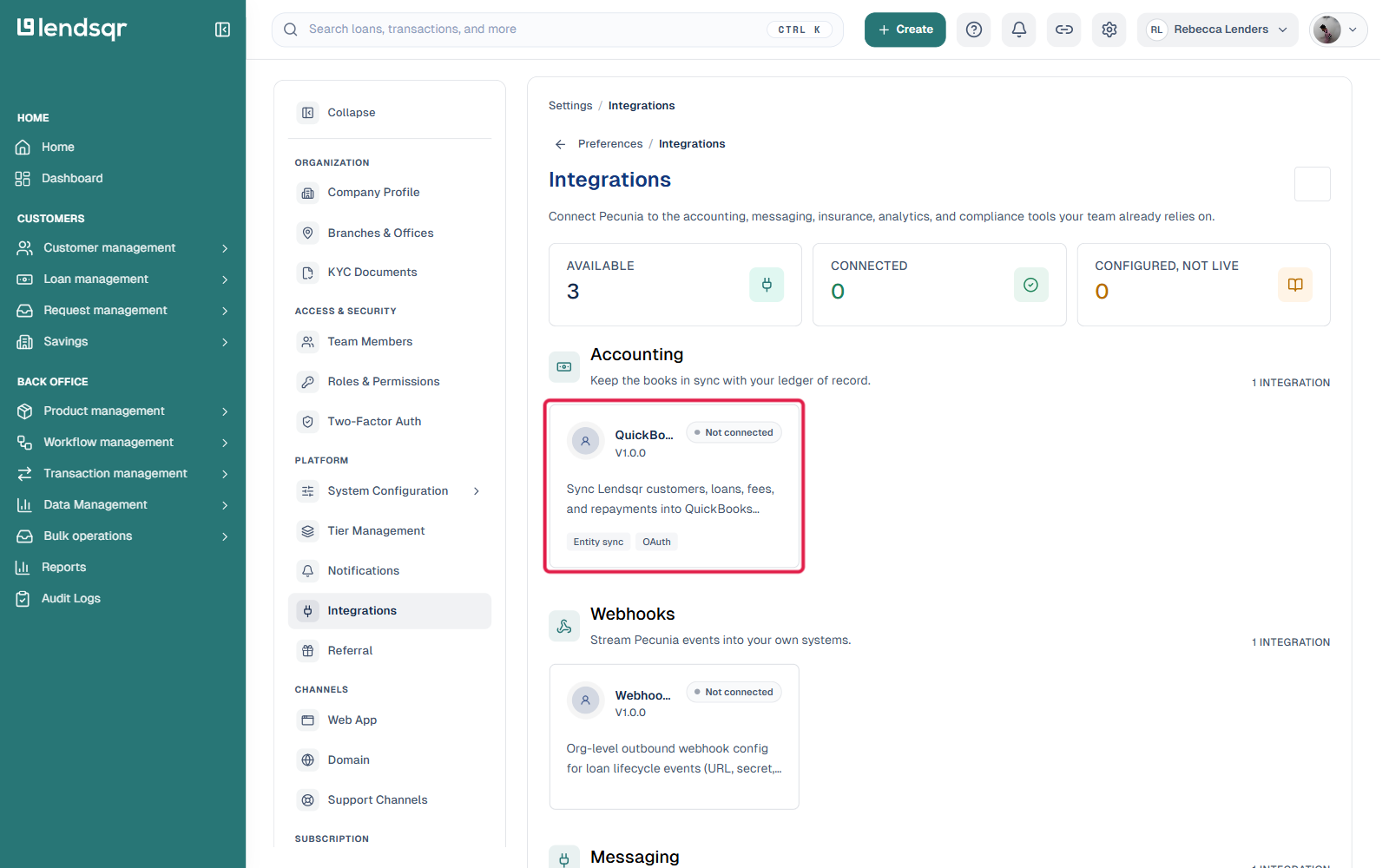
In your Lendsqr admin console, open the settings menu and go to Integrations, under the Platform section.
Under Accounting, click the QuickBooks Online card.
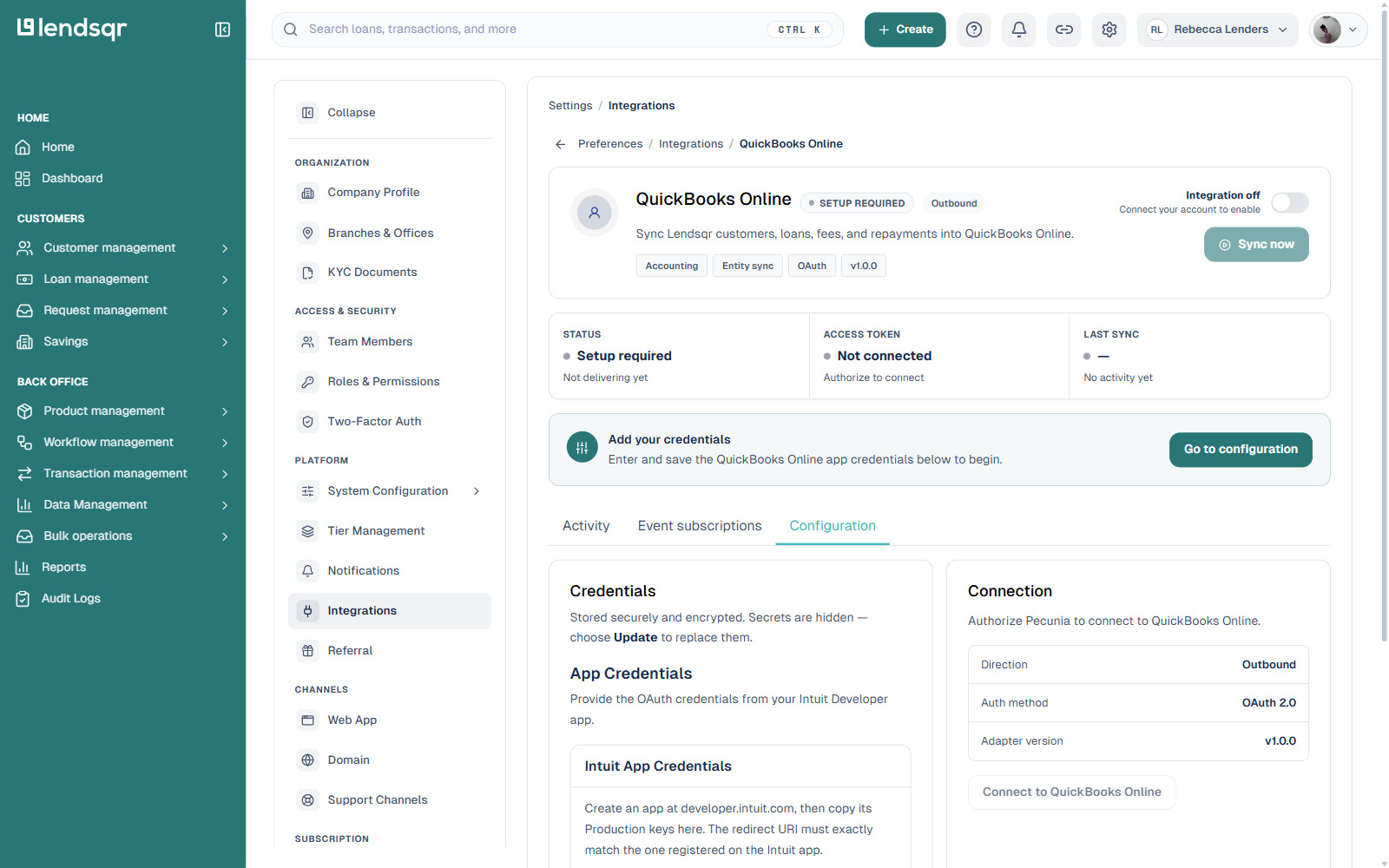
Click Go to configuration, or select the Configuration tab directly.
Under App Credentials, enter the Client ID and Client Secret from your Intuit Developer app. If you don’t have one yet, create it at developer.intuit.com first, then copy its production keys here. The redirect URI configured on your Intuit app must exactly match the one Lendsqr provides for this integration.
Click Save configuration. Credentials are stored encrypted, once saved, secret fields show as hidden and a blank field on a later edit will not overwrite what’s already stored.
Under Connection, click Connect to QuickBooks Online to complete the OAuth authorization with your QuickBooks account.
Once connected, the integration’s status changes from “Setup required” to active, and you can trigger a manual sync at any time with the Sync now button on the integration’s overview. The Activity tab on the same page shows a log of what has synced, and Event subscriptions lets you see which types of events (new customers, new loans, fees, repayments) are sent to QuickBooks.
Things to keep in mind
The sync direction is outbound only, data flows from Lendsqr into QuickBooks Online, not the other way around. This means QuickBooks reflects your Lendsqr activity, but changes made directly in QuickBooks do not sync back into Lendsqr.
Since the integration relies on your own Intuit Developer app credentials, keep an eye on that app’s status on Intuit’s side too. If the Client Secret is rotated or the app’s access is revoked on QuickBooks’ end, the integration will need to be reconnected with updated credentials.