Access your Back Office at your fingertips.
Download the app now on Google Play Store.
Scan the QR code
You can also scan QR code with your phone to download the app.
How to view dedicated account managers
When a customer has a dedicated account manager assigned to them, any team member who needs to follow up on that customer’s account should be able to quickly see who is responsible. This guide explains what dedicated account managers are, when the feature is most useful, and exactly how to view an assignment from the Lendsqr admin console.
What is a dedicated account manager in lending?
A dedicated account manager is a specific team member assigned to look after a particular customer. Instead of any available loan officer handling a borrower’s requests, the borrower has one named person responsible for their account.
In lending, this matters for a few reasons. High-value borrowers often expect a consistent point of contact. Customers with complex loan histories or repeat borrowing relationships benefit from having someone who already knows their situation. And for lenders managing large books of customers across multiple branches or regions, assigning account managers helps maintain clear ownership and accountability.
On Lendsqr, each customer can have one dedicated account manager assigned at a time. That assignment is visible directly from the customer’s profile in the Back Office, so any team member with the right permissions can see at a glance who owns that relationship without having to ask around or dig through records.
When is this feature most useful?
You will typically reach for this feature in the following situations:
When escalating a customer’s complaint. A support agent handling an inbound complaint can quickly check who the customer’s dedicated account manager is and loop them in, rather than reassigning the ticket blindly.
When reviewing a loan application for a returning borrower. A loan officer reviewing a repeat borrower’s application can see whether that customer has a dedicated manager and coordinate with them before making a decision, especially if the manager has context about the customer’s repayment history.
When a manager is absent or has left the team. An administrator can use this view to identify which customers are assigned to a departing team member and redistribute those assignments before service is disrupted. Note that when a team member is removed from the platform, their name may still appear in existing customer assignments until manually updated. Reviewing and reassigning these should be part of any team member’s offboarding process.
During audits and portfolio reviews. A compliance officer or team lead checking the account manager’s workloads can use the customer-level view to confirm assignments are active and accurate.
How to view the dedicated account manager for a customer
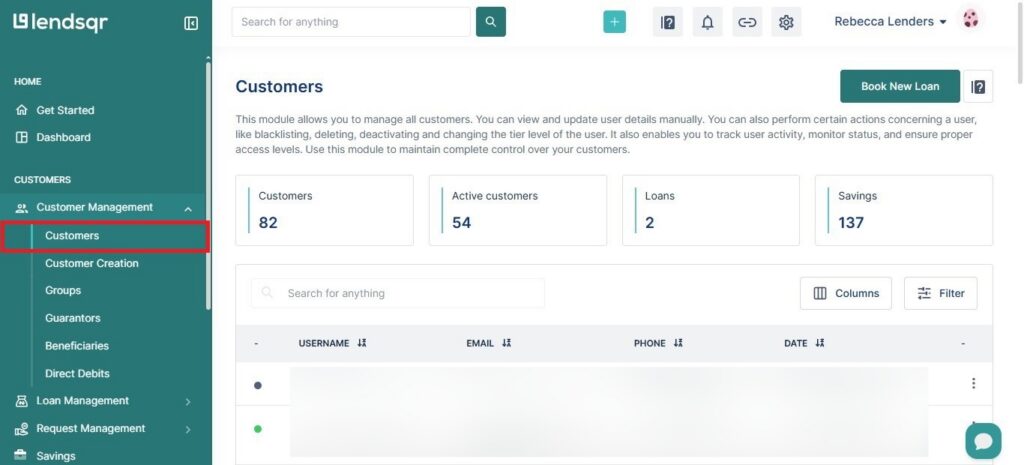
Step 1: Go to the Customers section
Log into your Lendsqr admin console and navigate to the Customers section from the left-hand menu.
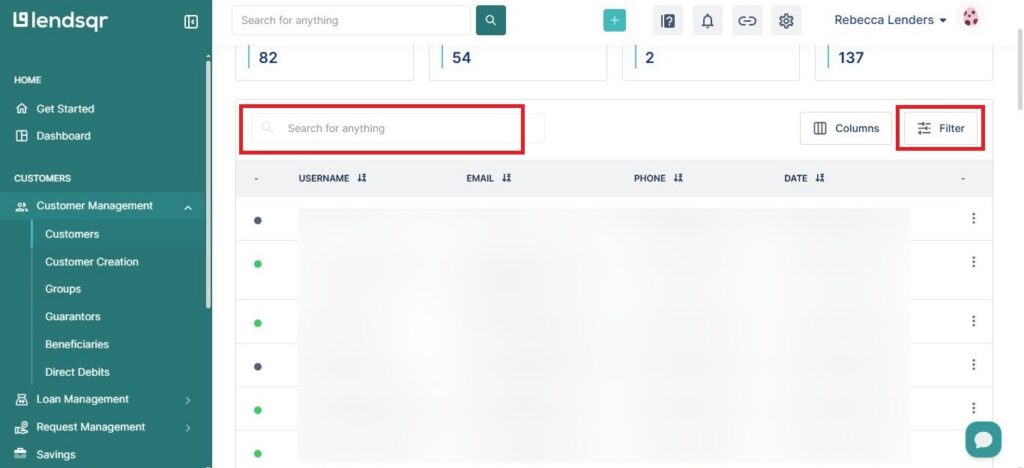
Step 2: Locate the customer
Find the customer you are looking for by searching their name, email address, or phone number using the search or filter options at the top of the customer list.
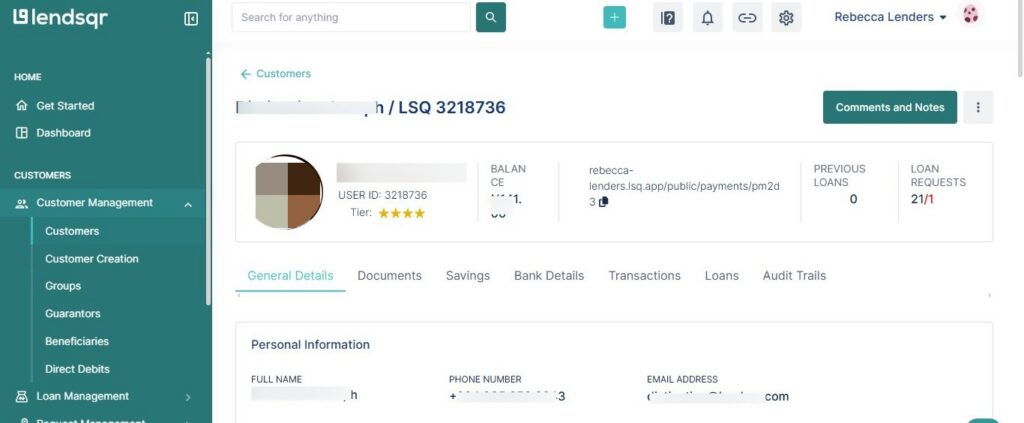
Step 3: Open the customer’s profile
Click on the customer’s name to open their full profile page.
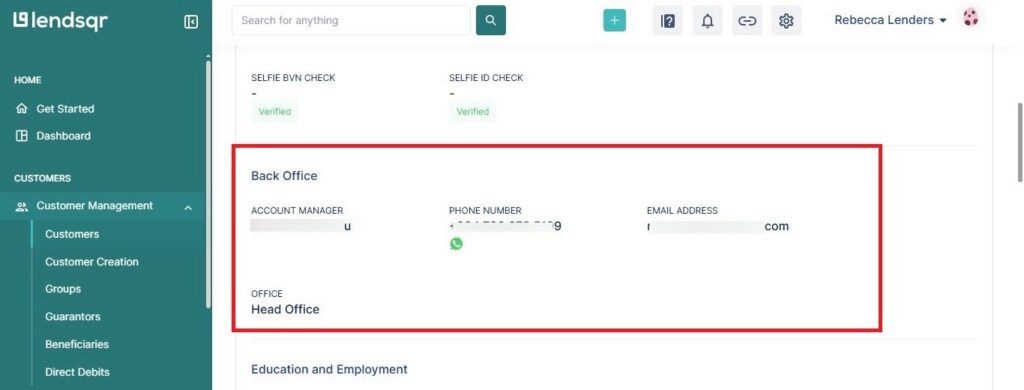
Step 4: Scroll to the Back office section
On the customer profile page, scroll down until you reach the Back office section. This section shows the account manager currently assigned to the customer, along with their name and the office or branch they belong to.
If no account manager has been assigned yet, this section will appear empty. You can assign one by editing the customer’s profile. See Assign or edit a customer’s account manager for instructions.
What the back office section shows
The Back office section on a customer’s profile displays two things: the name of the dedicated account manager assigned to that customer, and the office or branch that account manager belongs to.
Knowing which branch a manager belongs to is particularly useful in multi-branch lending operations. If a borrower is based in one city but their assigned account manager has since transferred to a different office, that mismatch becomes visible here and can be corrected before it causes a service gap.
This is a read-only view. To change the assignment, you will need to edit the customer’s account manager details separately. See Assign or edit a customer’s account manager for instructions on how to do that.
Who can view dedicated account manager assignments?
Any team member with access to the Users permission unit on the Lendsqr admin console can open a customer profile and view the Back office section. This typically includes loan officers, customer support agents, and administrators.
If a team member cannot see the customer profile at all, their role may not have the Users permission enabled. This is worth checking before assuming the feature is unavailable. An administrator can review and update role permissions through the team roles settings. See What are permissions? for a full explanation of how permission units work and how to configure them for different roles on your team.