Access your Back Office at your fingertips.
Download the app now on Google Play Store.
Scan the QR code
You can also scan QR code with your phone to download the app.
Using Postman to call Adjutor endpoints
Postman is a popular API development and testing tool that simplifies working with APIs (Application Programming Interfaces). It provides a user-friendly interface to make API calls (requests) and view responses, allowing developers to test and debug their APIs without writing code. Here’s how to call Adjutor endpoints using Postman:
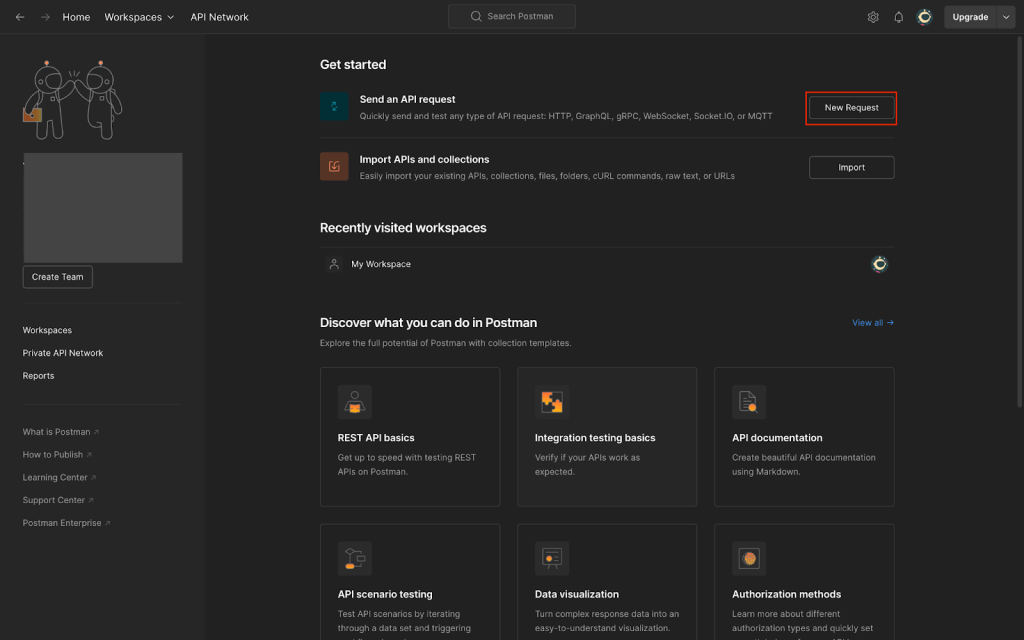
On opening Postman, you can quickly make a request by clicking on the ‘New Request’ button.
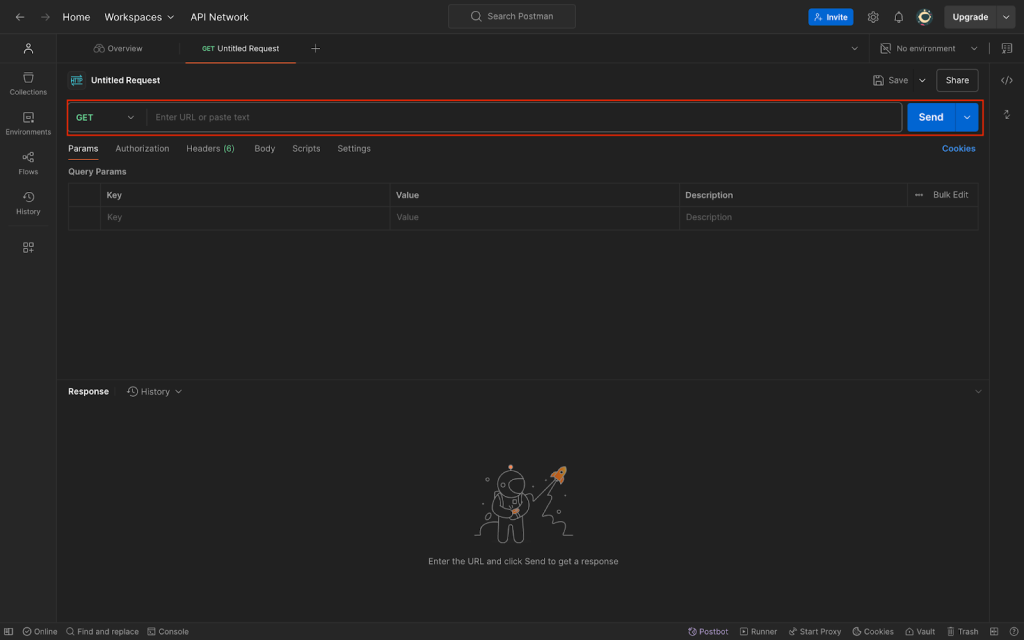
Next, you’ll land on the requests page, where you can input the endpoint you wish to query.
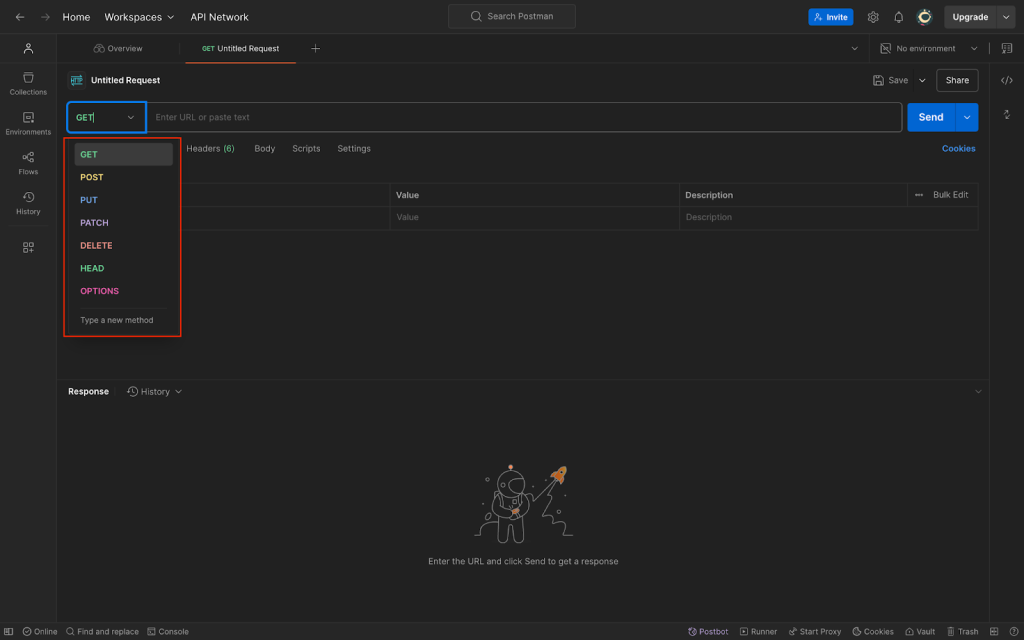
On Postman, you can make a series of requests using the GET, POST, PUT, PATCH, DELETE, and other methods.
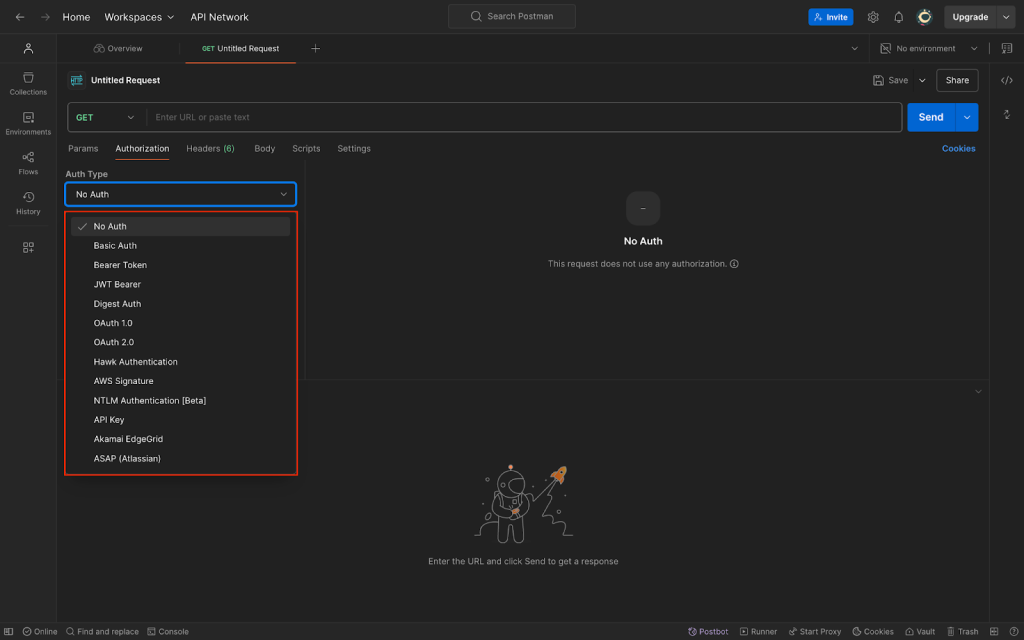
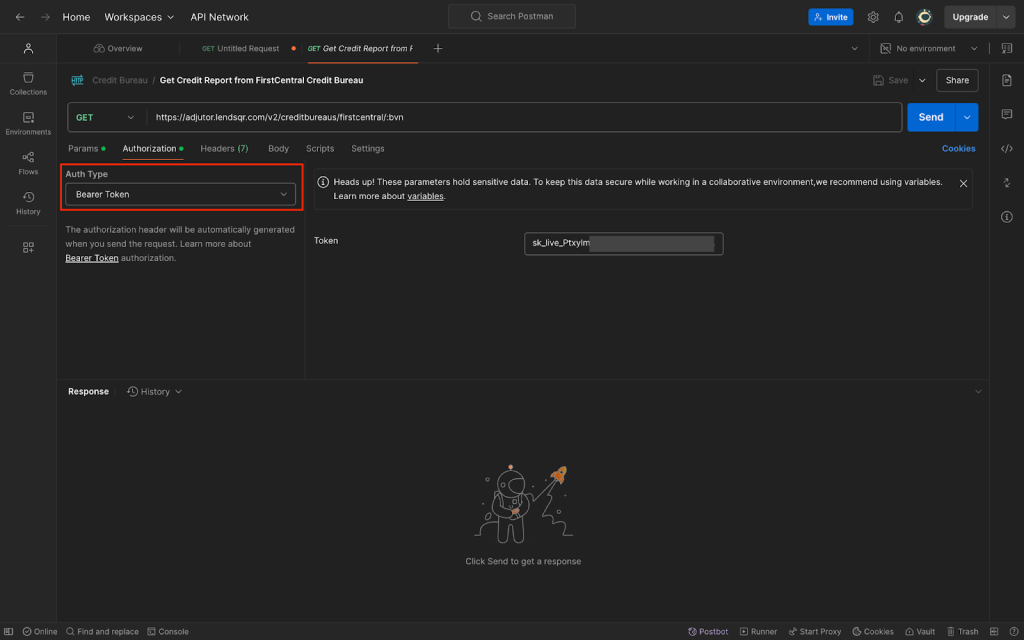
Under the Authorization tab, you can also see the various authentication types supported by Postman.
To call the endpoints on Adjutor in Postman, follow the below steps:
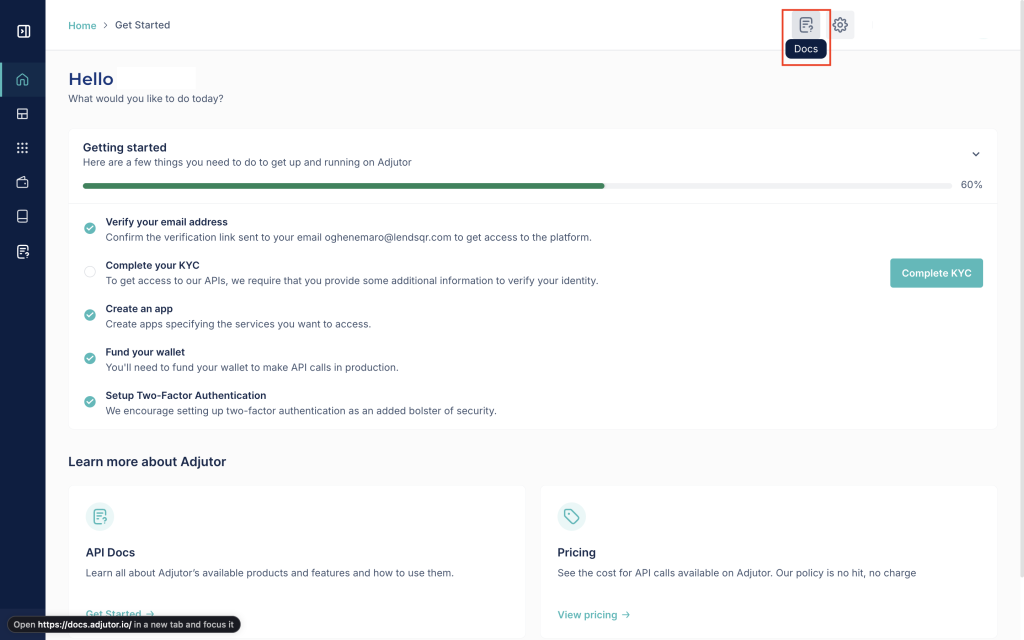
Log into Adjutor at https://app.adjutor.io/login, and click on the Docs icon at the top right corner of your screen.
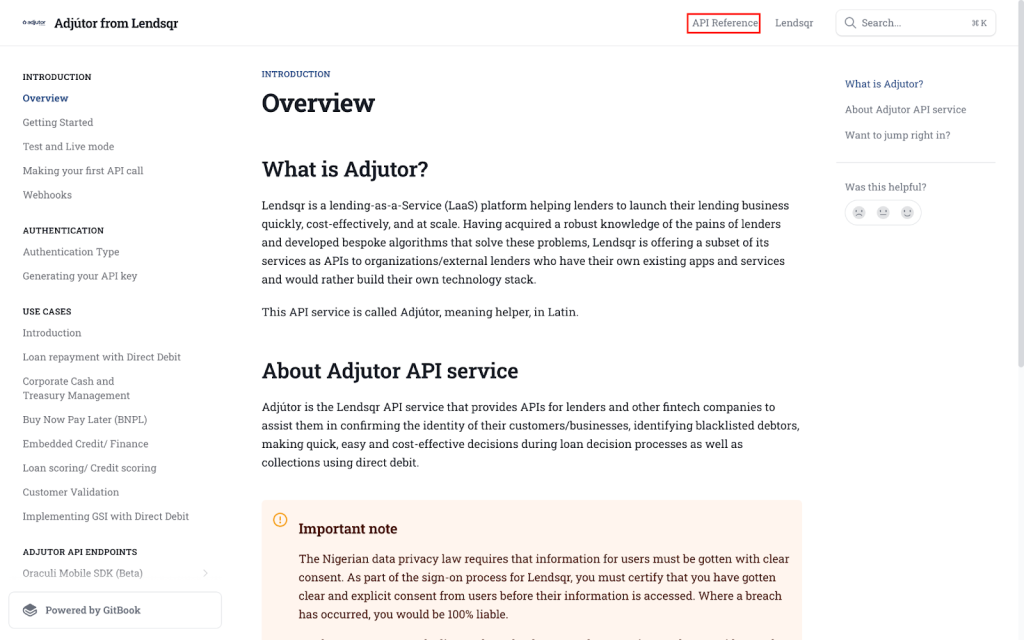
This leads to the landing page of the Adjutor API documentation. Click on the API Reference tab located at the top right corner page.
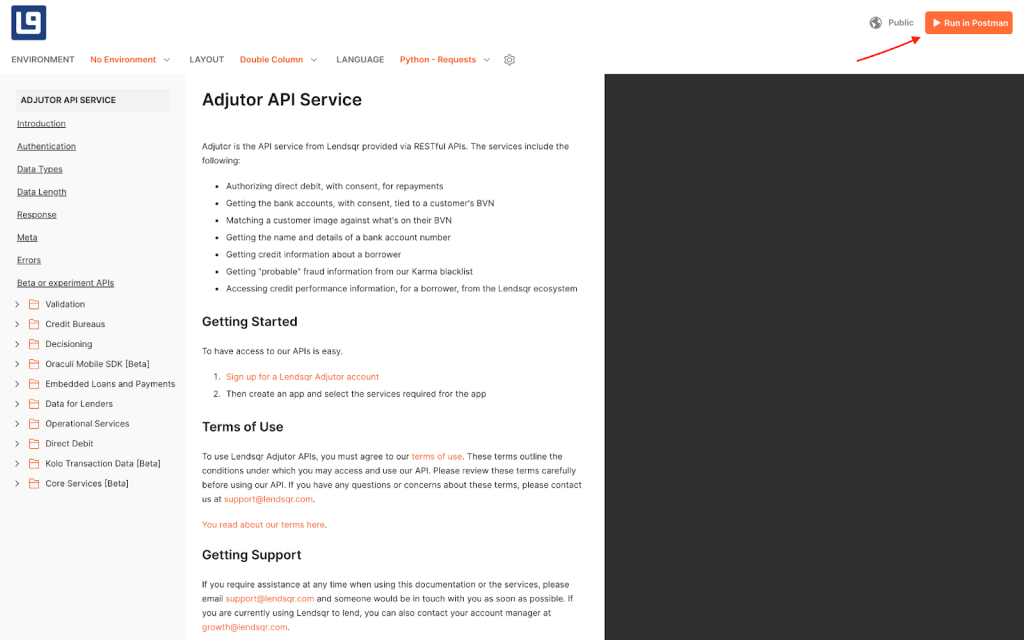
Locate the Run in Postman button at the top of the page
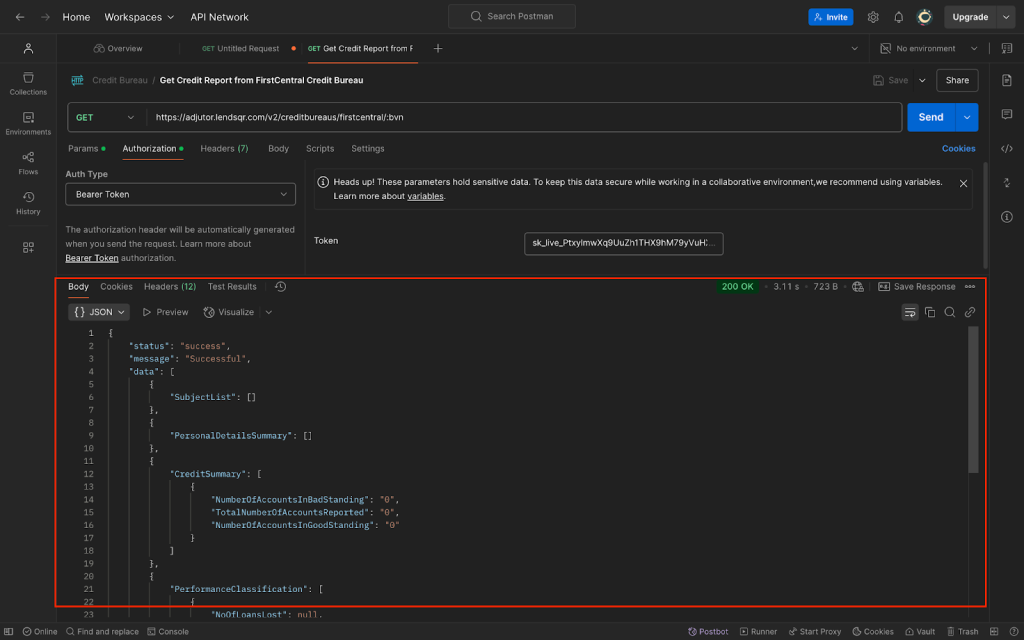
All Adjutor endpoints require a bearer token. You’ll receive this token after creating an app on the Adjutor webapp.
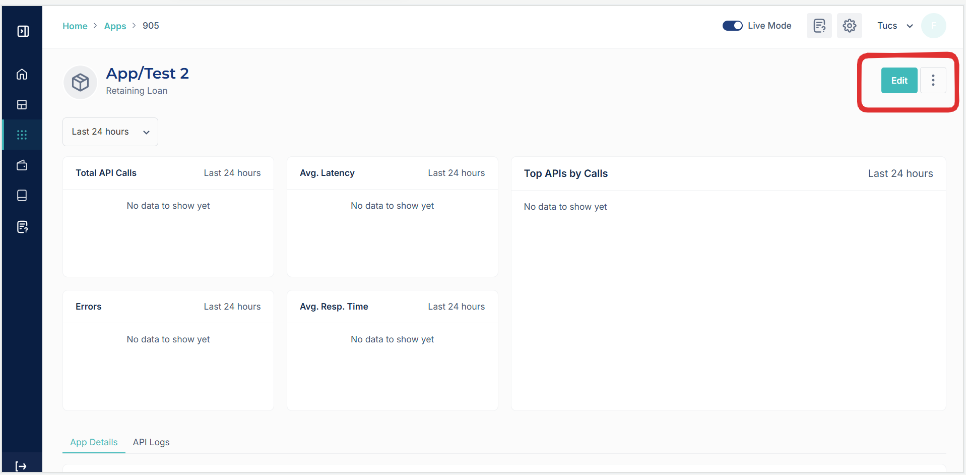
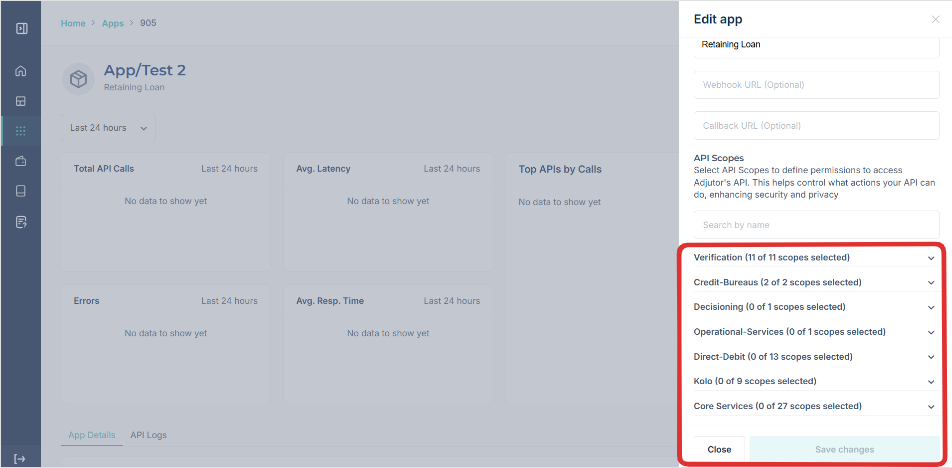
You can edit your existing app on adjutor to select API scopes
Select API Scopes to define permissions to access Adjutor’s API. This helps control what actions your API can do, enhancing security and privacy
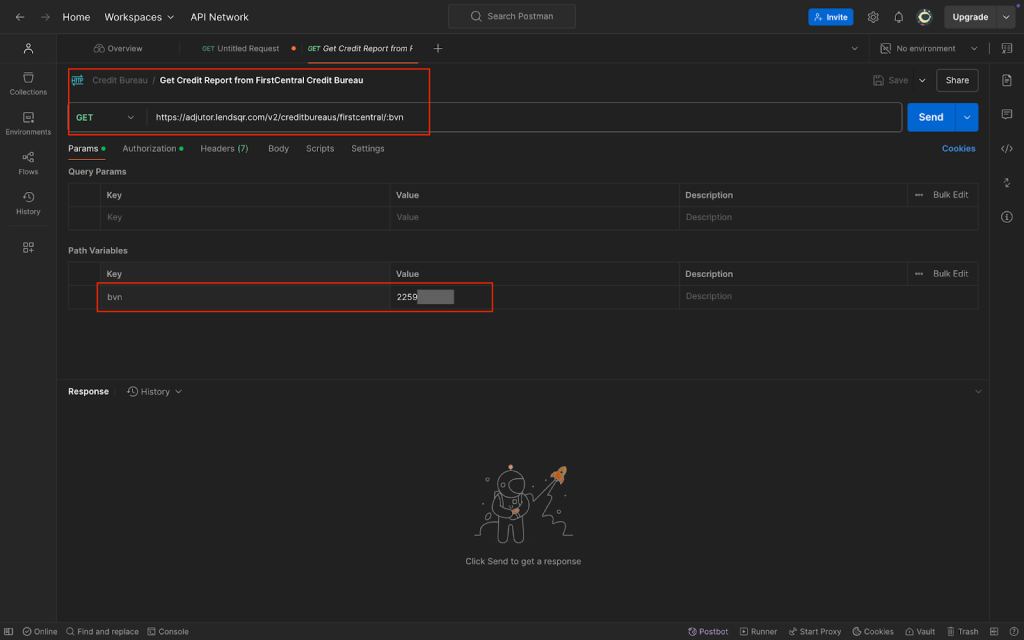
For this exercise, we’ll be making a GET request to a credit bureau lookup endpoint provided by Adjutor. This endpoint allows you to query an integrated credit bureau to retrieve a customer’s credit profile and history, based on a unique identifier supported in your region.
The specific credit bureau and identifier used depend on your configuration and market. Adjutor supports integrations with multiple credit bureaus across different regions.
A typical request follows this format:
GET /v2/creditbureaus/{bureau}/{identifier}
Where:
{identifier} represents a region-specific unique customer identifier (for example, a national ID number or other accepted identity reference)
{bureau} represents the configured credit bureau provider
Once all details have been filled, click on the send button to make the request. You should get a successful response.